Why Every Organisation Needs a Copilot Agent for SharePoint
A Copilot agent SharePoint integration changes how employees interact with organisational knowledge. Your organisation has invested years building a rich repository of documents, policies, project files, and institutional knowledge — all stored in SharePoint. Yet employees still spend hours each week hunting for the right document, re-reading lengthy reports, or pinging colleagues for answers that already exist somewhere in your intranet.
The numbers reflect a genuine problem. According to Microsoft’s 2023 Work Trend Index — a survey of 31,000 employees across 31 countries — 62% of employees say they spend too much time searching for information in their workday.[1] The same study found that 68% of people say they don’t have enough uninterrupted focus time during the workday.[1] The two problems are directly connected: when retrieval is hard, deep work suffers.
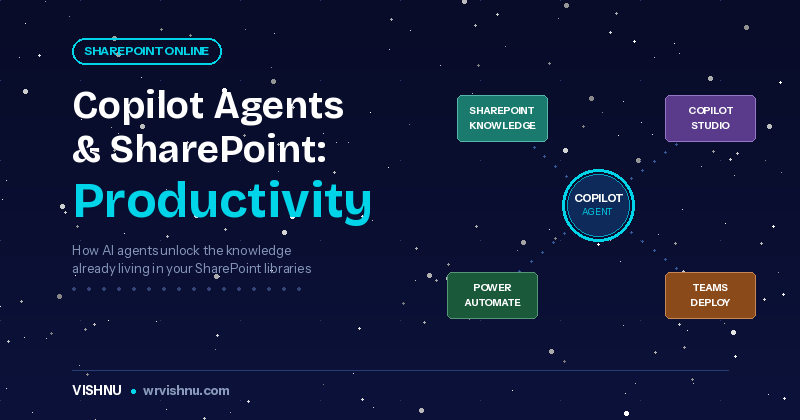
A Copilot agent SharePoint solution addresses this directly. When connected to your document library, it becomes a conversational, intelligent layer on top of your existing content — answering questions, summarising documents, and helping teams act faster without ever leaving their workflow.
What Is a Copilot Agent Connected to SharePoint?
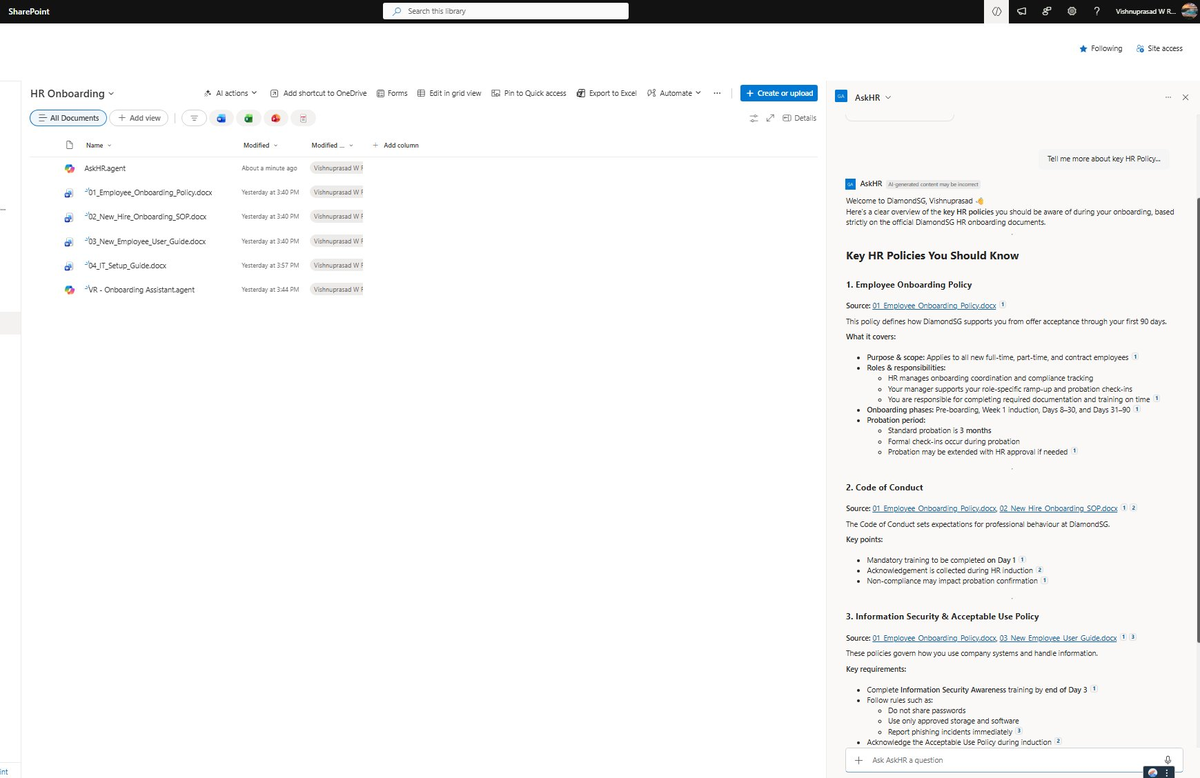
A Copilot agent is a purpose-built AI assistant that answers questions based on your actual files — not generic internet knowledge. When connected to a SharePoint library, the agent is grounded in your content, meaning every response it gives is drawn from documents your organisation owns and manages.
Think of a Copilot agent SharePoint deployment as giving every employee a research assistant that has read every document in your library and can answer questions instantly — accurately and in context.
Unlike a basic keyword search, the agent understands natural language. It can:
- Summarise a 50-page policy document into a concise answer
- Answer “What is our maternity leave entitlement?” by referencing the correct HR policy
- Find the latest version of a project charter and highlight what changed
- Cross-reference multiple documents to give a synthesised answer
What the Research Shows About Copilot Agent SharePoint Productivity
Measuring the impact of a Copilot agent SharePoint deployment is still an emerging field, but several credible studies and real-world deployments give us solid reference points. The data below comes from verified sources, cited in the footnotes at the bottom of this post.
62%
of employees say they spend too much time searching for information during the workday [1]
70%
of early Copilot users said they were more productive in their work — and 77% said they didn’t want to give it up [2]
~3 hrs
saved per employee per week in Vodafone’s Microsoft 365 Copilot pilot — a trial of 300 users conducted with KPMG [3]
68%
of knowledge workers say they don’t have enough uninterrupted focus time — a problem Copilot agents directly address by handling retrieval [1]
These figures aren’t specific to SharePoint-grounded agents — they reflect broader Copilot usage across Microsoft 365. The Copilot agent SharePoint productivity case rests on a straightforward principle: the more relevant and well-organised your knowledge source, the more accurate and useful the agent’s responses.
4 Use Cases Where a Copilot Agent for SharePoint Delivers the Most Value
Based on documented deployments and adoption patterns, four scenarios consistently deliver the clearest productivity returns when a Copilot agent SharePoint solution is deployed.
Onboarding New Employees
New hires are overwhelmed with documents — policies, org charts, project background, process guides. Instead of reading everything upfront, they can ask the Copilot agent natural questions: “How do I submit an expense claim?” or “Where do I find the brand guidelines?” The agent surfaces the right answer from SharePoint immediately.
- Reduces time-to-productivity for new joiners
- Decreases repetitive questions landing on HR and line managers
- Ensures every employee gets a consistent, policy-accurate answer
Project Teams and Knowledge Workers
Project teams accumulate hundreds of documents. A Copilot agent SharePoint deployment on the project site can summarise status reports, surface risks flagged in meeting notes, and answer questions about decisions made months ago — without anyone needing to dig through archives.
- Eliminates time spent searching through old meeting notes and email threads
- Gives every team member equal access to project history
- Reduces duplicated effort when team members change
HR, Legal and Compliance Teams
Policy documents change frequently. A Copilot agent connected to your HR or Legal SharePoint library always serves the most current version — eliminating the risk of employees acting on outdated guidance, and reducing the volume of policy-related support requests.
- Reduces policy-related support tickets reaching HR and Legal
- Ensures compliant, current answers across the organisation
- Frees HR and Legal professionals to focus on complex, human-judgement tasks
Sales and Client-Facing Teams
Sales teams need fast access to product information, case studies, proposal templates, and pricing guides. A Copilot agent SharePoint deployment on the sales library helps reps find and use the right collateral faster — without interrupting a senior colleague or waiting on a search that returns too much noise.
- Faster proposal preparation with accurate, current materials
- Consistent messaging across distributed sales teams
- Less time on internal knowledge retrieval, more time with customers
Two Ways to Create a Copilot Agent for SharePoint
Microsoft gives you two distinct paths to create a Copilot agent SharePoint integration. Both produce a working agent connected to your documents — the difference lies in where you build it, how much control you need, and how far you want to extend the agent’s capabilities.
This is the fastest route. You create the agent directly inside SharePoint Online — no need to leave the browser, no separate tool, no coding. Any user with Edit permissions on a SharePoint site or document library can do this.
Here is what makes this option so accessible:
- One-click creation — Navigate to your document library, click the Copilot icon in the top-right corner, and select Create an agent. The agent is instantly grounded in all supported files in that library.
- Selective scope — You can also select specific files or folders and right-click to create an agent grounded only in those items, rather than the entire library.
- Built-in ready-made agent — Every SharePoint site already comes with a default agent scoped to the site’s content. It requires no setup from site owners — it just works out of the box.
- Customisable after creation — Once created, you can edit the agent’s name, description, icon, starter prompts, tone instructions, and even add additional SharePoint sites or libraries as knowledge sources (up to 20 sources per agent).
- Stored as a .agent file — The agent is saved as a
.agentfile directly in the document library (or in Site Assets > Copilots if created from the site home page). It can be shared, versioned, and managed like any other SharePoint file. - Deployable to Microsoft Teams — Once created, the agent can be shared into a Teams channel and invoked with an @mention, so team members can interact with it without leaving their collaboration workspace.
Best for: Site owners, project leads, department heads, and business users who want a quick, focused agent for a specific team, project, or document set — without involving IT or a developer.
Microsoft Copilot Studio is a low-code platform for building more sophisticated agents. When you add SharePoint as a knowledge source in Copilot Studio, you get the same grounding in your organisational content — but with significantly more control over the agent’s behaviour, logic, and reach.
What Copilot Studio adds beyond the SharePoint-native experience:
- Custom topics and conversation flows — Define specific conversation paths, fallback responses, and escalation rules that go beyond simple question-and-answer retrieval.
- Multiple knowledge sources — Combine SharePoint with other enterprise data sources including Dataverse, websites, uploaded files, and Microsoft 365 Copilot connectors.
- Power Automate integration — Trigger automated workflows directly from the agent — such as sending approval requests, creating tasks, or updating records in external systems.
- Multi-channel publishing — Publish the agent to Microsoft Teams, Power Apps, websites, and additional channels beyond SharePoint.
- Advanced authentication control — Configure how users authenticate when interacting with the agent, including support for Microsoft Entra ID-based authentication across different publishing channels.
- Tenant graph grounding with semantic search — Enable enhanced retrieval that provides better knowledge accuracy by using Microsoft’s semantic index across your Microsoft 365 tenant.
Best for: Solutions Architects, IT teams, and Centre of Excellence teams who need enterprise-grade agents with custom logic, multi-source knowledge, workflow automation, and cross-channel deployment.
Which should you choose? If you need a focused Copilot agent SharePoint setup for a specific document library or project site and you want it running in minutes, start with Option 1. If your requirements extend beyond simple Q&A — custom conversation flows, workflow triggers, multiple data sources, or publishing to channels outside SharePoint — Option 2 in Copilot Studio is the right path. Many organisations start with Option 1 and graduate to Option 2 as their requirements mature.
Security and Governance for Your Copilot Agent in SharePoint
One of the most important advantages of a Copilot agent SharePoint deployment — compared to external AI tools — is that it respects your existing Microsoft 365 security model. The agent will only surface information that the signed-in user already has permission to access in SharePoint. This applies equally to agents created directly in SharePoint (Option 1) and those built in Copilot Studio (Option 2).
If a user does not have access to a SharePoint document, the Copilot agent will not reveal its contents — regardless of how the question is phrased. Your data stays inside your Microsoft 365 tenant boundary.
This matters particularly for organisations in regulated industries — finance, healthcare, legal, government — where data governance is non-negotiable. Because the agent operates within your existing tenant, there is no data leaving to an external AI service and no new governance model to build from scratch. For more on how SharePoint governance works at scale, see my SharePoint governance articles.
What You Need to Get Started with a Copilot Agent SharePoint Deployment
A Copilot agent SharePoint deployment is more accessible than most organisations expect. The core requirements are:
- Microsoft 365 Copilot licences for users who will interact with the agent — or alternatively, pay-as-you-go billing enabled through Microsoft Azure for organisations that want usage-based pricing without per-user Copilot licences
- A SharePoint document library with well-organised, current content
- Edit permissions on the SharePoint site for anyone creating an agent via Option 1
- Access to Microsoft Copilot Studio for anyone building via Option 2 — included with Microsoft 365 Copilot, or available through a Copilot Studio trial or standalone licence
Coming Next: Step-by-Step Copilot Agent SharePoint Guides
This post is an introduction — designed to help you understand what a Copilot agent SharePoint solution is, why it matters, and the two paths available to create one.
In upcoming posts, I walk through each option in detail with step-by-step guides:
Part 2
Creating a Copilot Agent from a SharePoint Document Library
A practical, step-by-step walkthrough of Option 1 — from navigating to your library to customising and sharing your agent with your team.
Part 3
Building a Copilot Studio Agent Connected to SharePoint & Teams
A detailed guide to Option 2 — configuring knowledge sources, defining conversation behaviour, and publishing across channels.
Stay tuned — and if you want to get started before those guides land, Option 1 is genuinely a one-click experience. Navigate to your SharePoint document library, click the Copilot icon, and you are up and running.
Sources
[1] Microsoft Work Trend Index Annual Report 2023: Will AI Fix Work? Survey of 31,000 full-time workers across 31 countries, conducted by Edelman Data x Intelligence on behalf of Microsoft, February–March 2023. microsoft.com/worklab
[2] Microsoft Work Trend Index Special Report, November 2023: Research Findings from Early Copilot Users. Survey and experimental study of early Microsoft 365 Copilot users. microsoft.com/worklab
[3] Vodafone Microsoft 365 Copilot Customer Story, 2024. Trial of 300 Vodafone employees conducted with KPMG prior to a 68,000-seat rollout. Average time savings of approximately 3 hours per person per week reported. microsoft.com/customers