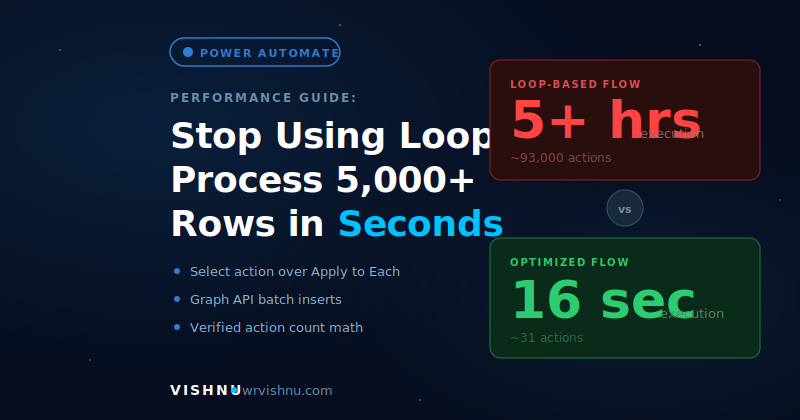
Power Automate flow optimization is the difference between a workflow that runs in seconds and one that crawls for hours, silently burning through your daily action quota. Power Automate makes it incredibly easy to build workflows — drag in an Apply to Each, drop in your logic, and you’re done. But that convenience comes at a steep cost when you’re working with large datasets.
In this Power Automate flow optimization guide, I’ll use a real-world use case — processing 5,000+ employee records from SharePoint, enriching them with data from Excel and a live API, and exporting the results — to demonstrate why loops are so expensive and how to eliminate them entirely using the Select data operation, parallel branches, JSON object transforms, and Graph API batch inserts.
📋 Table of Contents
- The Use Case: Employee Bonus Calculation Report
- Approach 1: The Loop-Based Power Automate Flow
- Why Power Automate Flow Optimization Matters: License Limits
- Approach 2: The Loop-Free Optimized Flow
- Side-by-Side Comparison
- Four Power Automate Flow Optimization Techniques
- When You Might Still Need a Loop

The Use Case: Employee Bonus Calculation Report
Let’s say your organization needs to generate a monthly employee bonus report. Here’s what the flow needs to do:
| Component | Details |
|---|---|
| Data Source 1 — SharePoint List | 5,000+ employee records containing name, department (choice column), annual salary, and hire date |
| Data Source 2 — Excel File (OneDrive) | Department bonus lookup table with 7 rows — one per department — listing the bonus percentage and number of stock units allocated |
| Data Source 3 — HTTP API | A finance API that returns the current stock market price (e.g., for Microsoft stock) |
| Business Rules | Bonus = Annual Salary × Department Bonus %, but only if the employee has 10+ years of service. Stock Bonus = Allocated Stock Units × Current Market Price. Total Package = Annual Salary + Bonus + Stock Bonus. |
| Output | An Excel file with 7 columns: Employee Name, Department, Bonus, Total Package, Monthly Salary, Years at Company, Stock Bonus — populated for all 5,000+ employees |
Straightforward requirements. Multiple data sources, some calculations, one output file. Now let’s look at two ways to build this — and why the pattern you choose makes all the difference for Power Automate flow optimization.
Approach 1: The Loop-Based Power Automate Flow
This is the approach most of us build instinctively. It follows a logical mental model: get the data, loop through each employee, look up their department’s bonus, do the math, write the row.
| Step | Action |
|---|---|
| 1 | Get Items from SharePoint (pagination on, top count 5,000, threshold up to 100K) |
| 2 | List Rows from department bonus Excel table |
| 3 | HTTP request to finance API for current stock price |
| 4 | Initialize two variables (stock count, bonus amount) |
| 5 | Apply to Each — outer loop through all 5,000+ SharePoint items |
| 6 | ↳ Nested Apply to Each — inner loop through 7 Excel rows to find the matching department |
| 7 | ↳ ↳ Condition: Does department match? If yes → Set Variable (stock), Set Variable (bonus) |
| 8 | ↳ Add a Row to the output Excel table (one row per employee, per iteration) |
Let’s Count the Actions
Understanding why this is expensive requires knowing how Power Automate counts billable actions. According to Microsoft’s licensing FAQ: “Each action counts as one, including the loop action itself. Actions inside a loop run once per iteration — a loop with 2 actions and 10 iterations uses 21 actions (1 + 2 × 10).”
Let’s apply that formula to our use case:
| Component | Calculation | Actions |
|---|---|---|
| Trigger + Get Items + List Rows + HTTP + 2× Init Variable | 6 actions outside the loop | 6 |
| Outer Apply to Each (the loop action itself) | 1 action | 1 |
| Inner Apply to Each (per outer iteration) | 1 (inner loop action) × 5,000 outer iterations | 5,000 |
| Condition check inside inner loop | 1 per inner iteration: 7 × 5,000 | 35,000 |
| Set Variable (stock) — runs when condition is true | 1 per outer iteration (one match per employee): 5,000 | 5,000 |
| Set Variable (bonus) — runs when condition is true | 1 per outer iteration: 5,000 | 5,000 |
| Add Row to Excel (per outer iteration) | 1 per outer iteration: 5,000 | 5,000 |
| Estimated Total (with 6 non-matching condition branches also counting as skipped-but-evaluated) | ~55,000–93,000+ | |
📊 Why the range? The exact count depends on implementation details — whether the inner loop continues iterating after finding a match (no break in Apply to Each), whether both the true and false branches of the condition contain actions, and whether pagination adds extra requests. In practice, with the inner loop always running all 7 iterations (since Apply to Each has no break mechanism) and both condition branches potentially containing actions, the count climbs well past 55,000. With additional overhead from pagination, retries, and condition branch actions, reaching 90,000+ actions for a 5,000-row dataset is realistic.
And the execution time? The data retrieval steps (SharePoint, Excel, HTTP) complete in about 4 seconds. The remaining time — potentially several hours — is consumed entirely by the Apply to Each loop, because every iteration involves connector calls (Set Variable, Add Row to Excel) that each carry latency and are subject to connector throttling.
Why Power Automate Flow Optimization Matters: License Limits
Every action in a Power Automate flow counts as a Power Platform Request, and every license type has a daily cap. This is why Power Automate flow optimization isn’t just about speed — it’s about staying within your license entitlement. Here are the current limits per Microsoft’s documentation:
| License Type | Daily Action Limit |
|---|---|
| Microsoft 365 / Office 365 (E3, E5, etc.) | 6,000 |
| Power Automate Premium (per user) | 40,000 |
| Power Automate Process (per flow) | 250,000 |
| Transition period per-flow cap | 100,000 |
| Transition period per-user cap | 1,000,000 |
Source: Power Automate Licensing FAQ and Request Limits and Allocations. Note: Microsoft is currently in a transition period with more generous enforcement, but these are the documented post-transition limits.
A single run of the loop-based flow consuming 90,000+ actions would blow through the daily limit for every license type except Process — and that’s from just one run. If this flow runs daily, you’re exceeding your quota every single day, which results in throttled performance and delayed subsequent flow runs across all your flows under that user account.
Approach 2: The Loop-Free Optimized Flow
Same use case, same data, same output — but a fundamentally different architecture. Here’s how Power Automate flow optimization works in practice: processing all 5,000+ rows without a single loop.
Step 1: Fetch All Data in Parallel
The three data retrieval actions — Get Items from SharePoint, List Rows from the bonus Excel table, and the HTTP API call — are completely independent. By placing them on parallel branches (right-click the trigger → Add a parallel branch), all three execute simultaneously instead of waiting for each to finish sequentially.
After the branches, configure the next action’s Run After settings (Settings → Run After) to wait for all three to complete before the flow continues.
Step 2: Transform the Bonus Lookup into a JSON Object
The nested inner loop in Approach 1 exists solely to match each employee’s department against the bonus table. We can eliminate this entirely by converting the 7-row bonus array into a single JSON object with department names as keys.
Select action (“Select Bonus Info”): Takes the 7 Excel rows as input. Maps each row into an object where the department name is the key, with bonus percentage and stock count as nested properties.
Compose action: Merges the array of single-key objects into one flat JSON object using an expression. The result:
{
  "Finance":     { "Bonus": 0.12, "Stock": 5 },
  "IT":          { "Bonus": 0.15, "Stock": 8 },
  "Sales":       { "Bonus": 0.10, "Stock": 4 },
  "Marketing":   { "Bonus": 0.08, "Stock": 3 },
  "Engineering": { "Bonus": 0.18, "Stock": 10 },
  "HR":          { "Bonus": 0.09, "Stock": 4 },
  "Operations":  { "Bonus": 0.11, "Stock": 6 }
}
Now any department’s values can be accessed directly via an expression like outputs('Compose')?[item()?['Department']?['Value']]?['Bonus'] — an O(1) lookup that replaces the entire inner loop.
Step 3: Use the Select Action to Transform All 5,000+ Rows
The Select data operation is the key to this entire Power Automate flow optimization approach. It takes an entire array as input and transforms every item in one single action — no loop, no per-item action count. An action can contain multiple expressions but it still counts as just one Power Platform Request.
Point the From property at your Get Items output, switch the Map field to text mode, and define an array with your 7 column values. All calculations are done inline using expressions:
| Column | Expression Logic |
|---|---|
| Employee Name | Direct mapping: item()?['Title'] |
| Department | Choice column extraction: item()?['Department']?['Value'] |
| Monthly Salary | div(item()?['AnnualSalary'], 12) |
| Years at Company | div(sub(ticks(utcNow()), ticks(item()?['HireDate'])), 315360000000000) |
| Bonus | mul(item()?['AnnualSalary'], float(outputs('Compose')?[item()?['Department']?['Value']]?['Bonus'])) — with an if() to check years > 10 |
| Stock Bonus | mul(int(outputs('Compose')?[...]['Stock']), body('HTTP')?['regularMarketPrice']) |
| Total Package | add(AnnualSalary, Bonus, StockBonus) |
One action. All 5,000+ rows transformed, calculated, and ready. No loops.
Step 4: Create the Excel File and Batch-Insert All Rows
Use Create File (OneDrive for Business) to create the output Excel file with a dynamic timestamp in the name via utcNow(). Then use Create Table (Excel Online for Business) to define the 7 columns and table structure.
Finally, instead of adding rows one at a time, use the Send an HTTP Request action (Office 365 Users connector) to call the Graph API endpoint that inserts all rows in a single POST:
POST https://graph.microsoft.com/v1.0/me/drive/items/{file-id}/workbook/tables/{table-name}/rows
The body contains a values property — pass the entire Select output using the expression body('Select'). All 5,000+ rows get inserted in one single API call.
Let’s Count the Actions — Optimized Flow
| Action | Count |
|---|---|
| Trigger (manual) | 1 |
| Get Items (SharePoint) — may include pagination requests | 1–2 |
| List Rows (Excel Online) | 1 |
| HTTP Request (stock API) | 1 |
| Select — bonus info transformation | 1 |
| Compose — merge to JSON object | 1 |
| Create File (OneDrive) | 1 |
| Create Table (Excel Online) | 1 |
| Select — main data transformation (all 5,000+ rows) | 1 |
| Send HTTP Request — Graph API batch insert | 1 |
| Total | ~10–11 actions |
📊 Note on count: The exact count may vary slightly depending on whether you add extra Compose actions, additional error handling, or other minor steps. In practice, for this use case the analytics will typically report somewhere around 10–31 total actions — the variance depends on how many additional Compose/expression actions you use and whether pagination on Get Items adds extra requests. The important point is that it’s in the tens, not the tens of thousands.
Side-by-Side: Power Automate Flow Optimization Results
| Metric | Loop-Based (Approach 1) | Optimized (Approach 2) |
|---|---|---|
| Execution Time | Hours (varies with data volume) | Seconds |
| Billable Actions (5,000 rows) | 55,000–93,000+ | 10–31 |
| Scales with Data? | Actions grow linearly with row count (10K rows ≈ 180K+ actions) | Action count stays nearly constant regardless of row count |
| Exceeds M365 Daily Limit (6,000)? | Yes — by 10–15× | No |
| Exceeds Premium Daily Limit (40,000)? | Yes — by 2×+ | No |
| Lookup Method | Nested loop (O(n×m)) | JSON object property access (O(1)) |
| Excel Write Method | Add Row action (1 API call per row) | Graph API batch POST (1 API call total) |
| Output | Identical Excel file with all calculations for 5,000+ employees | |
Four Power Automate Flow Optimization Techniques
| Instead of… | Use… | Why |
|---|---|---|
| Looping to transform or calculate values per item | Select data operation with inline expressions | Processes the entire array in 1 action regardless of size. Multiple expressions within one action still count as 1 request. |
| Nested loop to find a matching lookup value | Select + Compose to create a JSON lookup object | Converts O(n×m) nested iteration into O(1) direct property access. Eliminates the inner loop entirely. |
| Adding rows to Excel one at a time inside a loop | Graph API batch POST via Send HTTP Request | Inserts all rows in 1 API call. Works for Excel (Graph API), SharePoint ($batch API), and Dataverse (batch operations). |
| Running data retrieval steps sequentially | Parallel branches with Run After convergence | Independent actions execute simultaneously, cutting total retrieval time. |
When Power Automate Flow Optimization Still Needs a Loop
Loops aren’t always avoidable. If you need to call a connector action that only supports single-record operations — like sending individual emails, creating Planner tasks, or posting Teams messages — you’ll need an Apply to Each. But keep these guidelines in mind to minimize the damage:
Do all transformations before the loop. Use Select to prepare your data so the loop body contains only the unavoidable single-record action.
Never nest loops. Flatten your lookup data into JSON objects first so you never need an inner loop for matching.
Keep the loop body minimal. Every additional action inside the loop multiplies your total action count by the number of items. One action × 5,000 items = 5,000 requests. Two actions × 5,000 items = 10,000 requests.
Loop over small, pre-filtered datasets. For example, if you need separate Excel worksheets per department, loop over the 7 departments — not the 5,000 employees. Inside each iteration, use a Filter Array + Select + Graph API batch to handle that department’s employees in bulk.
Related Reading on wrvishnu.com
If you found this Power Automate flow optimization guide useful, you might also like these related posts:
Final Thoughts on Power Automate Flow Optimization
The low-code promise of Power Automate is real — you can build powerful automations without writing code. But low-code doesn’t mean low-thought. The pattern you choose determines whether your flow runs in seconds or hours, whether it costs 10 actions or 90,000, and whether it stays comfortably within your license limits or triggers throttling across all your flows.
Before you drop an Apply to Each into your next flow, ask yourself three questions: Can I transform this with Select? Can I flatten this lookup into a JSON object? Can I batch-write this output with an API? If the answer to any of those is yes, you’ve just saved yourself hours of execution time and thousands of billable actions — that’s Power Automate flow optimization in action.
Want to see both approaches built from scratch in Power Automate with the exact expressions, Graph API configuration, and real execution time comparison? Microsoft Business Applications MVP and Microsoft Certified Trainer Reza Dorrani @RezaDorrani walks through the entire build in excellent detail on his YouTube channel.