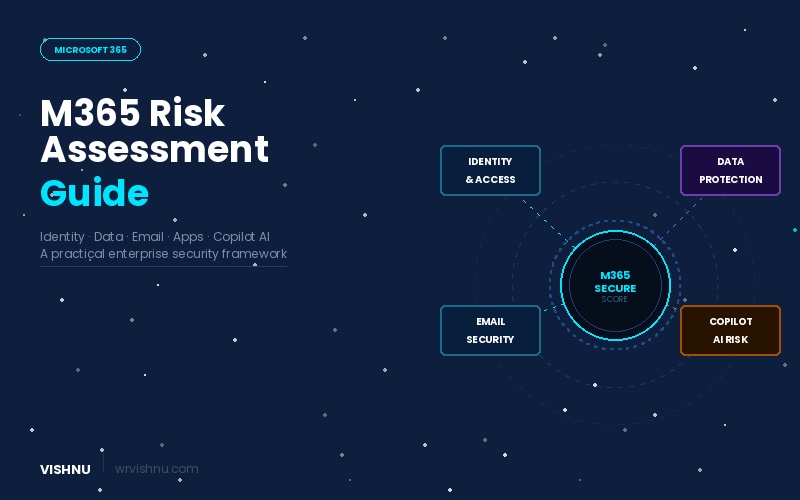
Microsoft 365 security risk assessment is one of the most critical exercises any IT team can undertake — yet it’s also one of the most consistently neglected. Microsoft 365 is the productivity backbone of millions of organisations worldwide, and that ubiquity makes it one of the most attractive attack surfaces in the enterprise. Yet the uncomfortable truth, consistently confirmed by Microsoft’s own threat intelligence, is that the overwhelming majority of cloud security incidents are not caused by sophisticated zero-day exploits. They are caused by misconfiguration, over-permissioning, and neglected governance.
This Microsoft 365 security risk assessment guide walks through a structured framework — covering identity, data protection, email security, application integrations, AI risk, and compliance — with practical mitigation controls, tooling recommendations, and the key metrics every security team should be tracking. For Microsoft’s own guidance, see the Microsoft 365 security documentation and the Microsoft Zero Trust guidance.
📋 Table of Contents
- Understanding the Shared Responsibility Model
- Microsoft 365 Security Risk Assessment Dashboard
- Risk Area 1: Identity & Access Management
- Risk Area 2: Data Protection & Governance
- Risk Area 3: Email Security
- Risk Area 4: Application & Integration Security
- Risk Area 5: Microsoft 365 Copilot & AI Risks
- Risk Area 6: Compliance & Data Lifecycle
- Microsoft 365 Security Risk Assessment Process Framework
- Recommended Tooling
- Key Security Metrics to Track
- Executive Recommendations

Understanding the Shared Responsibility Model
Any Microsoft 365 security risk assessment must start with the shared responsibility model — a concept that is frequently misunderstood by customers. Microsoft’s responsibilities and customer responsibilities are clearly delineated, and the boundary matters enormously when something goes wrong.
|
🏢 Microsoft Secures
Physical datacentres, network infrastructure, hypervisor and host OS security, platform availability and resilience, and the underlying M365 service components. |
🏢 Customer Secures
Identity and access management, data classification and protection, tenant configuration and governance, application consent, compliance policies, and user behaviour. |
Gartner research consistently estimates that through 2025, at least 99% of cloud security failures will be the customer’s fault — primarily through misconfiguration and inadequate governance. The technology is rarely the weak point. The configuration is.
Microsoft 365 Security Risk Assessment Dashboard
The following table provides a high-level Microsoft 365 security risk assessment view of the six primary risk domains in a typical enterprise deployment. Priority ratings follow a P1–P3 model where P1 requires immediate remediation.
Risk Area 1: Identity & Access Management
Identity is consistently the primary attack vector in any Microsoft 365 security risk assessment. Microsoft’s Digital Defense Report documents billions of password attacks per day targeting Microsoft accounts. The Microsoft Entra ID platform (formerly Azure Active Directory) is both the most powerful protection layer and, when misconfigured, the most dangerous liability in your tenant. For deeper guidance, see Microsoft Entra ID documentation.
Key risks
Missing or incomplete MFA: Accounts without multi-factor authentication are dramatically more vulnerable to credential stuffing, phishing, and password spray attacks. Microsoft reports that MFA blocks over 99.9% of automated account compromise attempts. Despite this, many tenants still have MFA gaps — particularly for service accounts and external partners.
Excessive Global Administrators: The Global Administrator role in Entra ID grants unrestricted access to every service in the tenant, including the ability to reset any user’s password and read all mailboxes. Many organisations assign this role far too broadly. Microsoft recommends maintaining fewer than five Global Admins, with emergency “break-glass” accounts as the only permanently active holders of the role.
Unmonitored risky sign-ins: Entra ID Identity Protection detects risky sign-in events including impossible travel, anonymous IP addresses, malware-linked IPs, and leaked credential alerts from Microsoft’s threat intelligence feeds. Many organisations have Identity Protection licences included in their E3 or E5 plan but have never configured alert policies or investigated the detections.
Mitigation controls
Enforce MFA for all users using Conditional Access policies. For administrators, enforce phishing-resistant MFA methods — FIDO2 security keys or Windows Hello for Business — rather than SMS OTP, which is vulnerable to SIM-swapping. Microsoft Security Defaults provide a baseline for smaller organisations, but named Conditional Access policies offer more granular control.
Implement Privileged Identity Management (PIM) to enforce Just-in-Time (JIT) access for all privileged roles. With PIM, no one holds a sensitive role permanently — they request activation for a defined time window, with approval workflows and audit logs for every elevation. This dramatically reduces the blast radius of a compromised admin account.
Configure Conditional Access policies to enforce compliant device requirements, block legacy authentication protocols (which bypass MFA entirely), restrict access from high-risk locations, and require step-up authentication for sensitive applications. Legacy auth protocols — IMAP, POP3, SMTP AUTH, and basic auth — should be blocked tenant-wide via an Authentication Policy.
Enable and act on Identity Protection risk detections. Configure risk-based Conditional Access policies that automatically require MFA step-up for medium-risk sign-ins and block access for high-risk sign-ins pending investigation. Integrate detections with Microsoft Sentinel or your SIEM for automated triage.
Risk Area 2: Data Protection & Governance
Data loss in Microsoft 365 is rarely caused by external attackers stealing files from a secured environment. It is almost always caused by authorised users sharing content inappropriately — either by accident, through misconfigured defaults, or through a deliberate but policy-violating action. SharePoint Online, OneDrive for Business, and Microsoft Teams collectively hold the most sensitive data in most organisations, and their default sharing settings are permissive.
Key risks
Anonymous “Anyone” sharing links: SharePoint and OneDrive support “Anyone with the link” sharing, which generates a publicly accessible URL with no authentication requirement. These links have no expiry by default, can be forwarded to anyone on the internet, and are frequently created by users who do not understand what they are enabling.
Absence of sensitivity labels and DLP policies: Without Microsoft Purview Sensitivity Labels, there is no systematic way to classify data, apply encryption, restrict access, or prevent content from being shared outside the organisation. Without Data Loss Prevention policies, there is no automated mechanism to detect and block the exfiltration of regulated data — credit card numbers, national insurance numbers, patient records — through email, Teams messages, or file sharing.
No retention or deletion policies: Many organisations accumulate years of unmanaged data in SharePoint and Teams with no defined retention periods. This creates legal and compliance risk — data that should have been deleted is retained indefinitely and therefore discoverable — and increases the attack surface available to a threat actor who achieves access.
Mitigation controls
Restrict external sharing at the tenant and site level. Disable “Anyone” links by default at the tenant level in the SharePoint Admin Centre. Where external sharing is genuinely required, enforce expiry dates on sharing links (30 days maximum is a reasonable default) and require password protection on externally shared content.
Deploy Microsoft Purview Sensitivity Labels across the label taxonomy: Public, Internal, Confidential, and Highly Confidential as a minimum baseline. Apply auto-labelling policies to detect and label content containing regulated data patterns. Extend labels to Teams, SharePoint sites, and Microsoft 365 Groups to enforce container-level access controls — private vs public channel settings, guest access, and external sharing at the site level.
Configure DLP policies in Microsoft Purview to detect sensitive information types — including financial data, health records, and personally identifiable information — across Exchange Online, SharePoint, OneDrive, Teams chat, and Power Platform. Use policy tips to educate users in the moment rather than relying solely on block actions.
Implement retention and records management policies using Microsoft Purview Retention Policies and Retention Labels. Define minimum retention periods for regulated content types — seven years for financial records under many jurisdictions, for example — and deletion policies for transient content such as Teams chat messages and general correspondence.
Column mapping for Sensitivity Labels — recommended baseline
A practical four-tier label taxonomy for most organisations:
Public Internal Confidential Highly Confidential
Risk Area 3: Email Security
Email remains the single most common initial access vector in enterprise attacks. Business Email Compromise (BEC) — where an attacker impersonates an executive, vendor, or colleague to authorise fraudulent payments or exfiltrate data — caused over $2.9 billion in adjusted losses reported to the FBI’s Internet Crime Complaint Center in 2023. Exchange Online’s default configuration provides meaningful protection, but organisations must actively configure Defender for Office 365 to address the full threat landscape.
Key risks and mitigation controls
Phishing and BEC: Enable Microsoft Defender for Office 365 Plan 1 at minimum (included in M365 Business Premium and E3 with the Defender add-on). Configure Anti-Phishing policies with impersonation protection for key executives and domains, spoof intelligence, and mailbox intelligence. Enable Safe Links to rewrite and scan URLs at time-of-click, not just at delivery.
Malware attachments: Enable Safe Attachments with Dynamic Delivery, which detonates attachments in a sandbox and replaces them with a placeholder while scanning is in progress — preserving user productivity without sacrificing security. Apply Safe Attachments policies to SharePoint, OneDrive, and Teams in addition to email.
External mail forwarding: Block or strictly limit automatic forwarding of email to external addresses using outbound spam filter policies. Attackers who compromise a mailbox frequently create forwarding rules to exfiltrate email silently. Monitor the Unified Audit Log for new inbox rules and forwarding rule creation as a detection control.
Email authentication (SPF, DKIM, DMARC): Ensure your sending domain has a valid SPF record listing Exchange Online as an authorised sender. Enable DKIM signing for your domain in the Microsoft 365 Defender portal. Publish a DMARC record with at minimum a p=quarantine policy, progressing to p=reject once you are confident in your sending infrastructure. These three controls together prevent spoofing of your domain by external attackers.
Defender for Office 365 — feature coverage summary
Safe Links Safe Attachments Anti-Phishing Spoof Intelligence Attack Simulation Training Threat Explorer
Risk Area 4: Application & Integration Security
OAuth-based application integrations represent a growing and frequently underestimated attack surface in any Microsoft 365 security risk assessment. When a user grants consent to a third-party application through the Microsoft identity platform, that application receives an access token that may persist for months or years, with permissions that do not require the user’s password. Attackers have used illicit consent grant attacks — where a malicious app is registered and users are socially engineered into granting it access — to achieve persistent access to mailboxes and OneDrive content without ever compromising credentials.
Key risks and mitigation controls
Unrestricted user consent: By default in many tenants, users can consent to any app requesting low-risk permissions without administrator approval. Restrict user consent to apps from verified publishers only, or disable user consent entirely and require all app consent to flow through the Admin Consent Workflow — a structured process where users request access and administrators review and approve or deny.
Overprivileged applications: Regularly review Enterprise Applications in the Entra ID portal. Audit the permissions granted to each app — particularly those with broad delegated permissions such as Mail.Read, Files.ReadWrite.All, or Directory.ReadWrite.All. Remove any application that has not been used in 90 days or that has no documented business justification for its level of access.
Stale service principals and app registrations: App registrations and service principals accumulate over time — many created for one-off integrations, PoC projects, or departed vendors. Each one represents a persistent credential (client secret or certificate) that can be used to authenticate to your tenant if compromised. Establish a quarterly review cadence for all app registrations and implement certificate/secret rotation policies.
Risk Area 5: Microsoft 365 Copilot & AI Risks
Microsoft 365 Copilot does not introduce new permissions or bypass existing access controls — it operates entirely within the access boundaries of the signed-in user. However, this is precisely where the risk lies for any Microsoft 365 security risk assessment. Copilot is a highly effective tool for discovering and surfacing content that a user technically has access to but would never have found through normal browsing. In an environment with poor permission hygiene — where files have been shared broadly, guest access is uncontrolled, and sensitivity labels are absent — Copilot can surface sensitive content at a rate and scale that manual browsing never could.
Key risks
Over-shared content surfaced at scale: A user asking Copilot “summarise everything we know about Project Alpha” will receive results from any document they have access to — including files shared via “Anyone” links, content in Teams channels they joined years ago, and documents in SharePoint sites with broad access grants. If that user should not reasonably have seen some of that content, Copilot has effectively caused a data exposure event.
Absence of AI governance and acceptable use policies: Many organisations deploy Copilot without defining what it may and may not be used for, without training users on prompt engineering risks, and without monitoring Copilot interaction logs for sensitive data patterns. This is not a technology gap — it is a governance gap.
Mitigation controls
Remediate permission sprawl before deploying Copilot. Use the SharePoint Advanced Management (SAM) data access governance reports to identify sites with overly broad access, “Everyone except external users” sharing, and stale guest access. Run Microsoft Purview’s Data Estate Insights to understand where your sensitive data actually lives and who can access it.
Apply Sensitivity Labels before enabling Copilot. Labels set on files and containers are respected by Copilot — a user without access to a Highly Confidential site will not receive Copilot results sourced from that site. Labels are the most direct and scalable mechanism for ensuring Copilot operates within appropriate boundaries.
Define and publish AI usage policies that specify permitted use cases, prohibited content types, and data handling requirements for Copilot outputs. Enable Copilot interaction logging in the Microsoft Purview Audit logs and configure Communication Compliance policies to monitor for sensitive data patterns in Copilot conversations.
Risk Area 6: Compliance & Data Lifecycle
Compliance risk in Microsoft 365 is largely a data hygiene problem. Organisations that accumulate years of unmanaged content — inactive Teams and SharePoint sites, orphaned OneDrive accounts, unretained mailbox data — face growing legal, regulatory, and operational risk. Microsoft Purview Compliance Manager provides a structured framework for tracking compliance posture across regulations including GDPR, ISO 27001, NIST 800-53, and SOC 2.
Mitigation controls
Implement retention policies across Exchange Online, SharePoint, OneDrive, Teams chat, and Teams channel messages. Distinguish between retention for compliance purposes (keeping content that must be retained) and deletion for hygiene purposes (removing content that should not be kept beyond its useful life). Both are important and both require active policy configuration.
Govern inactive Teams and SharePoint sites. Use Microsoft 365 Group Expiration Policies to automatically request re-confirmation of active Teams and Groups after a defined period (90 or 180 days). Sites with no activity after the expiration period are archived or deleted with owner approval. This prevents the accumulation of abandoned collaboration spaces that contain sensitive content and are not actively governed.
Use Microsoft Purview Compliance Manager to assess your posture against specific regulatory frameworks. Compliance Manager provides improvement actions mapped to each control, with ownership assignment and evidence tracking built in. This transforms compliance from a periodic manual exercise into a continuously managed programme.
Microsoft 365 Security Risk Assessment Process Framework
A Microsoft 365 security risk assessment is not a one-time activity. The platform changes continuously — new features are released, configurations drift, user behaviour evolves, and the threat landscape shifts. The following five-step framework provides a repeatable structure for ongoing risk management.
|
Step 1 — Identification
Review Microsoft Secure Score, the Unified Audit Log, and Entra ID sign-in logs. Run Defender Secure Score assessments across identity, devices, data, apps, and infrastructure. Use Power BI + Microsoft Sentinel dashboards for a consolidated view. |
Step 2 — Assessment
For each identified risk, evaluate likelihood (High / Medium / Low) and impact across three dimensions: financial loss, operational disruption, and compliance/regulatory exposure. Document risk ratings formally. |
|
Step 3 — Response
For each risk: Mitigate (implement technical or process controls), Transfer (cyber insurance for residual risk), or Accept (documented business decision for low-risk, low-likelihood items). Risk acceptance must be formally signed off by a named owner. |
Step 4 — Monitoring
Deploy continuous monitoring through Microsoft Defender, Microsoft Sentinel SIEM, and automated alert rules. Configure Playbooks in Sentinel for automated response to high-severity incidents. Track Secure Score trends over time. |
|
Step 5 — Review
Conduct formal quarterly internal security reviews and annual external audits or penetration tests. Update risk ratings after any significant platform change, incident, or new feature rollout. Reassess after every major Microsoft 365 feature release. |
⚠️ Configuration Drift
Microsoft 365 configurations drift over time as new admins make changes, new features ship with permissive defaults, and business requirements evolve. Treat your security configuration as code — version-controlled, reviewed, and audited. |
Recommended Tooling
Microsoft provides a comprehensive native tooling stack for security and compliance within Microsoft 365. The table below maps each tool to its primary function and the licence tier that includes it.
Key Security Metrics to Track
Effective security governance from your Microsoft 365 security risk assessment requires measurable targets. The following KPIs provide a baseline dashboard for any M365 security programme. Each metric should be reviewed at a minimum monthly.
|
🔑 MFA Coverage
Target: 100% of all users, including service accounts where technically feasible. Track separately for admins (must be 100%) and standard users. Source: Entra ID Authentication Methods report. |
🛡️ Global Admin Count
Target: Fewer than 5. All Global Admins should be cloud-only accounts (not synchronised from on-premises AD) with no associated mailbox. Source: Entra ID roles report. |
|
📊 Microsoft Secure Score
Target: Above 80% of your maximum achievable score (not the raw score, which varies by licence). Track month-over-month trend. Declining score is an early warning of configuration drift. |
🏷️ Sensitive Data Labelled
Target: 100% of documents identified as containing sensitive information types are labelled. Track via Purview Content Explorer. Auto-labelling closes the gap between manual labelling and actual data in the estate. |
|
🔗 External Sharing Exposure
Track the number of active “Anyone” sharing links and the number of sites with guest access enabled. Target: zero “Anyone” links containing content labelled Confidential or above. Source: SharePoint Admin Centre / SAM reports. |
⚠️ High-Risk Sign-Ins Detected
Track the number of high-risk sign-in events detected by Identity Protection that were not automatically blocked by Conditional Access policy. Any value above zero in this metric requires investigation. Source: Entra ID Identity Protection. |
Executive Recommendations
Security leadership and CISOs should prioritise the following five strategic actions when establishing or maturing a Microsoft 365 security risk assessment programme.
1. Adopt Zero Trust Architecture
Zero Trust replaces the assumption that anything inside the corporate network is safe with explicit verification of every access request — regardless of location, device, or user. In practice for M365, this means Conditional Access policies that evaluate device compliance, user risk, and application sensitivity on every authentication event, combined with least-privilege access enforced through PIM and Entra ID role assignments.
2. Eliminate standing privileged access
No administrator should hold a privileged role permanently. Implement PIM for all roles above User Administrator level. Require justification and approval for Global Administrator activation. Create two break-glass accounts with permanent Global Admin access, exclude them from all Conditional Access policies, and monitor them with high-severity alerts — but use them only in genuine emergencies.
3. Govern data before deploying Copilot
Microsoft 365 Copilot is ready to deploy on day one from a technical perspective. The question is whether your data is ready. Organisations that deploy Copilot into environments with poor permission hygiene, no sensitivity labels, and no DLP policies will expose sensitive content at unprecedented scale. The data governance work should precede the Copilot rollout by at least one quarter.
4. Implement continuous compliance monitoring
Compliance is not a point-in-time assessment — it is an ongoing state. Use Purview Compliance Manager to continuously track your posture against applicable regulatory frameworks. Feed Unified Audit Log data into Microsoft Sentinel for real-time alerting on policy violations. Automate evidence collection for annual audits rather than scrambling to gather documentation retrospectively.
5. Establish a Power Platform & M365 Centre of Excellence
As Power Apps, Power Automate, and Copilot Studio proliferate across the organisation, ungoverned citizen development creates shadow IT at scale — flows with broad connector permissions, apps storing sensitive data in personal OneDrive accounts, and custom connectors reaching external services without security review. A Centre of Excellence (CoE) with defined governance guardrails, DLP connector policies, environment strategy, and a maker community provides the structure to scale innovation without scaling risk.
Key Takeaways from This Microsoft 365 Security Risk Assessment
A well-secured Microsoft 365 environment rests on four foundational principles that remain true regardless of which specific features or licences you are working with:
Identity is the primary attack vector. Every credential-based attack — phishing, password spray, BEC — ultimately targets an identity. MFA, Conditional Access, and PIM are not optional enhancements; they are foundational controls.
Data exposure is mostly caused by over-sharing, not hacking. Sensitive files are not stolen from secured environments — they are shared via “Anyone” links, left in public Teams channels, and emailed to personal addresses. Governance controls prevent far more data loss than detection and response controls.
AI amplifies existing risks rather than creating new ones. Microsoft 365 Copilot inherits every permission flaw and data governance gap in your environment. It is an accelerant, not a new attack surface. Good governance before Copilot is good governance for its own sake — Copilot just makes the urgency visible.
Security is continuous governance, not a one-time setup. Microsoft 365 evolves every month. Configurations drift, new features ship with permissive defaults, and the threat landscape changes. A security programme that is reviewed quarterly and monitored continuously will always outperform one that was configured correctly at launch and then left to drift.
Related Reading on wrvishnu.com
If you found this Microsoft 365 security risk assessment guide useful, explore more related content: