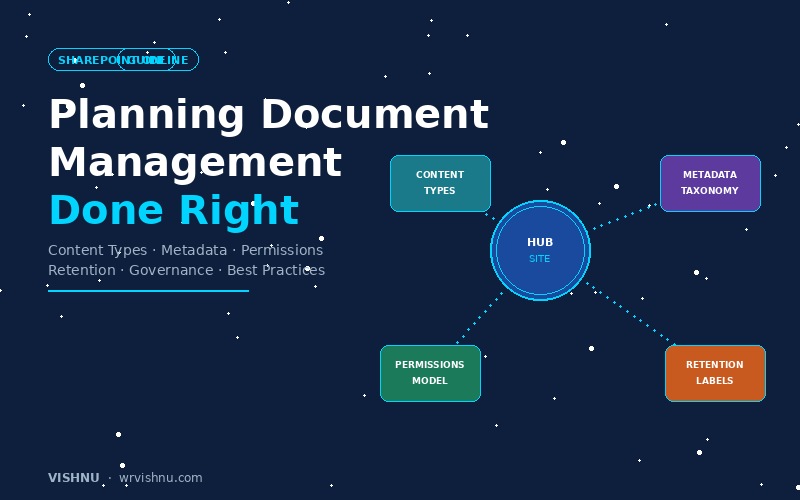
SharePoint document management is the answer most organisations reach for when shared drives, scattered Teams files, and email attachments stop working. Documents get lost, duplicates multiply, version control disappears, and no one knows what’s current. If you’re at that point, you’re ready to design a proper SharePoint document management solution — and SharePoint Online is the right platform to build it on.
This complete SharePoint document management planning guide walks you through the entire process, step by step. Whether you’re starting from scratch or fixing a messy tenant, this will help you build a solution that’s structured, scalable, and built to last. For Microsoft’s official documentation, see the SharePoint document management overview and the Microsoft Purview retention documentation.
📋 Table of Contents
- Step 1 — Understand What You’re Solving
- Step 2 — Design Your Site Architecture
- Step 3 — Build Your Content Type Hierarchy
- Step 4 — Design Your Metadata Taxonomy
- Step 5 — Design Your SharePoint Document Management Permission Model
- Step 6 — Set Up Retention Labels and Records Management
- Step 7 — Consider Document Sets for Grouped Content
- Step 8 — Plan Your Rollout
- Common SharePoint Document Management Mistakes
- Your Planning Checklist

Step 1 — Understand What You’re Solving
Before you touch SharePoint, sit down with your stakeholders and answer these questions:
What types of documents does your organisation create? Think across departments — contracts, policies, proposals, invoices, technical specs, HR records, project plans, meeting minutes. List them all. This becomes the foundation of your content type design.
Who needs access to what? Map out which teams create, edit, and consume each document type. This shapes your site architecture and permission model.
How long must documents be kept? Talk to your legal and compliance teams. Every industry has retention obligations — financial records for seven years, employee records for six years post-employment, contracts for a defined period after expiry. Document these requirements early because they directly drive your retention label design.
What’s broken today? Audit your current state. Where do documents live now? What are the biggest pain points — findability, duplication, access control, compliance gaps? Understanding the current mess helps you design the right solution and build the case for change.
Write all of this down. This is your content strategy — and it becomes the blueprint for everything you configure in your SharePoint document management solution.
Step 2 — Design Your Site Architecture
Your site architecture determines where documents live and how users navigate to them. Get this wrong and you’ll end up rebuilding later.
Use Hub Sites to Group Related Content
Hub sites are the backbone of a modern SharePoint architecture. They connect related sites under a common navigation, search scope, and visual identity — without the rigid parent-child hierarchy of the old days.
Plan your hubs around business functions, not departments. Departments reorganise frequently, but functions like Finance, Operations, Human Resources, and Projects tend to remain stable. Each hub site connects the team sites and communication sites relevant to that function.
Team Sites vs Communication Sites
Use team sites for active collaboration — teams creating and editing documents together. Each team site is backed by a Microsoft 365 Group, which gives you shared mailbox, calendar, Planner, and Teams integration out of the box.
Use communication sites for publishing — policies, announcements, reference material that a broad audience needs to read but not edit.
Plan Your Libraries
Within each site, design your document libraries around logical groupings. A project site might have libraries for Deliverables, Correspondence, and Financial Documents. An HR site might separate Policies, Employee Records, and Recruitment Documents.
Resist the temptation to create one massive library for everything. Equally, don’t create a separate library for every minor category. Libraries should align with distinct permission boundaries and retention requirements — because these are managed at the library level.
Step 3 — Build Your Content Type Hierarchy
Content types are the single most important feature for enterprise SharePoint document management, and they’re the most underused. A content type defines what a document is — its metadata, its template, and its behaviour.
How to Design Your Content Types
Start with a base content type called something like “Enterprise Document.” This should include the metadata columns that apply to every document in your organisation — Document Owner, Department, Confidentiality Level, and Document Status are common choices.
From this base, create specific content types for each document category you identified in Step 1. For example, a “Contract” content type inherits everything from Enterprise Document and adds columns like Contract Value, Counterparty, Effective Date, and Expiry Date. A “Policy Document” adds Policy Number, Approval Date, Review Date, and Approving Authority.
Publish from the Content Type Hub
Always publish your content types from the SharePoint Content Type Hub. This gives you centralised control — update a content type once and it flows to every site that uses it. Creating content types locally on individual sites leads to inconsistency and becomes unmanageable at scale.
Practical Tips
Keep your hierarchy shallow — a base type and one level of specific types is ideal. Two levels deep is acceptable. Anything deeper creates confusion.
Attach document templates to your content types so users always start with the correct format. Don’t create content types for trivial differences — if two document types share the same metadata and lifecycle, they’re probably the same content type.
Start with five to eight content types. You can always add more as the solution matures.
Step 4 — Design Your Metadata Taxonomy
Metadata is what makes documents findable. Without it, users fall back to folder diving and filename guessing — which is exactly what you’re trying to eliminate.
Use the Term Store for Enterprise Metadata
The Managed Metadata Term Store is your central dictionary of terms. It ensures that when someone in London tags a document as “Finance” and someone in Singapore does the same, they’re using the exact same term — not “Finance,” “Financial,” and “Fin” across three different choice columns.
Structure your term store around stable concepts. I recommend separate term groups for Document Type (Contract, Policy, Report, Proposal), Business Function (Finance, HR, Operations, Legal), Region or Location, and Confidentiality Level (Public, Internal, Confidential, Restricted).
Don’t Over-Engineer It
The biggest metadata mistake is requiring users to fill in too many fields. If uploading a document means completing eight mandatory columns, people will resist the system — or worse, enter garbage data to get past the form.
Start with three to four essential metadata columns. Make them mandatory. Add optional columns for power users who want richer classification. You can always expand later based on real usage patterns. Forcing ten columns from day one guarantees poor adoption.
Step 5 — Design Your SharePoint Document Management Permission Model
Permissions determine who can see, edit, and manage documents. A poorly designed permission model creates security gaps, audit headaches, and frustrated users who can’t access what they need.
Core Principles
Inherit by default. Set permissions at the site level and let them flow down to libraries and documents. Every time you break inheritance, you add complexity. If you’re regularly breaking inheritance on individual documents, your site structure needs rethinking — not more unique permissions.
Use groups, never individuals. Map access to Microsoft 365 Groups or Azure AD Security Groups. “Marketing Contributors” and “Marketing Viewers” rather than a list of individual names. When someone joins or leaves the team, you update the group — not dozens of individual permissions across multiple sites.
Design around roles. Think about what people need to do, not who they are. Typical roles include Contributors (create and edit documents), Readers (view only), Approvers (review and approve), and Site Owners (manage structure and permissions). Map these roles to SharePoint permission levels and assign groups accordingly.
Limit owners. Not everyone needs owner-level access. Owners can change permissions, delete content, and alter site structure. Keep this to a small, trained group per site — ideally two to three people.
Use sensitivity labels for classification. Sensitivity labels add a protection layer that travels with the document. A document labelled “Confidential” stays protected even when downloaded, shared externally, or moved to another location. Design your sensitivity label taxonomy to align with your organisation’s data classification policy.
Plan Regular Access Reviews
Permissions drift over time. People change roles, projects end, contractors leave — but their access often stays. Build in quarterly access reviews for sensitive content using Azure AD Access Reviews. For broader sites, an annual review is usually sufficient. SharePoint Advanced Management reports can flag sites with unusual sharing patterns or overly broad access to help you prioritise.
Step 6 — Set Up Retention Labels and Records Management
Retention is where document management meets compliance. Without it, your organisation either keeps everything forever (creating storage costs and legal risk) or deletes things too early (creating compliance violations).
Build Your Retention Schedule First
Before configuring anything in Microsoft 365, work with your legal and compliance teams to create a retention schedule. This is a simple table that maps each document type to a retention period and a disposal action.
For example: contracts retained for seven years after expiry, then reviewed for disposal. HR records retained for the duration of employment plus six years. Project documents retained for five years after project closure, then deleted automatically. Published policies retained for three years after superseded, then disposed.
This schedule drives your entire retention label configuration.
Configure Retention Labels in Microsoft Purview
Create retention labels in the Microsoft Purview Compliance Portal that match your retention schedule. Each label defines the retention period, what starts the retention clock (date created, date modified, date labelled, or a specific event like contract expiry), and the action when the period ends — delete automatically, trigger a disposition review, or take no action.
For enterprise scale, use auto-apply label policies to classify documents automatically. You can auto-apply based on content types, metadata values, sensitive information types (like credit card numbers or national IDs), or trainable classifiers. This removes the reliance on users remembering to label their documents manually — which they won’t at scale.
When to Use Records Management
If your organisation operates in a regulated industry — financial services, healthcare, government, legal — you’ll likely need formal records management. When a document is declared as a record in SharePoint, it becomes immutable. It can’t be edited or deleted until the record status is removed.
Use retention labels with the “Mark items as a record” option for documents that require this protection. For the strictest requirements, “regulatory records” prevent even the label from being removed once applied.
For organisations with complex records management needs, set up a file plan in Microsoft Purview. This gives you a centralised view of all retention labels with additional metadata like citation, category, and provision — which maps directly to formal records management frameworks and makes audits significantly easier.
Step 7 — Consider Document Sets for Grouped Content
Document Sets let you group related documents together as a single managed unit. Think of a project proposal that includes a scope document, budget spreadsheet, risk register, and presentation — all logically connected.
Document Sets give you shared metadata across all documents in the set, versioning at the set level, and the ability to apply retention and workflows to the entire group.
Use Document Sets when there’s a clear business concept that maps to a collection of related files — contract packages, project deliverables, tender submissions, onboarding packs. Don’t use them when documents don’t have a natural grouping, or when the extra navigation layer would confuse users more than help them.
Step 8 — Plan Your Rollout
Even the best-designed solution fails without a thoughtful rollout. Don’t try to move the entire organisation at once.
Start with a Pilot
Pick one business unit or project that represents a good cross-section of your document types. Set up their sites, content types, metadata, permissions, and retention labels. Let them use it for four to six weeks. Gather feedback, identify gaps, and refine before expanding.
Train the Right People
Don’t just train end users — focus on content owners and site administrators first. These are the people who will manage the solution day to day. They need to understand why the architecture is designed the way it is, not just how to upload a file.
For end users, keep training focused on three things: where to save documents, how to apply metadata, and how to find what they need. Everything else is noise at the adoption stage.
Create Clear Guidance
Publish a simple one-page guide for each department that answers: where do I save this type of document? What metadata do I need to fill in? Who do I contact if I need access? Make it practical, not theoretical.
Common SharePoint Document Management Mistakes to Avoid
Having designed these solutions for many organisations, I see the same SharePoint document management mistakes repeatedly.
Replicating your file share in SharePoint. Migrating a six-level folder structure from your network drive into SharePoint without rethinking the architecture defeats the purpose entirely. You end up with the same findability problems, just hosted in the cloud. Use the migration as an opportunity to restructure around metadata and content types.
Over-engineering metadata. Requiring too many fields kills adoption. Start lean — three to four columns — and expand based on real feedback, not theoretical requirements.
Ignoring document lifecycle. Documents don’t live forever. Without retention policies and regular cleanup, your tenant fills with stale, outdated, and potentially risky content that nobody owns and nobody reviews.
Managing permissions at the document level. If you’re routinely setting unique permissions on individual files, your site and library structure needs redesigning. Permissions should be manageable at the site or library level through groups.
No governance ownership. Without a governance council or named content owners, standards drift within months. IT makes technical decisions without business context, and business teams create workarounds that undermine the architecture. Assign clear ownership from the start.
Trying to do everything at once. A phased rollout always beats a big bang. Get the core right — site structure, content types, permissions, retention — then layer on advanced features like records management, advanced search, and automation as the organisation matures.
Your Planning Checklist
Before you start building your SharePoint document management solution, make sure you’ve completed these:
- ☐ Documented all document types across the organisation
- ☐ Identified retention requirements with legal and compliance
- ☐ Designed hub site and site topology
- ☐ Defined content type hierarchy with base and specific types
- ☐ Designed metadata taxonomy in the Term Store
- ☐ Mapped permission model using groups and roles
- ☐ Created a retention schedule and label design
- ☐ Identified sensitivity labels for data classification
- ☐ Selected a pilot group for initial rollout
- ☐ Assigned governance ownership and content owners
- ☐ Prepared user guidance and training materials
Get these right, and you’ll have a SharePoint document management solution that people actually use — not just another system they work around.
Related Reading on wrvishnu.com
If you found this SharePoint document management guide useful, explore more related content: