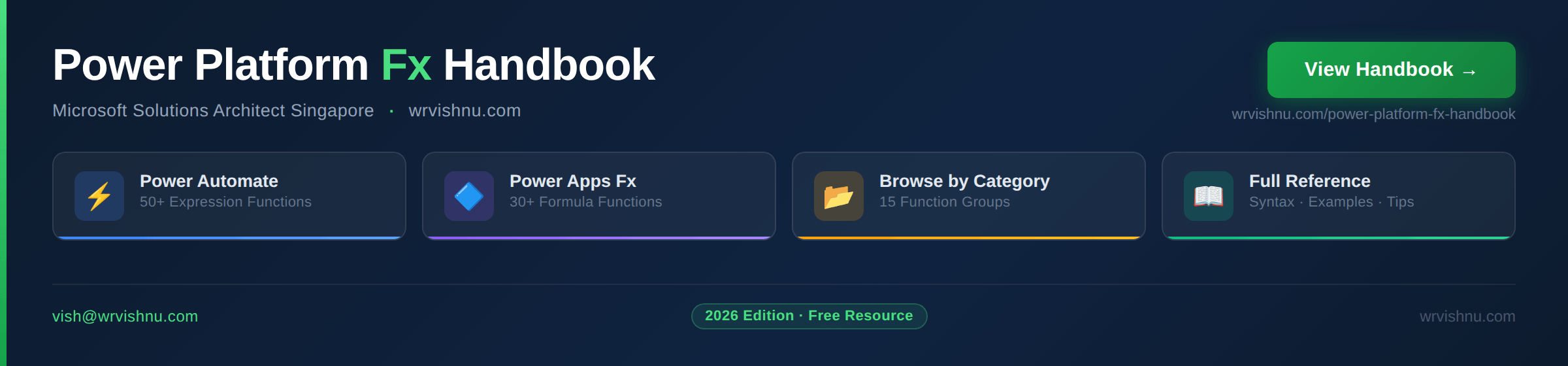
Building flows and canvas apps every day means constantly reaching for the same functions — and occasionally blanking on the exact syntax, the right column structure for Patch(), or whether substring() is zero-based or one-based. This Power Platform developer function handbook puts every important Power Automate expression and Power Apps Power Fx function in one place, with syntax, a real example, a practical scenario, a developer tip, and the most common mistake to avoid.
Use the tabs to switch between Power Automate expressions, Power Apps Fx functions, or browse by category. Select any function from the dropdown to see the full reference instantly.
What This Power Platform Developer Function Handbook Covers
The handbook covers two sides of Power Platform development: server-side logic in Power Automate and client-side app logic in Power Apps Power Fx.
Power Automate Expressions
Power Automate uses an expression language based on the Azure Logic Apps workflow definition language. These expressions run inside Compose actions, condition blocks, and dynamic content fields. The handbook covers string functions like concat(), substring(), and replace(); date and time functions including formatDateTime(), addDays(), and convertTimeZone(); logic functions like if(), and(), and coalesce(); array operations including split(), first(), union(), and skip(); and flow metadata functions like triggerBody(), body(), and workflow().
Power Apps Power Fx
Power Fx is the formula language for Power Apps canvas apps. It covers data write functions like Patch(), SubmitForm(), and Remove(); data retrieval with Filter(), LookUp(), and Search(); variable and collection management with Set(), UpdateContext(), and ClearCollect(); logic functions including If(), Switch(), IfError(), and IsBlank(); text manipulation, date arithmetic, navigation, math aggregates, and key connector functions like Office365Users.UserProfile() and PowerAutomate.Run().
Key Differences Between Power Automate Expressions and Power Fx
One of the most common points of confusion when working across both tools is that similar functions behave differently depending on the environment. substring() in Power Automate uses a zero-based start index, but Mid() in Power Apps is one-based. Power Automate’s trim() only removes leading and trailing spaces, while Power Fx’s Trim() also collapses internal duplicate spaces. Date handling is particularly different: Power Automate works in UTC by default and requires explicit timezone conversion, while Power Apps returns local device time from Now() and Today().
This matters most when a canvas app calls a Power Automate flow via PowerAutomate.Run(). Date values that look correct on the app screen may shift by several hours when the flow processes them in UTC — especially for users in Singapore Standard Time or other UTC+ zones. The handbook flags this on both the convertTimeZone() and Now() entries so you don’t get caught out.
Tips for Using This Reference
Keep this page open in a browser tab while building. A few patterns worth knowing before you start. In Power Automate, always wrap trigger fields with coalesce() when the field may be null — null values inside concat() or formatDateTime() are the most common cause of flow failures in enterprise environments. In Power Apps, the Power Platform delegation limit catches almost every developer at least once: non-delegable functions like Search() silently return only the first 500 rows from a SharePoint list. Always check for the yellow warning triangle in the formula bar.
When writing to SharePoint with Patch(), the structure for Choice columns ({Value: "OptionName"}) and Person columns (Claims string) is different from every other column type — the handbook calls this out on the Patch() entry so you can reference it quickly without leaving your build.
Further Reading
For the complete language specification, the Power Automate workflow functions reference and the Power Fx formula reference for canvas apps are the authoritative sources on Microsoft Learn.
For practical build guides, the Power Platform category on this site covers approval flows, SharePoint integration patterns, and canvas app builds for enterprise M365 environments. The Copilot Studio section covers how Power Automate and Power Apps connect to AI-powered agents.