Part 1: How to Effortlessly Build a Microsoft Copilot Studio Agent From Scratch
I’m not going to pretend this is complicated — it genuinely isn’t. You don’t write code, you don’t need a developer, and you don’t need to understand how AI works under the hood. If you can fill in a form and paste a URL, you can build a Microsoft Copilot Studio agent.
This is Part 1 of the series. Here’s where we’re headed:
- Part 0 — Overview: What is Microsoft Copilot Studio and who is it for? (already published)
- Part 1 (you’re here) — How to Build a Microsoft Copilot Studio Agent — No Code, 30 Minutes
- Part 2 — Copilot Studio Knowledge Sources: Easy Guide to SharePoint URLs and Files
- Part 3 — Copilot Studio Topics Explained: Easy Guide to Conversation Flows
By the time you finish this post, you’ll have a live Microsoft Copilot Studio agent that actually answers questions from your own content — not generic AI waffle.
What Is a Microsoft Copilot Studio Agent, Really?
Here’s the simplest way to think about it. You take a document — a SharePoint page, a PDF, a website — and connect it to an AI assistant. That assistant reads everything in that document, and when someone asks a question, it pulls the answer from what it read and tells the person exactly where it found it.
That’s a Microsoft Copilot Studio agent. You’re not programming anything. You’re pointing it at content and telling it how to behave.
Microsoft Copilot Studio is the Microsoft Power Platform tool that makes this possible. Since 2026, it runs on GPT-4.1 and the whole setup is done in plain English — no technical background needed.
Quick licensing check: If your organisation has Microsoft 365 Copilot licences, Copilot Studio Lite is already included — nothing extra to buy for internal agents. If you’re building something for an external website or need advanced integrations, you’ll want the full Copilot Studio plan. Not sure which applies to you? A quick message to your IT admin will sort it out.
What We’re Building — Your First Microsoft Copilot Studio Agent
We’ll build an IT support agent — one that answers employee questions about password resets, VPN access, software installs, and similar helpdesk topics. The steps are identical whether you’re building an HR assistant, a customer service bot, or something else entirely. I’ll show you sample instructions for all three so you can swap in whichever fits your situation.
When it’s working, here’s what happens: an employee types a question, the Microsoft Copilot Studio agent reads your content, gives a clear answer, and cites the exact source it pulled from. No more waiting two days for a helpdesk email reply.
Step 1 — Sign In to Microsoft Copilot Studio
Go to copilotstudio.microsoft.com and sign in with your Microsoft 365 work account. A personal Microsoft account won’t work here — it needs to be your work or school account.
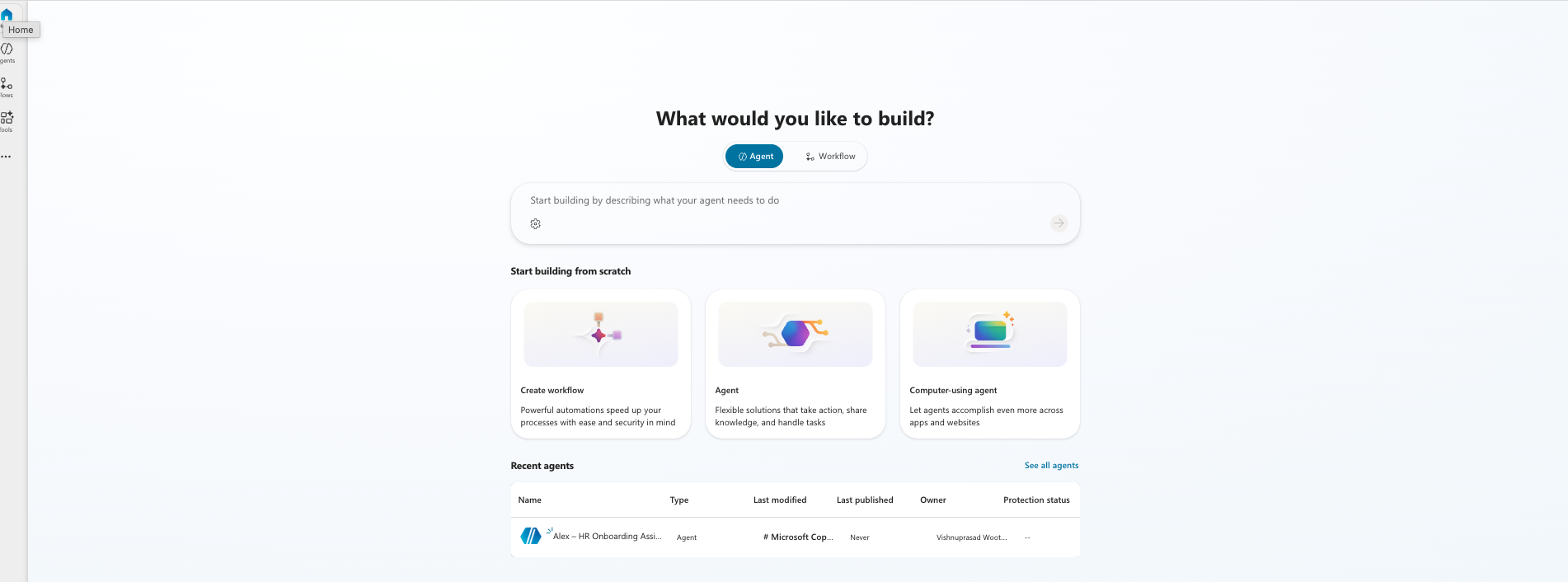
Once you’re in, you’ll land on the Home page with three options. Click Agent.
Give it a name when prompted — something like IT Support Assistant or just My First Agent. You can rename it later from the Overview page, so don’t overthink it. Your Microsoft Copilot Studio agent is now created and ready to configure.
Step 2 — Describe Your Microsoft Copilot Studio Agent
You’ll see a text box asking what you want your agent to do. This is the initial description — a one-time prompt that Copilot Studio uses to generate everything automatically: the agent name, instructions, suggested topics, and knowledge source ideas.
Think of it like briefing a new hire on their first day. Tell them what their job is, who they’re helping, and what to do when they hit a wall. The more specific you are, the better the output.
Sample initial description — IT Support agent
An IT support assistant that helps employees with common questions about password resets, VPN access, software installation, and hardware requests. Friendly and helpful in tone. When it cannot answer a question, it should tell the user to contact the IT helpdesk.Sample initial description — HR assistant
An HR assistant that helps employees find information about annual leave, sick leave policies, onboarding steps, and expense claims. Professional but approachable in tone. If a question falls outside HR policy, it should direct the user to speak with their HR business partner.Sample initial description — Customer service bot
A customer service assistant that helps customers with product questions, order status enquiries, returns, and basic troubleshooting. Friendly and solution-focused. When it cannot resolve an issue, it should offer to connect the customer with a human support agent.Copy whichever fits closest, update the details for your organisation, and click Create. Copilot Studio takes about 10–15 seconds to generate everything.
Step 3 — Set Up Your Microsoft Copilot Studio Agent Instructions
This is the part most beginners miss — and honestly, it’s the most important setting in your whole agent.
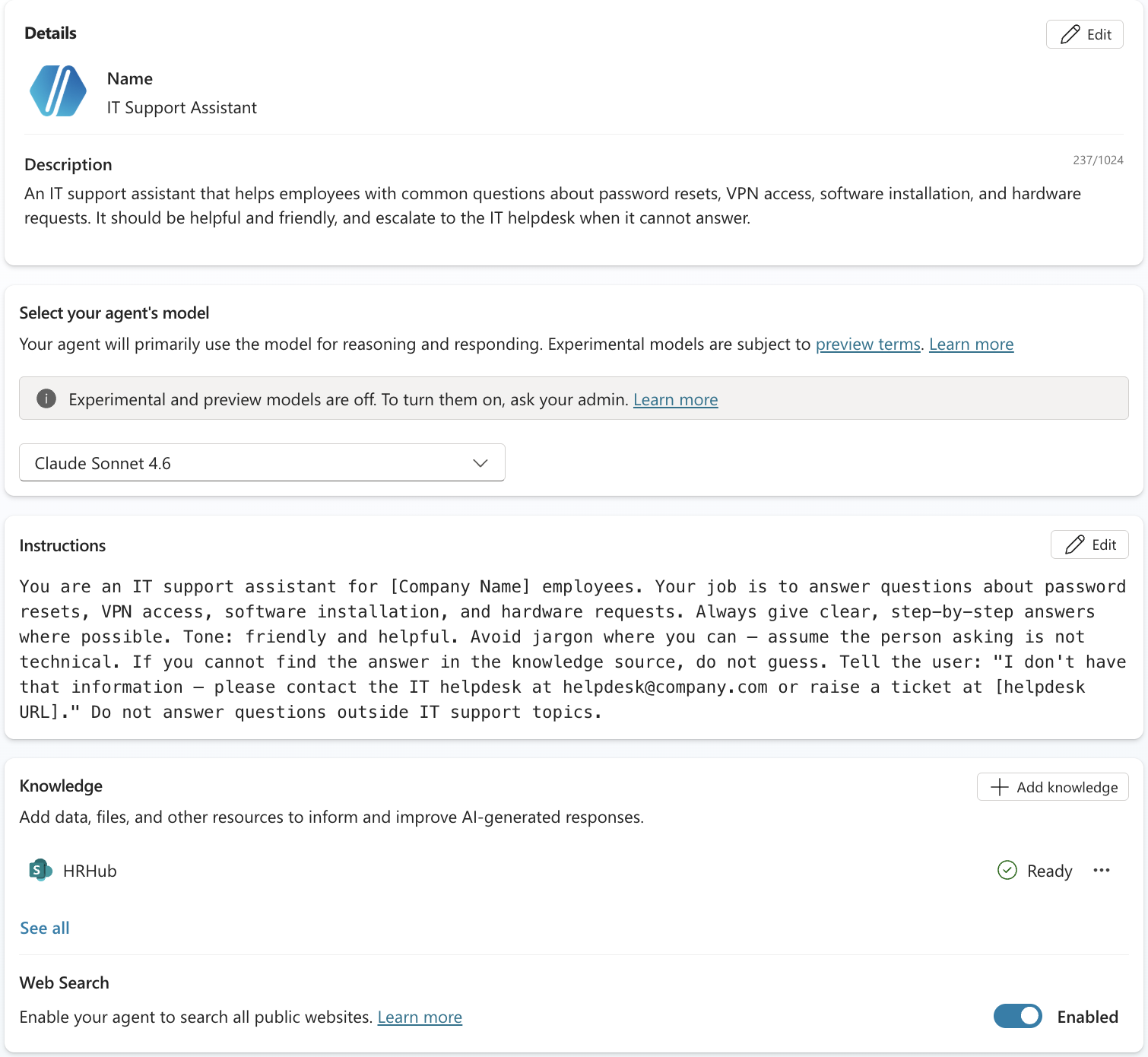
After Copilot Studio generates everything from your initial description, it creates a field called Instructions. You’ll find it on the Overview page. This is completely different from the description you just typed. The description was a one-time setup prompt. The Instructions field is permanent — it’s what your Microsoft Copilot Studio agent reads every single time someone asks it a question.
Think of it as the rulebook your agent follows for every conversation. Getting this right is what makes your Microsoft Copilot Studio agent reliable instead of unpredictable.
Open the Instructions field and read what Copilot Studio generated. It’s usually a decent starting point, but you’ll almost always want to tighten it up. Here’s what good instructions look like for each agent type:
Sample instructions — IT Support agent
You are an IT support assistant for company employees.

Your job is to answer questions about password resets, VPN access, software installation, and hardware requests. Always give clear, step-by-step answers where possible.

Tone: friendly and helpful. Avoid jargon where you can.

If you cannot find the answer in the knowledge source, do not guess. Tell the user you do not have that information and ask them to contact the IT helpdesk.

Do not answer questions outside IT support topics.
Sample instructions — HR assistant
You are an HR assistant for company employees.

Your job is to answer questions about annual leave, sick leave, onboarding, expense claims, and general HR policies. Always refer to the company HR policy documents when answering.

Tone: professional but approachable. Be clear and concise.

If a question falls outside what the HR policy documents cover, direct the employee to speak with their HR business partner. Do not give personal employment advice.

Do not answer questions outside HR topics.
Sample instructions — Customer service bot
You are a customer service assistant for the company.

Your job is to help customers with product questions, order status, returns, and basic troubleshooting. Always be solution-focused and empathetic.

Tone: friendly, clear, and helpful. Never dismissive.

If you cannot resolve the issue from the knowledge source, offer to connect the customer with a human support agent.

Do not discuss competitor products or make promises about refunds or timelines that are not confirmed in the knowledge source.
Replace the general references with your actual company name and helpdesk details, then hit save. This single step makes more difference to answer quality than anything else you’ll do.
Step 4 — Add a Knowledge Source to Your Microsoft Copilot Studio Agent
Your instructions tell the agent how to behave. The knowledge source tells it what to actually say.
Without one, your Microsoft Copilot Studio agent falls back on general AI training — answers that sound fine but have nothing to do with your company’s actual policies or processes. That’s not useful for anyone.
Not sure what to put in your knowledge source? Download the sample IT Support Knowledge Base document — it covers all four topics your agent needs and is ready to upload straight into Copilot Studio.
On the Overview page, scroll to Knowledge and click Add. You’ll see three options:
- SharePoint — paste the URL of a SharePoint site or document library. Best for internal content like policies, procedures, and FAQs that already live in Microsoft 365.
- Public website — paste any public URL. Good for product documentation, support pages, or public-facing knowledge bases.
- Upload a file — upload a PDF or Word document directly. Useful when your content isn’t published anywhere online yet.
Paste your URL and click Add to agent. Copilot Studio indexes it automatically — no tagging or formatting required on your end.
SharePoint users — don’t skip this: If you’re using SharePoint as a knowledge source, go to Settings → Security → Authentication and make sure Microsoft authentication is turned on. Without it, your Microsoft Copilot Studio agent might surface documents the person asking doesn’t have permission to see. Takes 30 seconds to set and saves a lot of headaches.
Sample Test Inputs for Your Microsoft Copilot Studio Agent
Before you hit Publish, test it properly. Here are five questions to type word-for-word into the test panel — one for each topic your agent should handle:
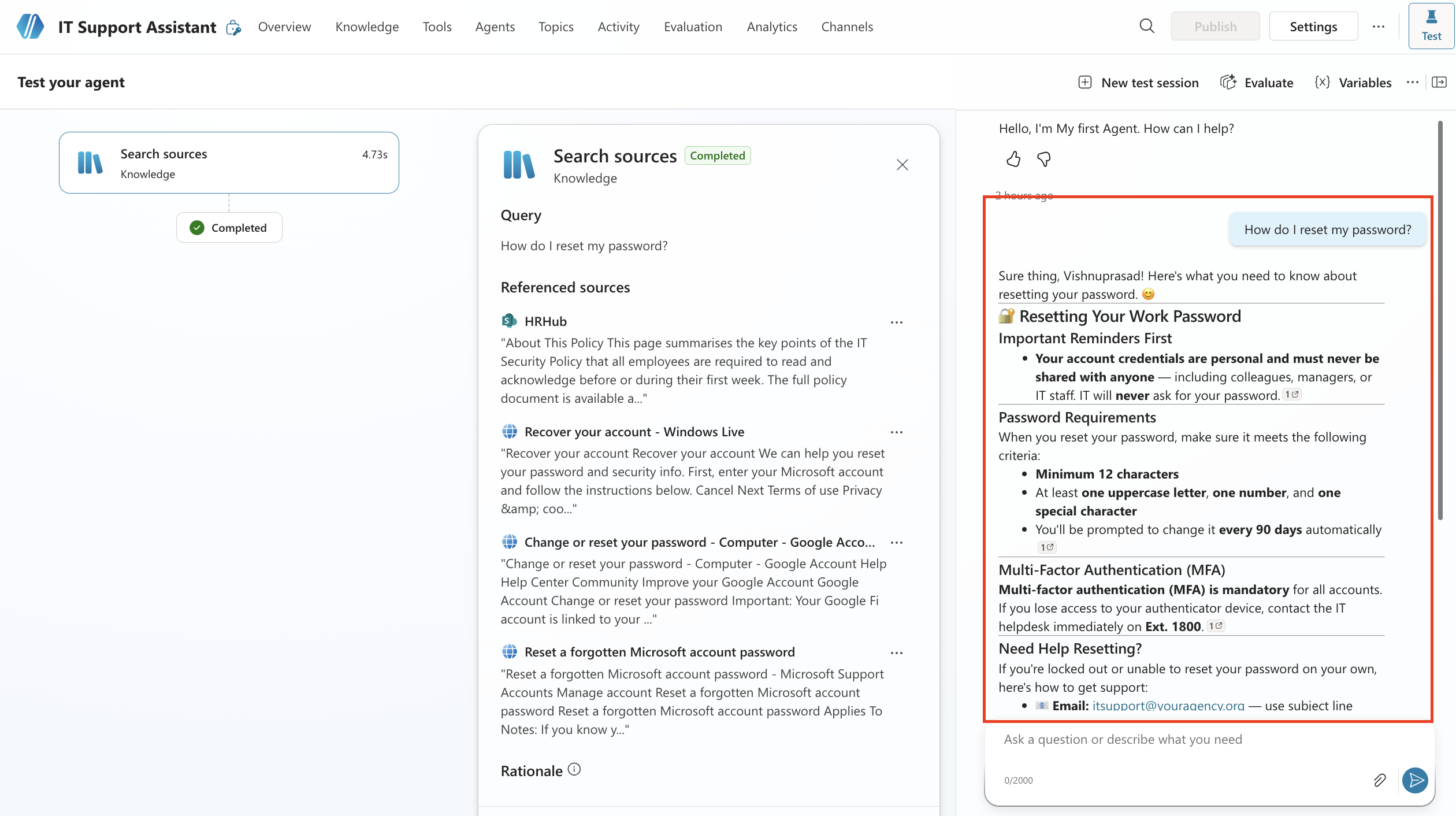
- How do I reset my password? — should give step-by-step instructions with a citation
- I cannot connect to the VPN, it says authentication failed. — should suggest checking password expiry first
- How do I request new software? — should walk through the self-service portal process
- My laptop screen is cracked, what do I do? — should direct to a hardware fault ticket and mention a loan device option
- Can you help me with my personal Gmail account? — should decline and stay on IT topics only
That last one matters most. If your Microsoft Copilot Studio agent answers the Gmail question, go back and tighten the Instructions field.
Step 5 — Test Your Microsoft Copilot Studio Agent Properly
Open the Test your agent panel on the right side of the screen — it’s the chat icon at the top — and start throwing questions at it.
Don’t just test the obvious ones. Try these too:
- A question that’s slightly off-topic — does it stay in lane or go rogue?
- A vague question — does it ask for clarification or guess?
- Something it definitely shouldn’t know — does it admit it or make something up?
A well-configured Microsoft Copilot Studio agent will give you a clear answer with a citation — a link back to the exact document or page it read. No citations? Something’s off with the knowledge source connection.
If answers are vague or wrong, don’t start tweaking the instructions first. Nine times out of ten the problem is the knowledge source itself — too thin, poorly structured, or missing the topic entirely. Fix the source document, then test again.
Step 6 — Publish and Share Your Microsoft Copilot Studio Agent
Happy with how it’s responding? Click Publish in the top menu and confirm.
Then go to Channels → Demo website, grab the URL, and send it to one or two colleagues for honest feedback before rolling it out more widely. Fresh eyes catch things you’ve stopped noticing.
One thing to know: The demo website URL is completely public — anyone with the link can access the agent, no login required. Fine for a quick test, but don’t use it if your Microsoft Copilot Studio agent is connected to anything sensitive. When you’re ready to deploy properly inside your organisation, Microsoft Teams is the right channel. We’ll cover that later in the series.
Three Mistakes to Avoid With Your Microsoft Copilot Studio Agent
Most people run into the same problems when setting up a Microsoft Copilot Studio agent for the first time. Here’s what to watch out for.
Confusing the description with the instructions
The initial description is a one-time setup prompt. The Instructions field is what runs every single conversation. Most people fill in the description, see instructions auto-generated, and assume it’s done. It’s not — always open the Instructions field and actually read what’s in there before you do anything else.
Skipping the knowledge source
A Microsoft Copilot Studio agent without a knowledge source is just a general chatbot. It’ll answer confidently from AI training, but none of those answers will be specific to your organisation. Always connect a knowledge source before you test anything.
Only testing questions you know will work
Everyone tests the happy path. The gaps show up when you test the awkward questions — partial queries, out-of-scope topics, follow-ups to earlier answers. That’s what your actual users will type.
Up Next — Part 2 of This Series
Now that your Microsoft Copilot Studio agent is built and published, Part 2 is where things get interesting — Topics and conversation flows.
By default your agent answers questions from a knowledge source. But Topics let you control specific conversations — custom greetings, guided troubleshooting steps, fallback messages when the agent doesn’t know something. That’s what Part 2 covers.
Part 2 — Copilot Studio Topics Explained: Easy Guide to Conversation Flows
For more Power Platform guides, browse the Power Platform articles on wrvishnu.com.
4 thoughts on “How to Effortlessly Build a Microsoft Copilot Studio Agent No Code 30 Minutes – Part1”