The SharePoint Permission Viewer web part fixes a glaring blind spot in SharePoint Online — there’s no built-in, comprehensive view of who has access to what. I built this web part to solve exactly that problem.
In this post, I walk through the SharePoint Permission Viewer web part — the challenge it solves, its key features, how it works, and how to deploy it. For Microsoft’s official documentation, see the SharePoint Framework overview and SharePoint sharing and permissions documentation.
📋 Table of Contents
1 The Challenge
Managing permissions in SharePoint Online often feels like guesswork. Administrators and site owners have to check individual lists and libraries one by one to answer even basic questions:
- Who has access to this site?
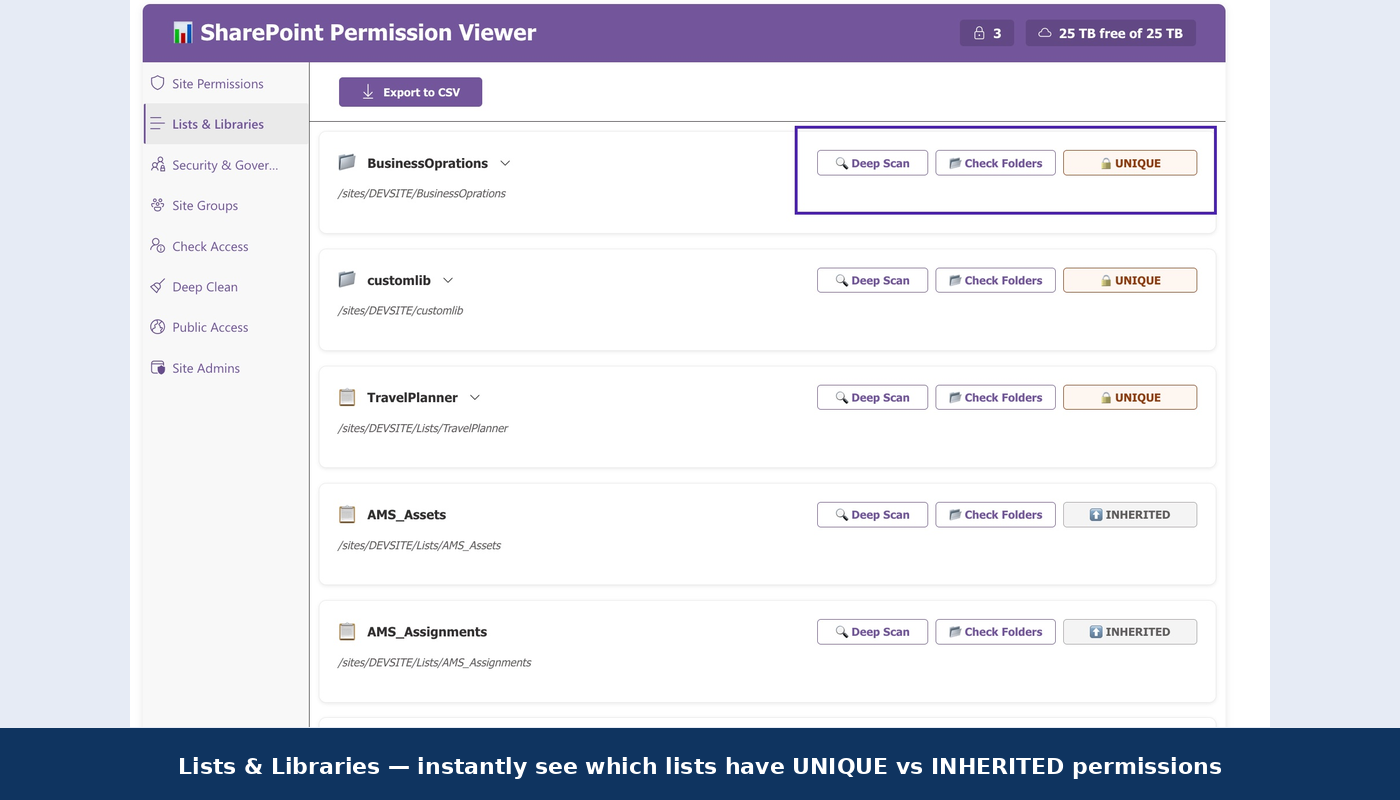
- Which libraries have unique (broken-inheritance) permissions?
- What permission level does this specific user have?
- Are there orphaned accounts from departed employees still holding access?
Without a centralised view, security becomes a manual, error-prone process — and mistakes in permission management can lead to data exposure or compliance failures. This is exactly the gap the SharePoint Permission Viewer was built to close.
2 The SharePoint Permission Viewer Solution
The SharePoint Permission Viewer web part provides a single-pane-of-glass dashboard for all permissions within a site. It uses the SharePoint REST API to scan your site, lists, and libraries and presents a clear, colour-coded, exportable picture of exactly who can access what.
3 SharePoint Permission Viewer Key Features
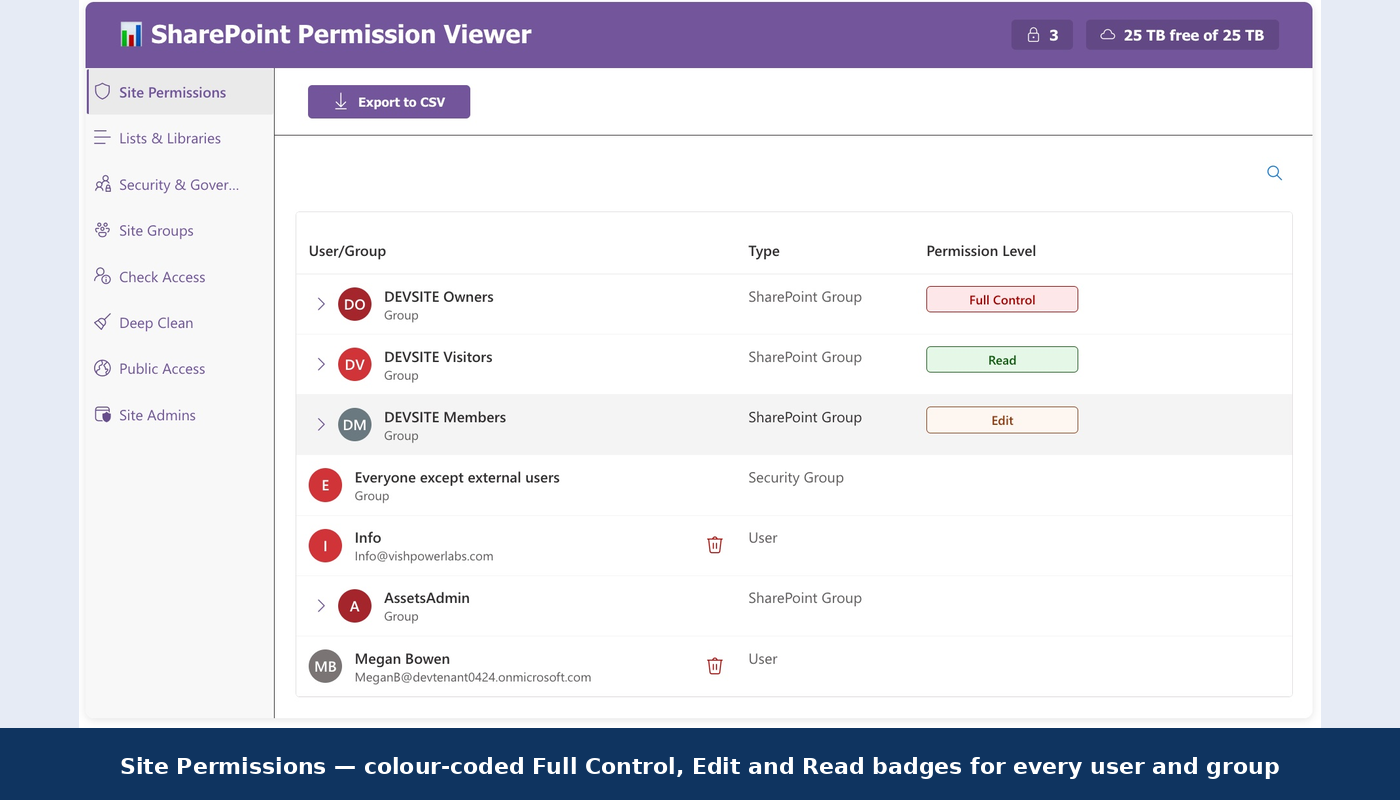
The web part loads with a statistics overview — total users, SharePoint groups, unique-permission lists, and orphaned accounts — then lets you drill into detailed views. Colour-coded badges make permission levels instantly scannable:
The report automatically filters out “Limited Access” noise — only explicit permission grants are shown, keeping the view clean and actionable.
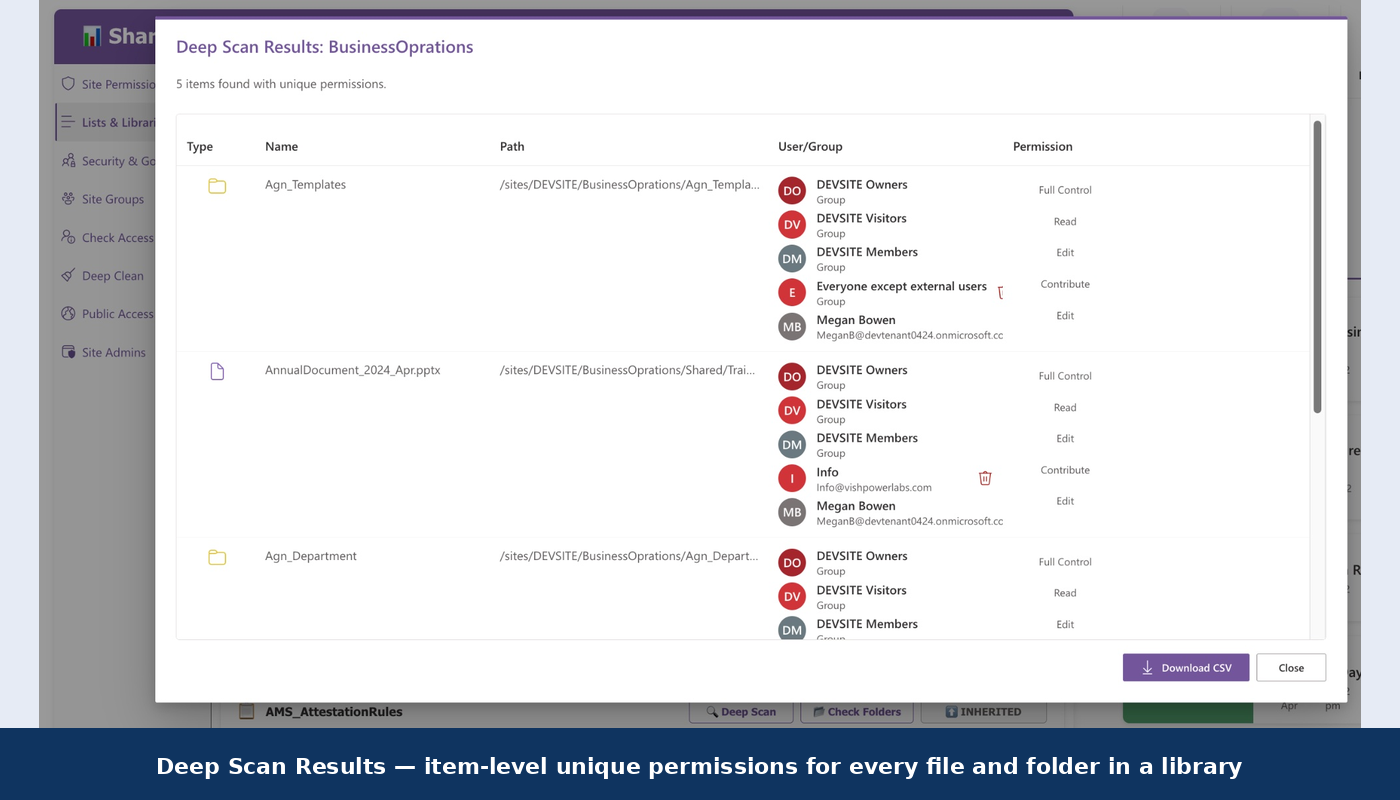
Drill into any list or library to verify every single item — critical for catching files with broken inheritance.
Search any user via People Picker, see their explicit permissions, and revoke access directly from the interface.
Scans the entire site for accounts disabled or deleted in Microsoft Entra ID that still hold SharePoint permissions.
Export site-level, list-level, or deep-scan results as CSV for offline analysis, auditing, or archival.
Automatically inherits your SharePoint site theme — backgrounds, fonts, and button colours adapt instantly.
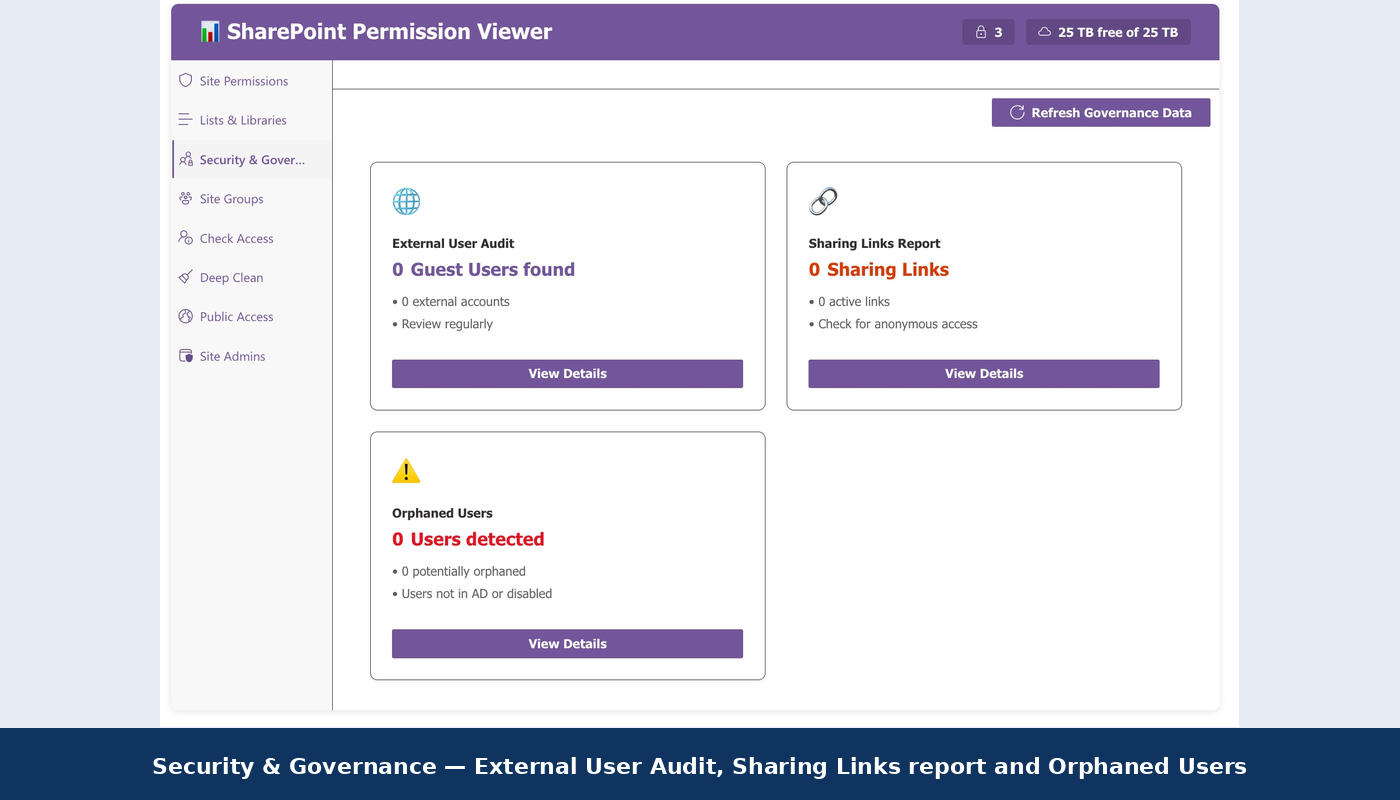
Audit anonymous and external sharing links — surface hidden access risks before they become incidents.
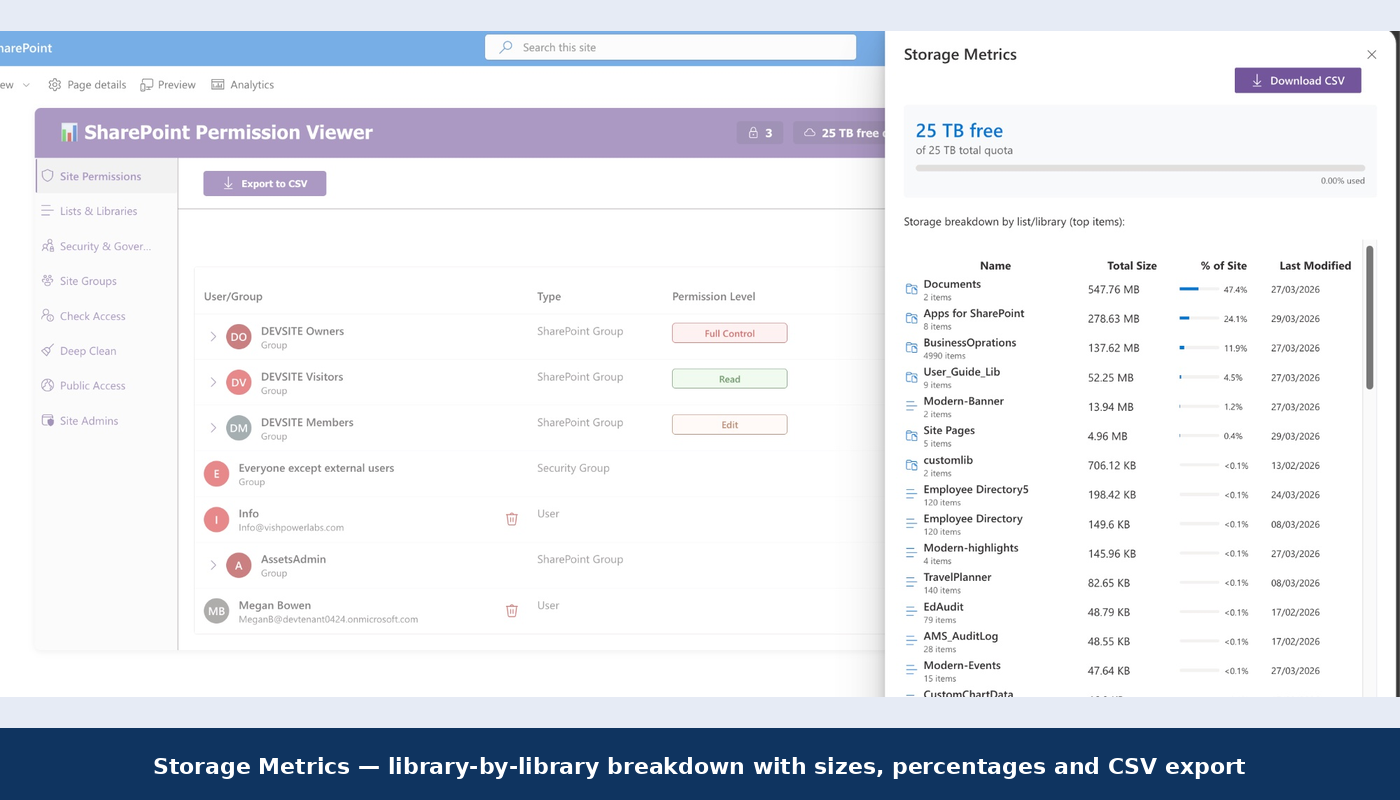
Library-by-library storage breakdown with Auto, MB, GB, or TB format and downloadable CSV.
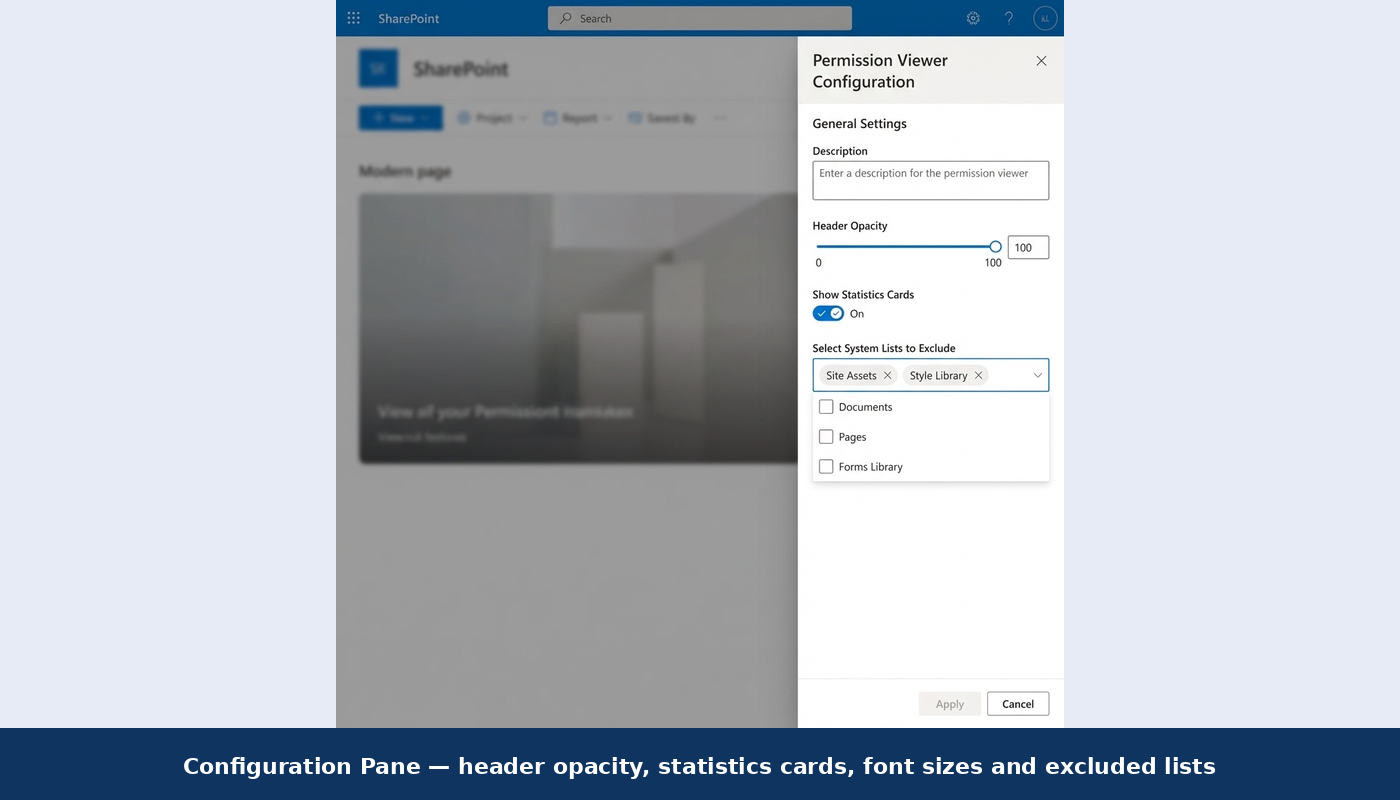
Exclude system lists like Site Assets and Style Library to focus reports on business content only.
4 How the SharePoint Permission Viewer Works
Upload the .sppkg file to your Site Collection or Tenant App Catalog and trust the application when prompted.
Add the SharePoint Permission Viewer to any modern SharePoint page. Use the property pane to set exclusions, font sizes, header opacity, and toggle statistics cards on or off.
On load, the web part uses the SharePoint REST API to aggregate all role assignments, identify unique vs. inherited permissions, and display them in a clean, filterable dashboard.
Remove orphaned users, revoke specific permissions, and export comprehensive CSV reports — all without leaving the page.
5 Build & Deploy
The project uses Heft for a fast, production-grade build pipeline. Getting started requires Node.js v22.14.0+ and SPFx v1.22.0.
# Install dependencies
npm install

# Build and package for production
npm run build
# → heft build --clean --production && heft package-solution --production
The generated .sppkg file appears in sharepoint/solution/ — ready to upload to your App Catalog.
6 Code Quality & Security
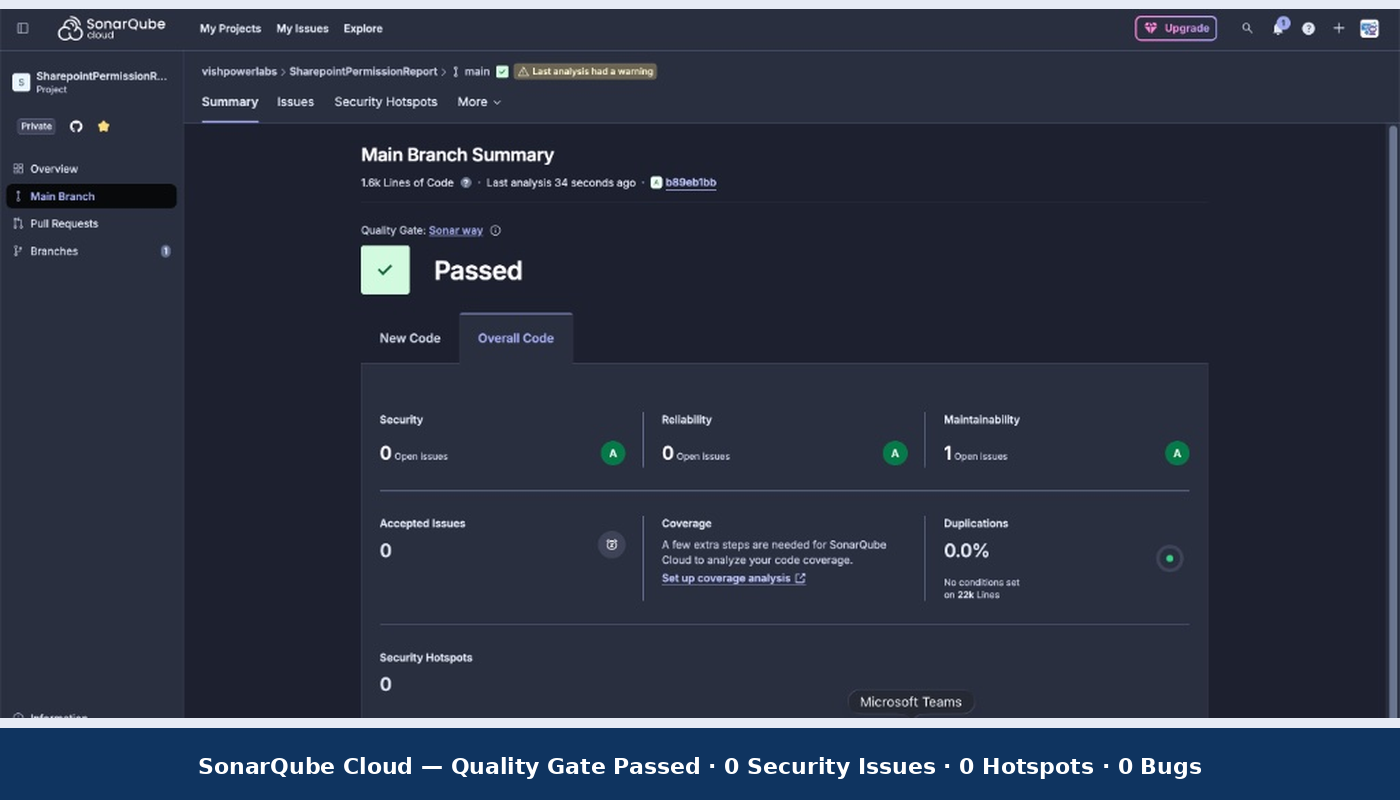
When a web part touches permission data, code quality is not optional. The Permission Viewer has been analysed with SonarQube Cloud:
Github Repo : https://github.com/vishpowerlabs/SharepointPermissionReport
Related Reading on wrvishnu.com
If you found this SharePoint Permission Viewer guide useful, explore more related content:
One thought on “Efficient SharePoint Permission Viewer: Complete SPFx Audit Guide 2026”