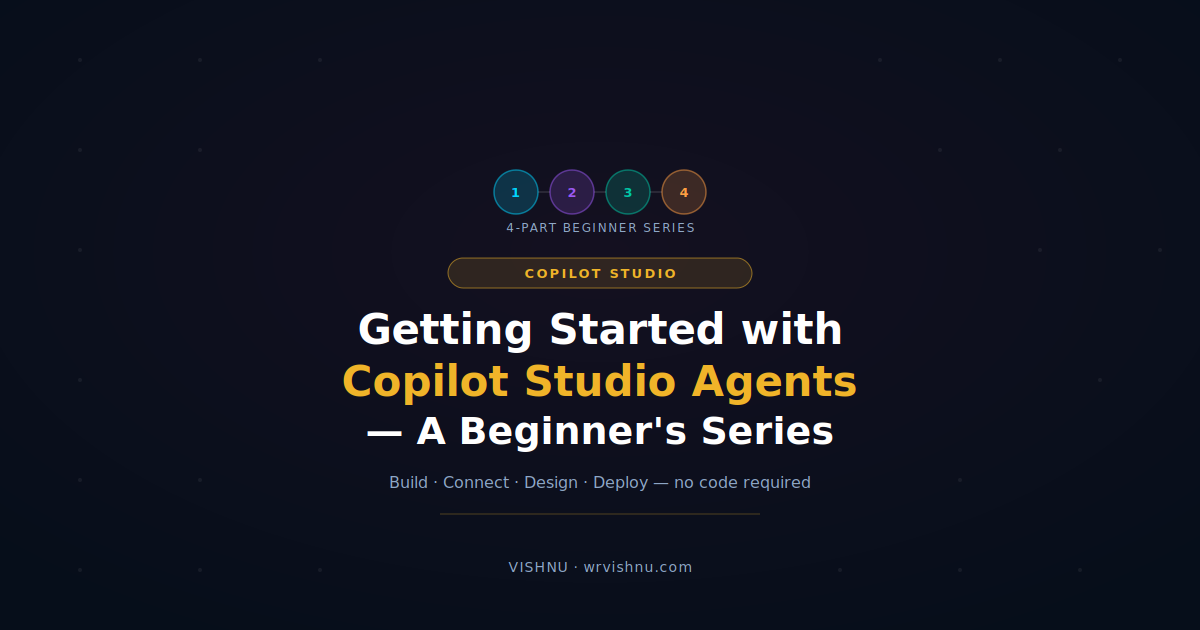
Copilot Studio Beginners Guide — What This 4-Part Series Covers
This Copilot Studio beginners guide takes you from zero experience to a fully working AI agent deployed inside Microsoft Teams. If you’ve been hearing about Copilot Studio and want to understand what it actually does and build something useful with it — start here.
Microsoft Copilot Studio lets anyone build an AI agent that answers questions, guides workflows, and interacts with business data, without writing a single line of code. This Copilot Studio beginners guide is structured as four focused posts, each building on the last, written for someone with no prior AI or agent-building experience.
What Is Copilot Studio?
Microsoft Copilot Studio is a low-code platform for building and deploying AI agents. It is part of the Microsoft Power Platform — alongside Power Apps, Power Automate, and Power BI and is accessible at copilotstudio.microsoft.com.
An agent is an AI assistant that holds conversations, answers questions from your documents, and takes actions on your behalf. Unlike a rigid chatbot, a Copilot Studio agent uses generative AI to understand natural language and compose answers from the content you connect to it. In 2026, the platform defaults to GPT-4.1 and lets you describe your agent in plain English and the platform generates the name, instructions, and setup automatically.
Who Is This Copilot Studio Beginners Guide For?
This Copilot Studio beginners guide is for:
- Microsoft 365 users who have heard about Copilot Studio but never logged in
- Power Platform makers who build in Power Apps or Power Automate but haven’t explored agents yet
- IT or operations staff who want to automate internal Q&A without involving developers
- Anyone who wants a practical, step-by-step introduction rather than a marketing overview
No AI background is needed. No coding is required. If you can use Microsoft Teams, you can follow this series.
What Can You Build With Copilot Studio?
Common use cases covered in this Copilot Studio beginners guide:
- IT support agent — answers staff questions about passwords, VPN, and software from internal documentation
- HR FAQ agent — handles leave, payroll, and policy questions automatically
- Onboarding assistant — guides new starters through company processes and the right resources
- Internal knowledge bot — connects to SharePoint and lets staff ask questions in natural language
Prerequisites — What You Need Before Starting
| Requirement | Details |
|---|---|
| Microsoft 365 account | A work or school account — personal accounts are not supported |
| Copilot Studio access | Included with Microsoft 365 Copilot licences . |
| SharePoint site or document | Used as a knowledge source in Part 2. Any site you have read access to works. |
| Microsoft Teams | Used in Part 4 to deploy your agent. Included in most Microsoft 365 plans. |
Free trial: Microsoft offers a free Copilot Studio trial at copilotstudio.microsoft.com. You can build and test agents without a paid licence — Teams publishing may require a full plan depending on your organisation.
Copilot Studio Beginners Guide: The 4 Posts Explained
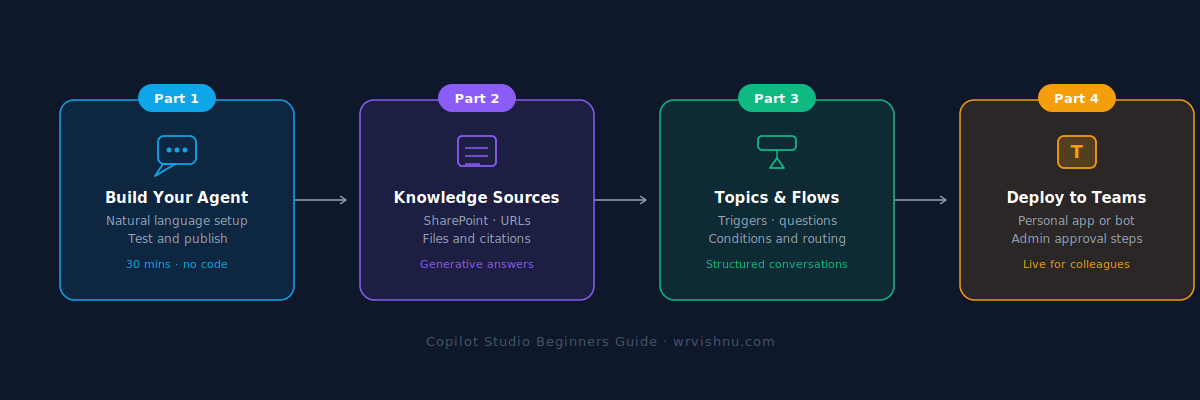
Part 1 — Build Your First Copilot Studio Agent
The first post in this Copilot Studio beginners guide walks you through creating an agent from scratch using the natural language setup, connecting a knowledge source, testing in the built-in chat panel, and sharing a demo link — in under 30 minutes.
Best for: Complete beginners who have never opened Copilot Studio before.
Part 2 — How Knowledge Sources Work in Copilot Studio
Part 2 of this Copilot Studio beginners guide focuses on connecting content — a SharePoint site, a public URL, or an uploaded file — so your agent answers from your real documentation rather than generic AI training.
Best for: Makers who have built their first agent and want it to answer from company-specific content.
Part 3 — What Are Topics in Copilot Studio?
Part 3 explains topics — structured conversation flows you design step by step. You will build a topic with trigger phrases, a question node, and a condition that routes users differently based on what they say.
Best for: Makers who want structured workflows for specific scenarios rather than open-ended Q&A.
Part 4 — Publish Your Agent to Microsoft Teams
The final part of this Copilot Studio beginners guide covers deploying your agent to Teams as a personal app or channel bot, configuring the Teams app listing, and understanding admin approval.
Best for: Makers who have a working agent and are ready to share it with colleagues.
How to Use This Copilot Studio Beginners Guide
Each part of this Copilot Studio beginners guide is designed to stand alone — jump to whichever section matches where you are. If you are starting from zero, read them in order. Each post ends with a direct link to the next.
The full series can be completed in a single afternoon. By the end of Part 4, you will have a live AI agent in Microsoft Teams your colleagues can actually use.
Tip: Bookmark this page. As each new part publishes, the links will be updated here so you can always find the next post in the series.
What This Guide Does Not Cover
This Copilot Studio beginners guide stays scoped to the essentials — everything you need to go from zero to a deployed agent, nothing more. It does not cover multi-agent orchestration, Power Automate integration, external-facing deployments, or advanced governance. Those topics will be covered in a separate intermediate series.
Start with Part 1 and build your first agent today.
For more Power Platform guides and practical tutorials, browse the Power Platform articles on wrvishnu.com.