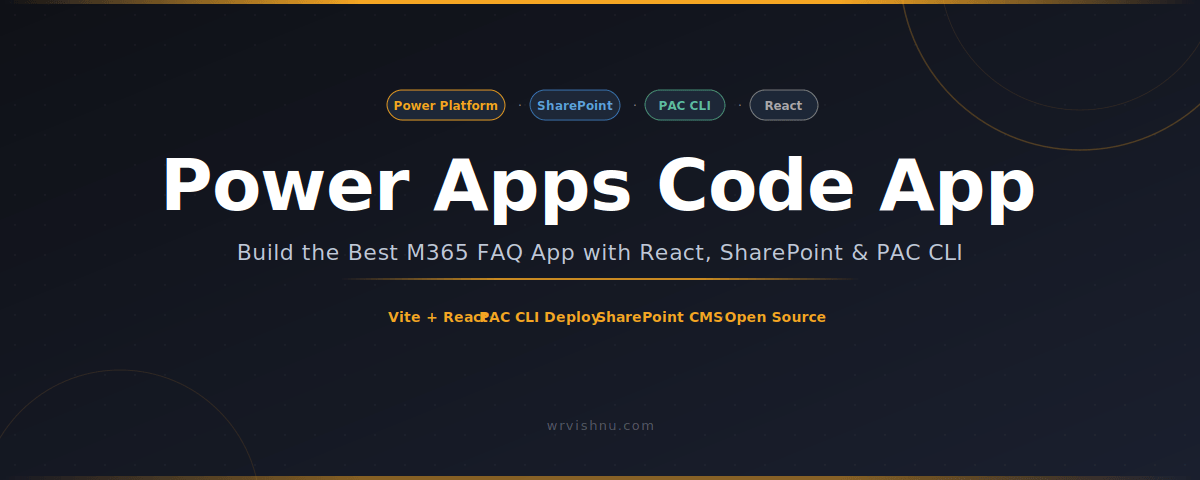
If you have outgrown the limits of Canvas apps, building a Power Apps Code App is the natural next step. This pro-code approach lets you write production-grade React, deploy through the Power Platform CLI, and serve the result natively inside Microsoft 365 — without losing governance or the data layer your organisation already relies on.
In this guide we cover the high-level architecture and setup steps of a real M365 FAQ App. For detailed implementation — service configuration, component customisation, and field mappings — the full step-by-step guide is in the GitHub repository.
Why Use a Power Apps Code App for FAQ?
Canvas apps are excellent for forms and dashboards. But the moment you need real-time search, Markdown-rendered answers, or dynamic category filtering — you are fighting the platform rather than building with it. This pro-code approach changes that entirely.
You write standard React and TypeScript, import any npm package, and the PAC CLI handles the connection to your Power Platform environment. The result is a first-class application in your Microsoft 365 app launcher — built with a front-end toolchain you fully control.
- Full npm ecosystem — Fluent UI, react-markdown, fuse.js, and anything else you need.
- Auto-generated data layer — the PAC CLI scaffolds typed service classes from your list schema.
- Real build pipeline — Vite, TypeScript, ESLint, and a one-command deploy.
- Same governance — DLP policies, environment controls, and solution packaging all apply as normal.
Who Is This For?
This guide is aimed at Power Platform developers comfortable with JavaScript or TypeScript who want to go beyond Canvas apps. You do not need to be a full-stack React developer — if you can read JSX and run npm commands, you have everything you need.
It is also useful for Solutions Architects who want to demonstrate pro-code capability to stakeholders. This is a practical, self-contained example — small enough to build in a day, real enough to ship to production.
What the M365 FAQ App Does
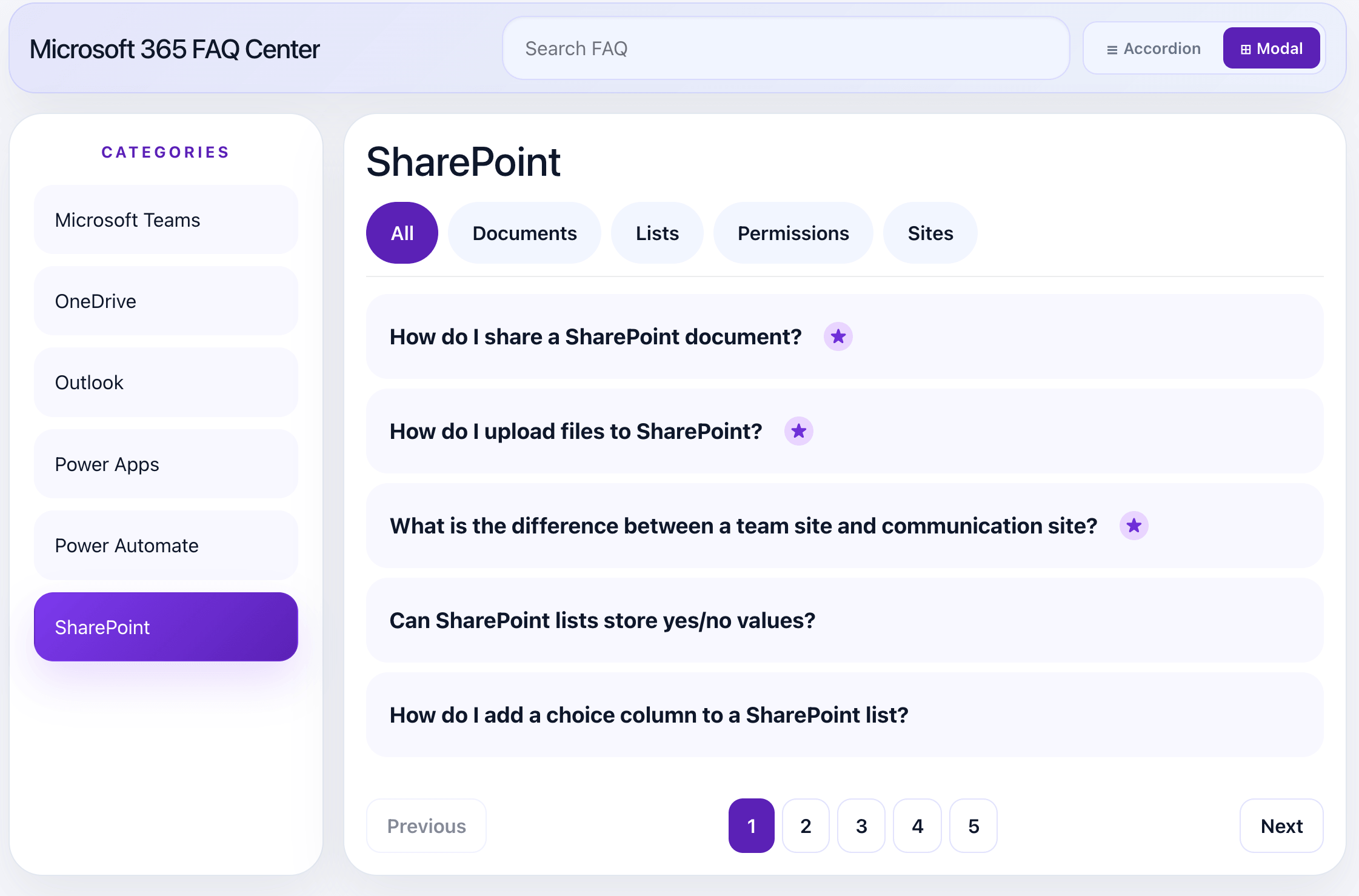
Toggle display modes via a single config value — no rebuild needed after deployment.
Searches questions and answers with matched term highlighting in the results.
Sidebar filter driven directly from your list’s Category choice column.
Fully responsive — the filter panel collapses cleanly on small screens.
Content editors manage everything directly in the list — adding a new FAQ, pinning an entry, or retiring an outdated answer requires no developer involvement. That separation of content and code is one of the key reasons this pattern works well in enterprise M365 environments.
Step 1 — SharePoint List Setup
The app uses a SharePoint list named M365 FAQs as its backend. Create it in your target site with these columns:
| Column | Type | Purpose |
|---|---|---|
Title |
Single line | The FAQ question |
Answer |
Multiple lines | The answer body |
Category |
Choice | Drives the sidebar filter panel |
Pinned |
Yes/No | Surfaces important entries at the top |
Active |
Yes/No | Hides draft items without deleting them |
Once created, connect the list to your project via the PAC CLI. It reads the schema and auto-generates a typed service layer — covered in the project structure section below.
Step 2 — Local Setup and PAC CLI
You need two tools: Node.js 22 LTS and the Power Platform CLI. Once installed, authenticate and scaffold the project:
# Install Power Platform CLI
npm install -g @microsoft/powerplatform-cli

# Authenticate and select your environment
pac auth create
pac auth select --index 1

# Scaffold the project (Vite + React + TypeScript)
pac code init --name M365FAQApp --template react
This generates a ready-to-run project with power.config.json wired to your environment. For detailed connection steps, refer to the PAC CLI documentation on Microsoft Learn and the project README on GitHub.
Step 3 — Project Structure Overview
After scaffolding and connecting your list, the project looks like this. The generated/ folder is created automatically by the PAC CLI — do not edit it manually.
m365-faq-code-app/
├── src/
│   ├── generated/       ← Auto-generated by PAC CLI — do not edit
│   ├── App.tsx          ← UI logic and components
│   ├── config.ts        ← Display mode and pagination settings
│   └── main.tsx         ← App entry point
├── power.config.json    ← Environment and connection config
├── vite.config.ts       ← Vite bundler config
└── package.json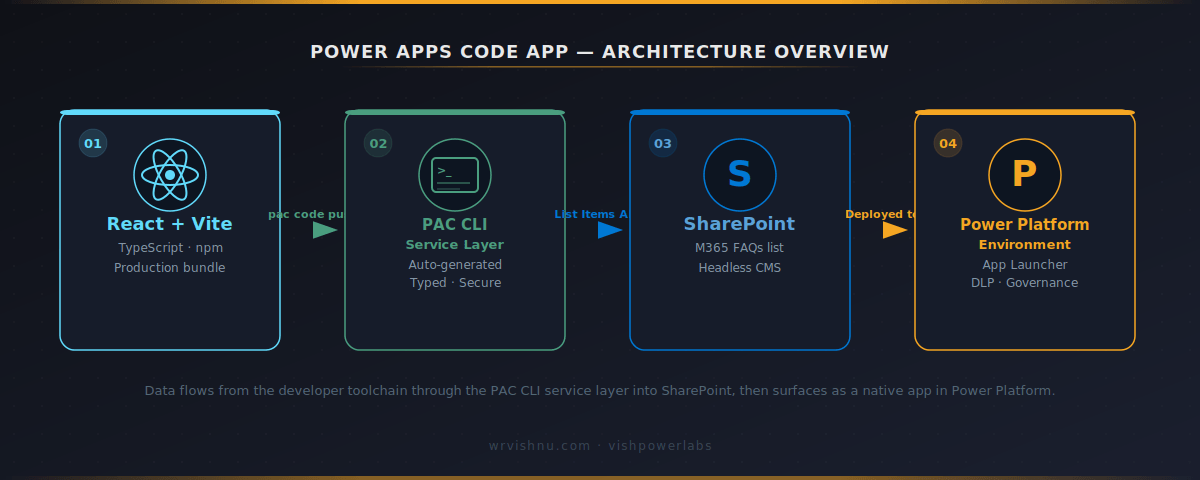
Step 4 — Build and Deploy with pac code push
Deploying the Power Apps Code App is a three-command sequence. Before running, confirm your power.config.json has the correct environment ID and connection reference.
# Install dependencies
npm install

# Build the Vite production bundle
npm run build

# Push to Power Platform
pac code push --solutionName "M365_FAQ_Solution"
After a successful push, open make.powerapps.com, publish the app from your solution, and share with your security group. It appears in users’ Microsoft 365 app launchers immediately — no separate install required.
Full Project on GitHub
Complete source code, list schema, and a GitHub Actions deployment workflow — open-source and ready to clone. The README has the full implementation guide.
Frequently Asked Questions
What is a Power Apps Code App and how is it different from a Canvas App?
A Power Apps Code App is built with React and TypeScript, bundled with Vite, and deployed via pac code push into Power Platform. Unlike Canvas apps, it gives full control over the component tree and npm ecosystem — while keeping the same DLP policies and app-launcher integration.
Do I need to write the data service code myself?
No. When you connect a list as a data source, the PAC CLI auto-generates a fully typed service class in the generated/ folder. Authentication and data fetching are handled for you — no manual API calls required.
Can this M365 FAQ App be embedded in Microsoft Teams?
Yes. Pin it as a Teams personal app or tab through the Power Apps app in Teams, or package it via the Teams Developer Portal. Users get the full experience without leaving Teams.
What Node.js version is recommended in 2026?
Node.js 22 LTS is recommended. Use nvm if you switch between Node versions across multiple projects.
How do I update a deployed app without downtime?
Run npm run build then pac code push. The platform performs a rolling update — users get the new version on their next page load. No maintenance window needed.
About the Author — Vishnu WR
Microsoft Solutions Architect based in Singapore, writing about SharePoint,Copilot, Power Platform, and Microsoft 365. All guides and projects shared freely with the community at wrvishnu.com.
Found this useful? Here are a few quick ways to connect:
- ⭐ Star the project on GitHub — helps others discover it
- 💬 Drop a comment below — questions, feedback, or feature requests welcome
- 📩 Reach out directly if you need a hand
Got an idea for an app that should be built next? Leave a comment — I’d love to hear what the community needs.