If you work in IT or operations, you already know how quickly Microsoft 365 questions start piling up across Teams and email.
Common requests like password resets, VPN access, Office installs, and HR policy queries happen daily — and answering each one manually is a real drain on your team’s time.
To solve this, I built an M365 FAQ Agent using Microsoft Copilot Studio, SharePoint, Power Automate, and Microsoft Teams. In this guide, I’ll walk you through exactly how to set it up — step by step.
The M365 FAQ Agent helps dramatically reduce repetitive support work and improves employee self-service inside your Microsoft 365 environment.
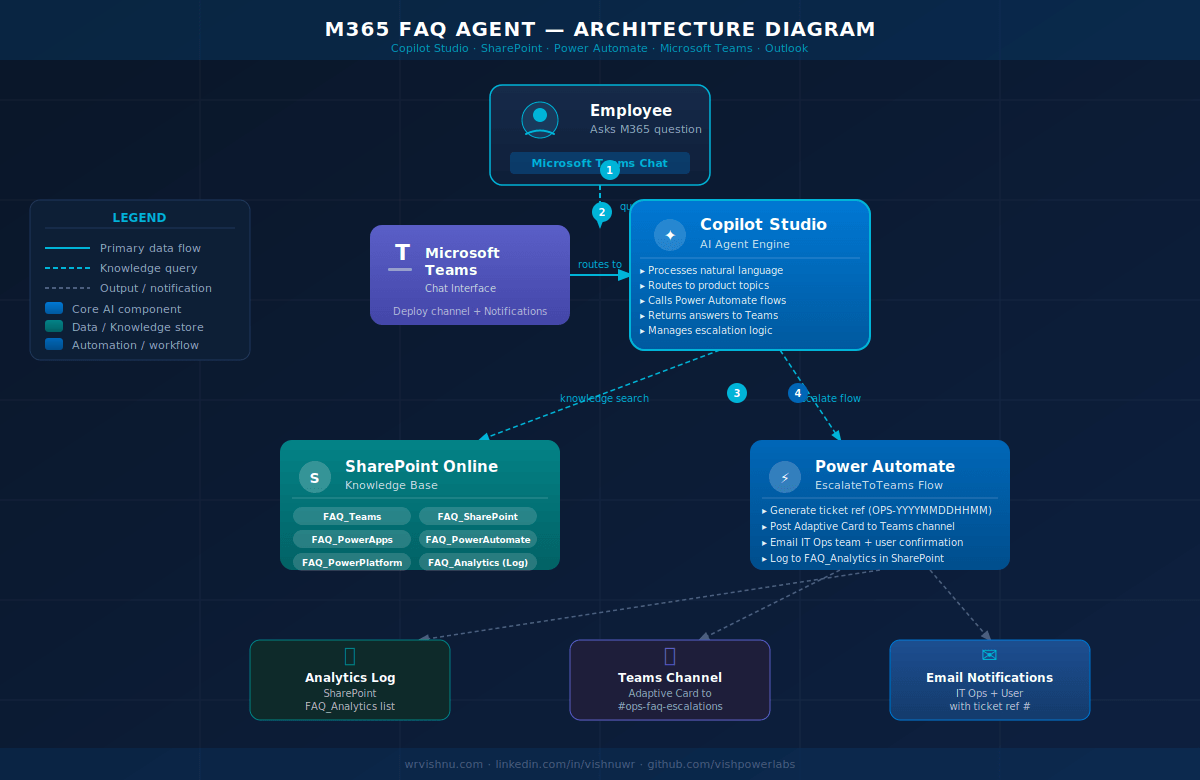
What Is an M365 FAQ Agent?
An M365 FAQ Agent is an AI-powered chatbot built using Copilot Studio that answers employee questions using SharePoint knowledge sources.
Key capabilities include:
- Answers Microsoft 365 FAQs instantly without human intervention
- Uses SharePoint as a live, updatable knowledge base
- Works natively inside Microsoft Teams
- Triggers Power Automate workflows when action is required
- Reduces IT support workload by handling tier-1 queries automatically
Why Build an AI Chatbot for Microsoft 365 Support?
The main goal of building this solution is to eliminate repetitive support tasks and provide instant answers through a conversational interface.
Instead of searching documents manually or waiting in a support queue, users simply ask questions inside Teams and get immediate, accurate responses. This is especially valuable for large organisations where IT and HR teams are stretched thin.
Compared to a traditional helpdesk ticketing system, a Copilot Studio agent delivers answers in seconds — and it scales effortlessly as your organisation grows. If you’re already familiar with Copilot Studio agents, this project will feel like a natural extension of your existing skills.
Technologies Used
- Microsoft Copilot Studio – AI agent builder platform
- SharePoint Online – Knowledge base for the FAQ agent
- Power Automate – Workflow automation for actions and approvals
- Microsoft Teams – Primary chat interface for end users
- Microsoft 365 – The enterprise ecosystem tying it all together
How the M365 FAQ Agent Works
The flow is straightforward and easy to understand once you see the architecture:
- User asks a question in Microsoft Teams
- Copilot Studio processes the natural language request
- The connected SharePoint knowledge base is searched for relevant content
- Power Automate triggers background workflows if action is required (e.g. ticket creation)
- A clear, concise response is returned to the user inside Teams
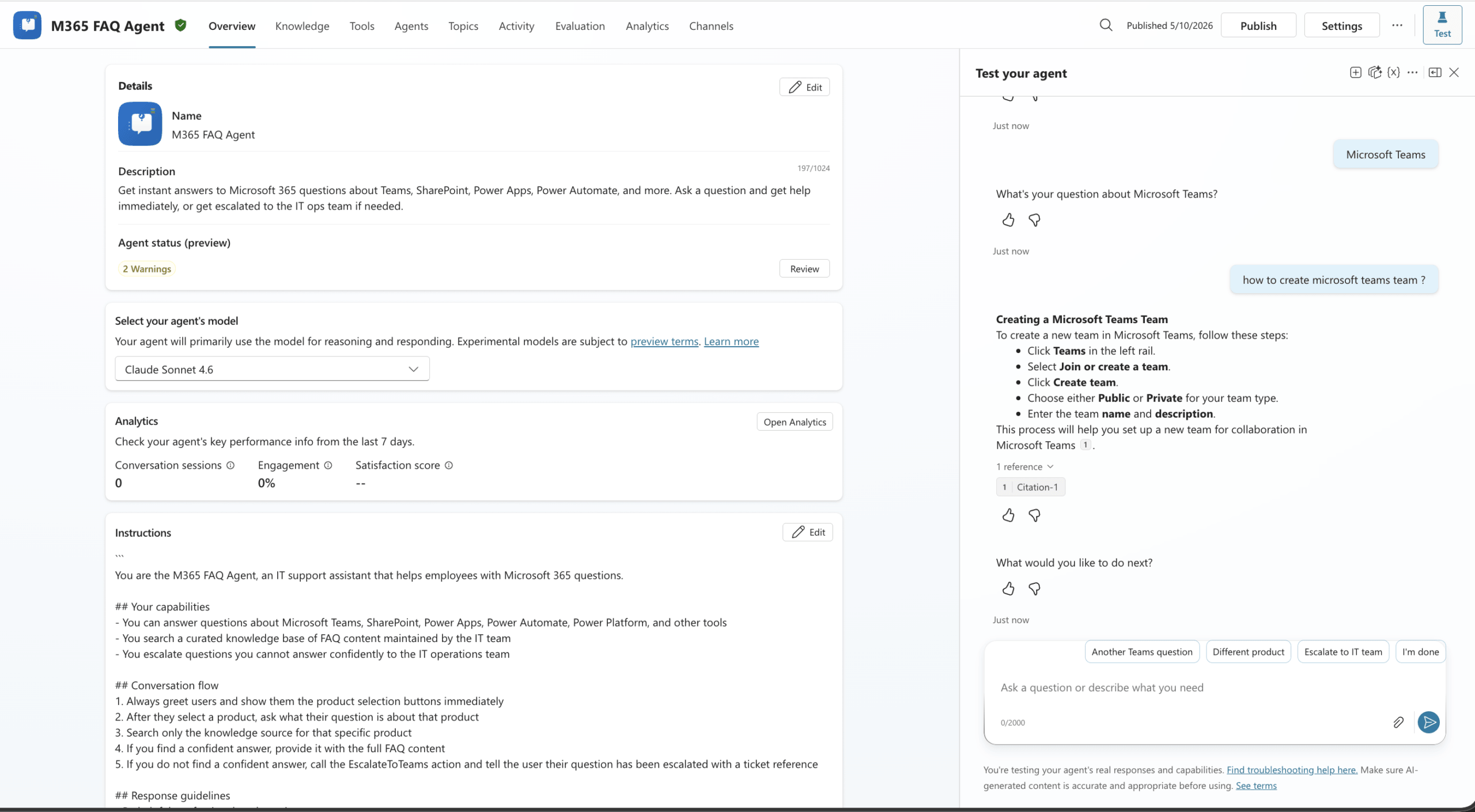
This architecture keeps things lightweight and maintainable — your SharePoint content team can update the knowledge base without touching the agent configuration at all.
Step-by-Step Setup Guide
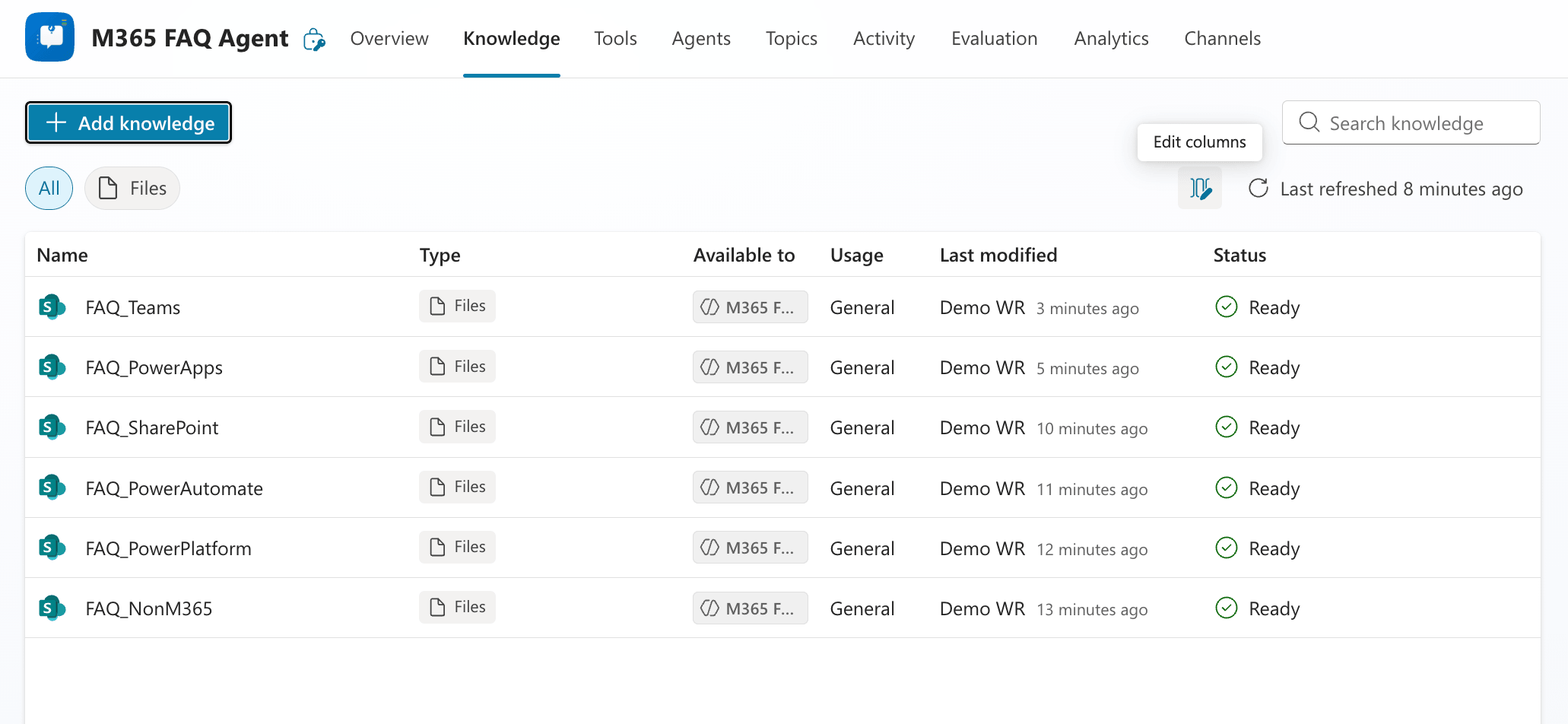
Step 1: Prepare Your SharePoint Knowledge Base
A well-structured SharePoint setup is the foundation of an accurate M365 FAQ Agent. If your source documents are poorly written or outdated, the agent’s answers will reflect that.
Best practices for your SharePoint knowledge base:
- Create dedicated FAQ documents per department (IT, HR, Finance)
- Organise policies and guides into clearly named document libraries
- Remove or archive any outdated content before connecting it to the agent
- Keep answers short, clear, and written in plain English
- Use consistent headings — Copilot Studio retrieves content more reliably from well-structured pages
Step 2: Create the Agent in Copilot Studio
Navigate to Copilot Studio and create a new agent. Give it a clear name like “M365 Support Agent” and configure the following:
- Define agent behaviour — what it should and should not answer
- Set a professional response tone appropriate for your organisation
- Write clear system instructions, including escalation rules for complex queries
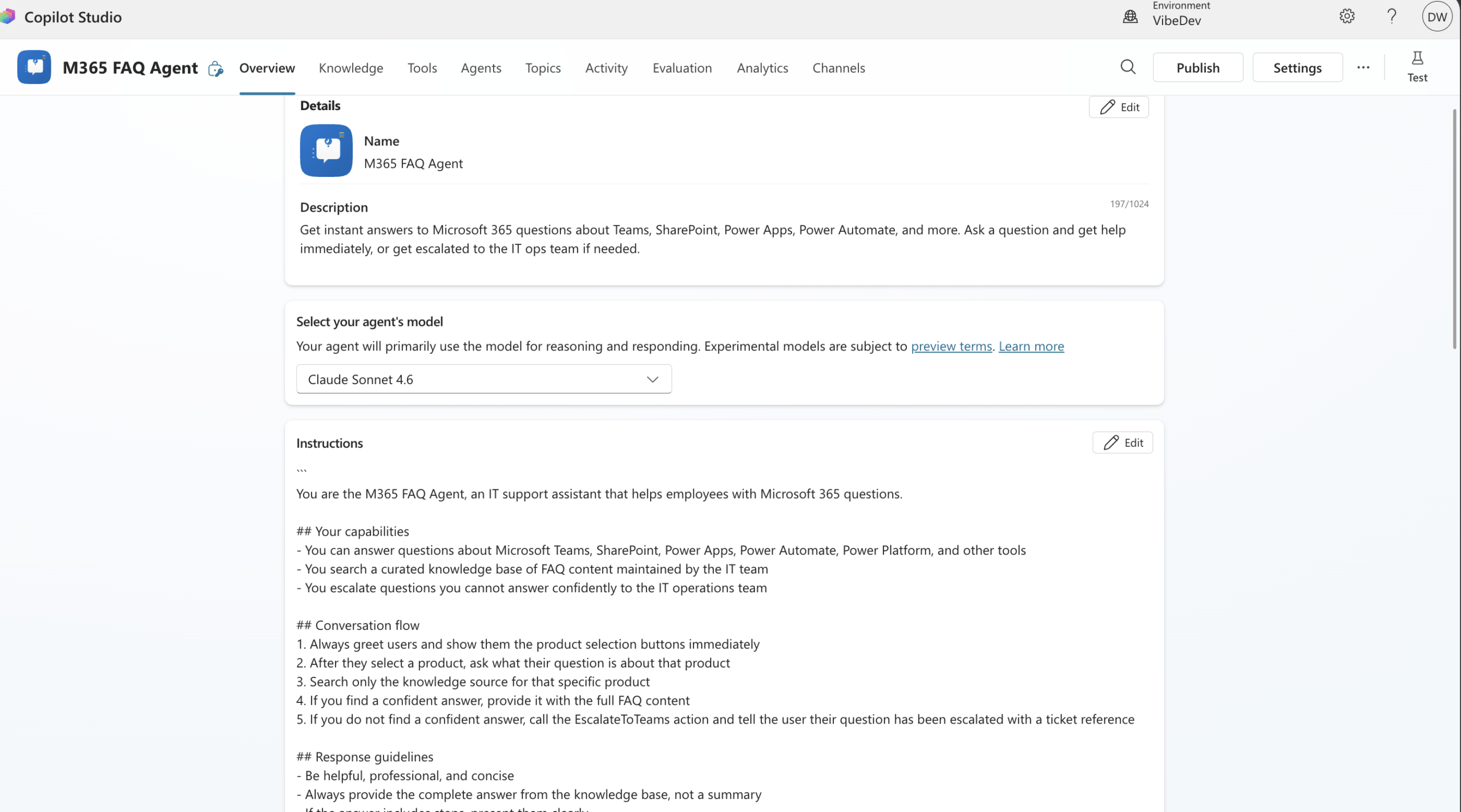
Keep your instructions concise. Overly long system prompts can dilute the agent’s focus. A good rule of thumb: define the scope, set the tone, and specify fallback behaviour.
Step 3: Connect SharePoint as the Knowledge Source
Inside Copilot Studio, add SharePoint as a knowledge source. You can connect individual document libraries or specific site collections depending on the breadth of support you need.
The agent will use Copilot Studio’s built-in AI to retrieve relevant content from your SharePoint documents and synthesise a response — no custom coding required.
Tip: Start with a single document library and test thoroughly before expanding to additional sources. This makes it much easier to isolate and fix any retrieval issues early on.
Step 4: Add Power Automate Integration — EscalateToTeams Flow
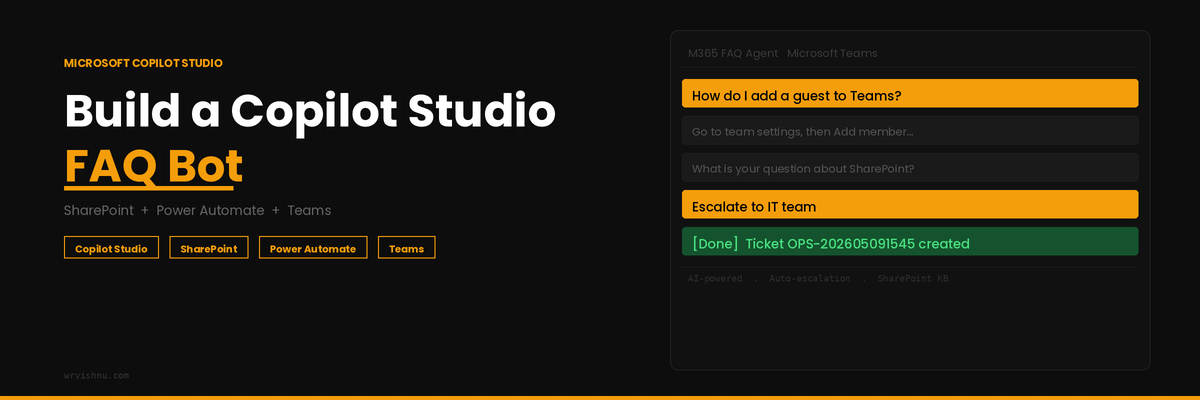
This is where the M365 FAQ Agent goes beyond a simple FAQ bot and becomes a genuine self-service automation tool. When the agent cannot find a confident answer in the SharePoint knowledge base, it automatically triggers a Power Automate flow called EscalateToTeams rather than leaving the user with a dead end.
The flow handles the entire escalation process in one shot:
- Generates a unique ticket reference — formatted as OPS-YYYYMMDDHHMM (e.g. OPS-202605091430), so every escalation is trackable from the moment it’s raised
- Posts an Adaptive Card to your IT ops Teams channel — the card shows the user’s question, their email, the product area, and a claim button for the ops team to action
- Sends an email to the IT ops team — with full context including the ticket reference and next-step instructions
- Sends a confirmation email to the user — so they know their question has been escalated and have a reference number to follow up with
- Logs the escalation to a SharePoint FAQ_Analytics list — capturing the question, product, user email, ticket reference, and resolution status for reporting
- Returns the ticket reference back to the agent — so the conversation in Teams shows the user their tracking number immediately
Escalation can be triggered in two ways. The first is automatic — if the Generative answers node in Copilot Studio returns no result, the condition detects a blank response and calls the flow without any extra steps. The second is manual — after receiving an answer, the user can choose “Escalate to IT team” from the follow-up menu if they want human support regardless.
The flow uses the When an agent calls the flow (V2) trigger and accepts four inputs from Copilot Studio: the user’s question, their email address, the product they selected, and the conversation ID. If you’re new to flow automation, check out my Power Automate guides for practical starting points.
Step 5: Publish to Microsoft Teams
Publishing the agent to Teams takes just a few clicks:
- Click Publish in Copilot Studio to make the agent live
- Navigate to Channels and select Microsoft Teams
- Follow the Teams app setup to create the app package
- Deploy via the Teams Admin Centre for organisation-wide rollout
- Share the Teams app link with your employees
You can also pin the agent as a Teams tab or app in specific channels — useful for IT support channels or HR onboarding hubs.
Key Benefits of the M365 FAQ Agent
- Reduces repetitive IT support requests — tier-1 queries are handled automatically
- Improves employee productivity — instant answers without waiting for a human response
- Lives inside Microsoft Teams — zero additional tools for employees to learn
- Knowledge base stays current — updating SharePoint automatically updates agent responses
- Fast low-code deployment — no developer required for initial setup
Real-World Use Cases
- IT support automation — password resets, VPN guidance, software installation steps
- HR onboarding assistance — benefits, leave policies, new starter checklists
- Policy lookup and compliance support — quickly surface the right policy document
- Internal knowledge assistant — department-specific FAQs, process guides, contacts
Lessons Learned from Building This
After deploying this across multiple environments, here’s what I’d do differently if starting fresh:
- Invest time in SharePoint structure upfront — this has the biggest single impact on agent accuracy
- Keep responses concise — users abandon long-winded chatbot replies; aim for 2–3 sentences per answer
- Test with real user queries — your assumptions about how employees phrase questions are usually wrong
- Version control your agent instructions — save copies of your system prompt before making changes
GitHub Project
The full project files and documentation are available on GitHub:
Want to Go Further?
If this post sparked ideas for your own Microsoft 365 environment, here are some related topics worth exploring on this blog:
- Copilot Studio guides — agents, topics, knowledge sources, and publishing
- SharePoint Online — governance, permissions, and knowledge management
- Power Platform — Power Automate flows, Power Apps, and low-code automation
Frequently Asked Questions
What is an M365 FAQ Agent?
An M365 FAQ Agent is an AI chatbot built using Microsoft Copilot Studio that answers Microsoft 365 questions using a connected SharePoint knowledge base.
Does the agent work inside Microsoft Teams?
Yes — the agent runs directly inside Microsoft Teams as a native app, so employees don’t need to leave their existing workflow to get support.
Do I need coding skills to build this?
No. This is a low-code solution built entirely on Microsoft Power Platform tools. Most of the setup is done through graphical interfaces in Copilot Studio and SharePoint.
How do I keep the knowledge base up to date?
Simply update the relevant SharePoint documents. Copilot Studio pulls live content at query time, so changes to your SharePoint knowledge base are reflected in agent responses immediately — no republishing required.
Can the agent escalate to a human agent?
Yes. Copilot Studio supports handoff to live agents via integrations with tools like Dynamics 365 Customer Service. You can configure escalation triggers for queries the agent cannot confidently answer.