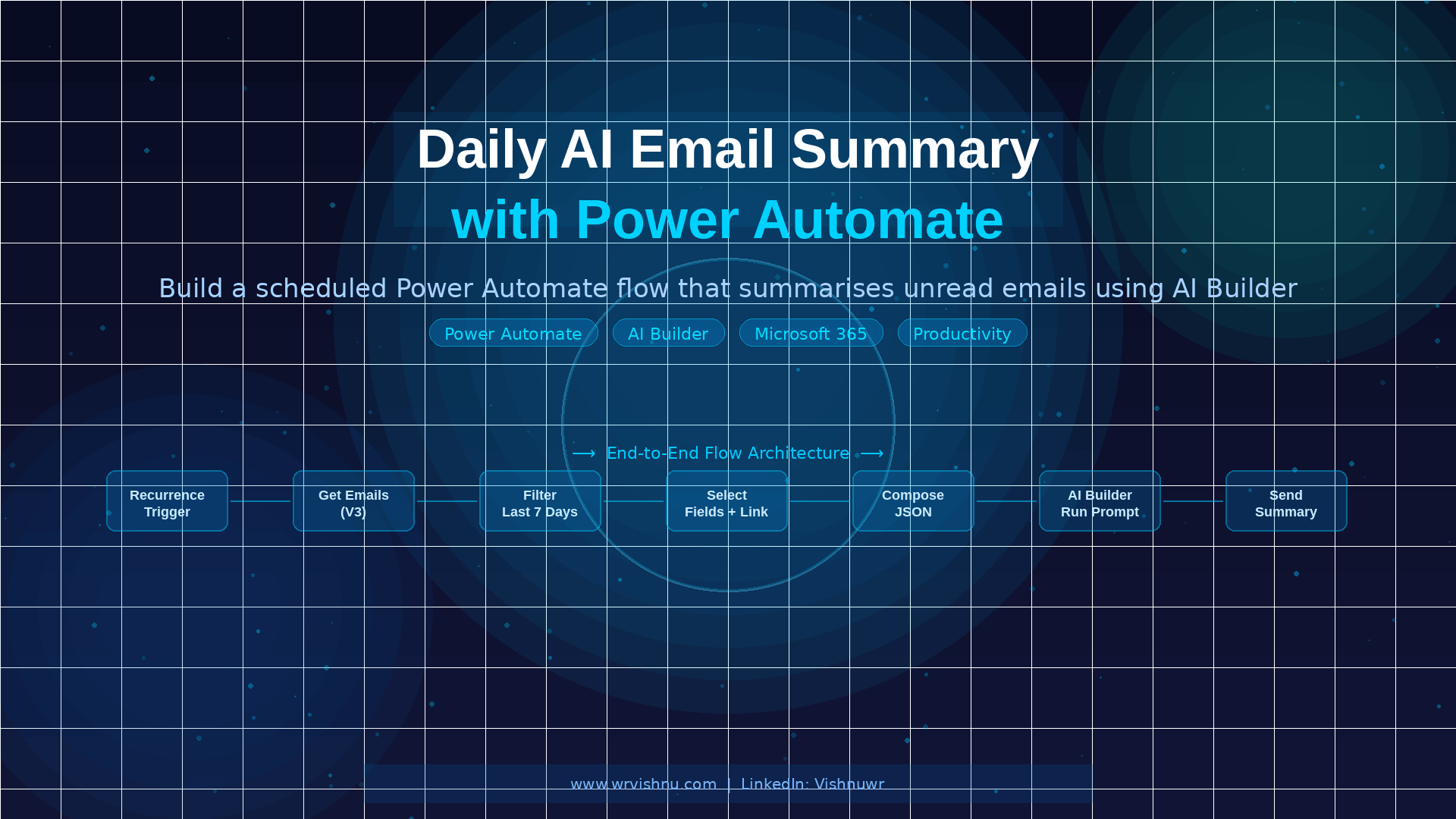
A daily AI email summary Power Automate flow was the fix I needed after spending weeks missing things in my inbox. Not newsletters. Real work — a vendor waiting on a decision, a colleague chasing a review, a deadline I had seen but never acted on.
I was scanning instead of processing. I would read a subject line, think I had it covered, and move on. I did not.
So I built a scheduled flow that runs every morning. It pulls unread emails from the last seven days, runs them through an AI Builder prompt, and delivers one HTML table to my inbox with a direct click-to-open link for every email that needs attention.
The review takes two minutes. Nothing gets missed. This post walks through every step of setting up this daily AI email summary Power Automate flow, including the exact configurations that tripped me up the first time.
Why I built this
This daily AI email summary Power Automate flow does not replace your inbox. You are not handing email management to a bot.
What it gives you is one consolidated view every morning of the emails most likely to need a reply — requests, deadlines, follow-up threads, time-sensitive messages.
Instead of hoping you catch everything as you scan through the day, you start the morning knowing exactly what is waiting.
You click straight into each message. No scanning. No relying on memory.
For anyone working across time zones or managing a high-volume inbox, this Power Automate AI email summary is one of the fastest productivity wins available in Microsoft 365. If you want to explore more flows like this, check out the Power Platform guides on My Tech Space.
What you will need
Prerequisites are minimal but worth being clear about.
You need a Microsoft 365 mailbox, access to Power Automate in your tenant, and access to AI Builder — Run a prompt.
On licensing: running AI prompts consumes credits. Copilot Studio tenants use Copilot Credits. The build is free.
Daily runs use a small number of credits — confirm with your admin if you are unsure what is provisioned.
The Outlook and Data Operations connectors do not require a premium licence. AI Builder actions do. If you are on a standard Microsoft 365 plan, check with IT before you start.
Architecture and flow design
Here is the full shape of the daily AI email summary Power Automate flow before we go step by step.
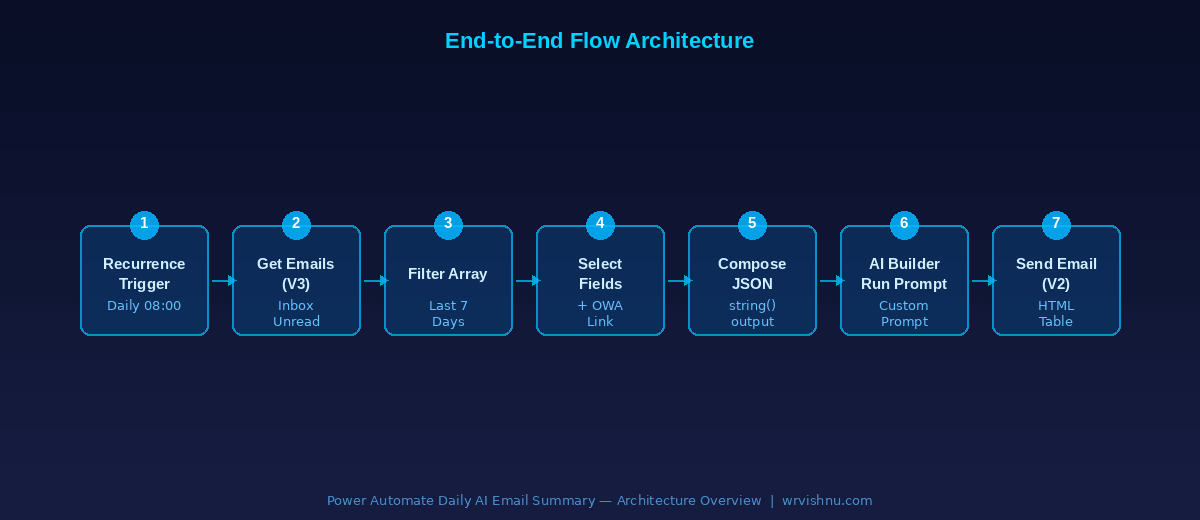
Seven stages, all built on standard connectors:
- Recurrence trigger — fires daily at your chosen time
- Get emails (V3) — pulls unread messages from Inbox
- Filter array — keeps only emails from the last 7 days
- Select — extracts the fields you need plus a reliable click-to-open link
- Compose — converts the array to a JSON string to prevent the Apply to each loop
- AI Builder — Run a prompt — analyses emails and returns an HTML table
- Send an email (V2) — delivers the rendered table to your inbox
Nothing is custom-coded. Everything runs on connectors already available in a standard Microsoft 365 environment.
Step 1 — Create the scheduled flow
Go to Power Automate and select Create, then Scheduled cloud flow.
Name it “Daily Inbox AI Summary”. Set frequency to Daily and pick your run time. I use 08:00 so the summary is ready when I sit down.
No further configuration needed on the trigger. Move to Step 2.
Step 2 — Get unread emails
Add the action Office 365 Outlook — Get emails (V3). Rename it “Get Unread Emails”.
Set these three options:
- Folder: Inbox
- Fetch only unread messages: Yes
- Top: 25 to start, increase to 50 if needed
Leave everything else at default. You will filter further in the next step.
Step 3 — Filter to the last 7 days
Add Data Operations — Filter array. Rename it “Filter Emails Last 7 Days”.
Set From to the value output from Get Unread Emails. Then set the condition:
- Left:
item()?['receivedDateTime'] - Operator: is greater than or equal to
- Right (Expression):
addDays(utcNow(), -7)
Emails older than seven days are intentionally excluded. If something has sat unread for a week, it needs a deliberate decision — not an automated nudge.
Step 4 — Select the fields you need
Add Data Operations — Select. Rename it “Select Email Fields”.
Set From to the body output from the Filter step. Switch to Text mode and paste this JSON mapping:
{
  "subject": "@{item()?['subject']}",
  "sender": "@{item()?['from']}",
  "preview": "@{item()?['bodyPreview']}",
  "received": "@{item()?['receivedDateTime']}",
  "link": "@{concat('https://outlook.office.com/owa/?ItemID=', encodeUriComponent(item()?['id']), '&exvsurl=1&viewmodel=ReadMessageItem')}"
}
The OWA ItemID link format is the one that actually works. Older community examples use a deeplink/read URL that opens a tab and hangs on a loading screen.
The pattern above with encodeUriComponent() opens the email every time, in any browser.
Step 5 — Compose the JSON string
This step prevents Power Automate from auto-wrapping your AI prompt input inside an Apply to each loop.
When you feed an array directly into a text input, the platform detects it and inserts a loop automatically. The prompt then receives one email at a time instead of the full list — and the output breaks.
Add Data Operations — Compose. Rename it “Compose Emails JSON”.
In the Inputs field, switch to Expression and enter:
string(outputs('Select_Email_Fields'))If you named your Select action differently, update the reference inside outputs('...') to match exactly — spaces become underscores.
Step 6 — Run the AI prompt
Add AI Builder — Run a prompt. Rename it “Analyse Emails with AI”.
Choose New custom prompt. Name it “Inbox Email Analysis”. Add a Text input named emails.
Paste this into the prompt instructions:
You are analysing emails to identify which require a reply.

The input is a list of emails in JSON format.

For each email:
- Identify if it requires a reply.
- Prioritise emails with direct requests, deadlines, urgency, or follow-up needed.
- Exclude automated messages, notifications, and newsletters.

Return the result as an HTML table — not markdown.

Rules:
- Include ALL qualifying emails.
- High urgency: show 🔴 High. Medium urgency: show 🟡 Medium.
- Last column must be a clickable link using the email link field, anchor text: Open Email.

Format:

<h3>Unread emails needing your attention (last 7 days)</h3>
<table border="1" style="border-collapse:collapse; width:100%;">
<tr><th>Subject</th><th>Sender</th><th>Urgency</th><th>Deadline</th><th>Reason</th><th>Action</th></tr>
<tr><td>{Subject}</td><td>{Sender}</td><td>{Urgency}</td><td>{Deadline}</td><td>{Reason}</td><td><a href="{link}">Open Email</a></td></tr>
</table>

If no emails qualify:
<b>No unread threads requiring a reply found in the last 7 days.</b>

Emails:
/emails
Back in the flow canvas, expand Advanced parameters on the Analyse Emails step.
Find the emails input and map it to Outputs from Compose Emails JSON — not from Select. Mapping from Select instead of Compose re-triggers the loop problem. This is the most common mistake at this step.
Step 7 — Send the daily summary email
Add Office 365 Outlook — Send an email (V2). Rename it “Send Daily Summary”.
- To: your email address
- Subject: Daily Inbox Summary — optionally append
formatDateTime(utcNow(), 'dd MMM yyyy') - Body: select the Text output from Analyse Emails with AI — not “Finish reason”
In Advanced options, set Is HTML to Yes. Without this, the table renders as raw markup instead of a formatted table in Outlook.
Save and run a test. First run takes 20 to 30 seconds. Subsequent runs are faster.
Your daily AI email summary Power Automate flow is now live. It will deliver the first table the next morning at your chosen time.
For related Microsoft 365 AI automation patterns, the Copilot posts on My Tech Space cover several useful extensions to this kind of AI email summary workflow.
Troubleshooting
Here is every issue I hit during the build and the exact fix for each.
Cannot find “Create text with GPT”
That action name is from older tutorials. In current tenants it is now called AI Builder — Run a prompt. Search for that instead.
Power Automate auto-creates Apply to each
This happens when an array is mapped directly to a text input. Add the Compose step from Step 5 and always map the AI prompt input to Compose output — never directly from Select.
“Enter valid JSON” error in Select
Check that every value in Text mode is wrapped in double quotes using "@{...}" syntax. Do not use & inside expressions — use & directly. Power Automate handles encoding inside the expression engine.
Sender field returns an object
Tenants return the from field in different shapes. If you see [object Object], use item()?['from'] without drilling into nested properties. Check one email in run history to confirm your tenant’s schema first.
Email link opens but hangs on loading
Replace any deeplink/read URL with the OWA ItemID pattern:
https://outlook.office.com/owa/?ItemID=[encoded ID]&exvsurl=1&viewmodel=ReadMessageItemWrap the ID with encodeUriComponent(). This works across all browsers and client configurations.
Email body shows raw HTML tags
In Send an email (V2), open Advanced options and set Is HTML to Yes. That is the only fix needed.
Optional upgrades
The flow works as built. These are the extensions worth adding once it is running.
Date in subject. Append formatDateTime(utcNow(), 'dd MMM yyyy') to the subject so previous summaries are easy to find in sent mail.
Grouped output. Update the prompt to return two sections — High and Medium — rather than one flat table. Makes triage faster on busy mornings.
Post to Teams. Replace Send an email with Microsoft Teams — Post a message in a chat or channel. The HTML table renders in Teams and keeps the summary out of your inbox.
Email count in subject. Use length(body('Filter_Emails_Last_7_Days')) in a Compose step and include the count in the subject line. Tells you how much needs attention before you open anything.
Closing thoughts
This is the simplest Power Automate flow I have built that has made a consistent difference day to day.
The problem it solves is small but real: the gap between reading an email and actually dealing with it. That gap is where things get missed.
A daily AI email summary Power Automate flow closes it without changing how you work. Small build, immediate payoff, runs itself every morning.
If you are already using Power Automate for governance or operational workflows, this daily AI email summary is a natural next step. The Power Platform section on My Tech Space has more patterns worth exploring alongside this one.
I will follow this up with more advanced prompt design for email triage — flagging specific senders, routing by category, handling multi-participant threads. If you have taken this in a different direction, I would like to hear what worked.
Download the Solution from GitHub
If you want to skip the manual build and import the ready-made solution directly, I have published the complete flow to GitHub.
The repository contains the exported Power Automate solution package along with setup notes. You can import it straight into your environment and configure the connections in a few minutes.
- GitHub organisation: github.com/WRVish/PowerAutomateSamples
- Solution folder: Samples / Daily Email Summary
To import: download the solution zip from the folder above, go to Power Automate → Solutions → Import solution, and follow the prompts to connect your Outlook and AI Builder accounts.
Power Automate Flow Design
Here is what the completed daily AI email summary Power Automate flow looks like inside the canvas. Each step connects directly to the next — no branches, no parallel paths, no conditions beyond the filter.
The flow is deliberately linear. Recurrence fires, emails are fetched, filtered, shaped, converted to a string, analysed by AI, and sent. Nothing runs conditionally except the filter date range in Step 3.
If you are setting this up for the first time, use this as a reference to confirm your canvas matches before you run a test.

Thanks for sharing it was really helpful
I was following you right up to “Run a prompt”.
It’s asking me to Create a new connection with a Connection name and Authentication type. What am I connecting to?
I guess you are the one who asked in reditt I have replied there 🙂