If you have spent any time building workflows in Power Automate, you know the exact wall you hit when you need to generate a PDF. You get prompted to pay for a Premium license or connect a paid third-party connector like Adobe or Muhimbi. For small projects or teams building internal tools like an expense claim system or an invoice generator, that monthly per-user cost is hard to justify.
The good news is you do not need any of that. Power Automate PDF generation without premium licenses is completely achievable using standard Microsoft 365 licensing, and this guide walks through the full architecture including relational SharePoint data, manager approvals, and the OneDrive translation pipeline.
📦 Full Solution Available on GitHub
This post covers the architecture and design. The complete step-by-step implementation guide, Power Automate flow export (.zip), SharePoint list schemas, and React SPFx web part are all in the open-source repository.
⭐ View Repository on GitHubWatch: Free PDF Generation in Power Automate (Full Walkthrough)
Prefer video? The full step-by-step walkthrough is on Vimeo. It covers every action card, the OneDrive staging pipeline, and the approval flow configuration.
The Use Case: Relational Expense Claim Automation in SharePoint
To see how Power Automate PDF generation without premium works in practice, we will use a real business scenario: expense claim automation in SharePoint. This pattern applies equally to invoices, purchase orders, and any document that has a header record with multiple line items underneath.
In any standard company, employees submit expense sheets with two types of information:
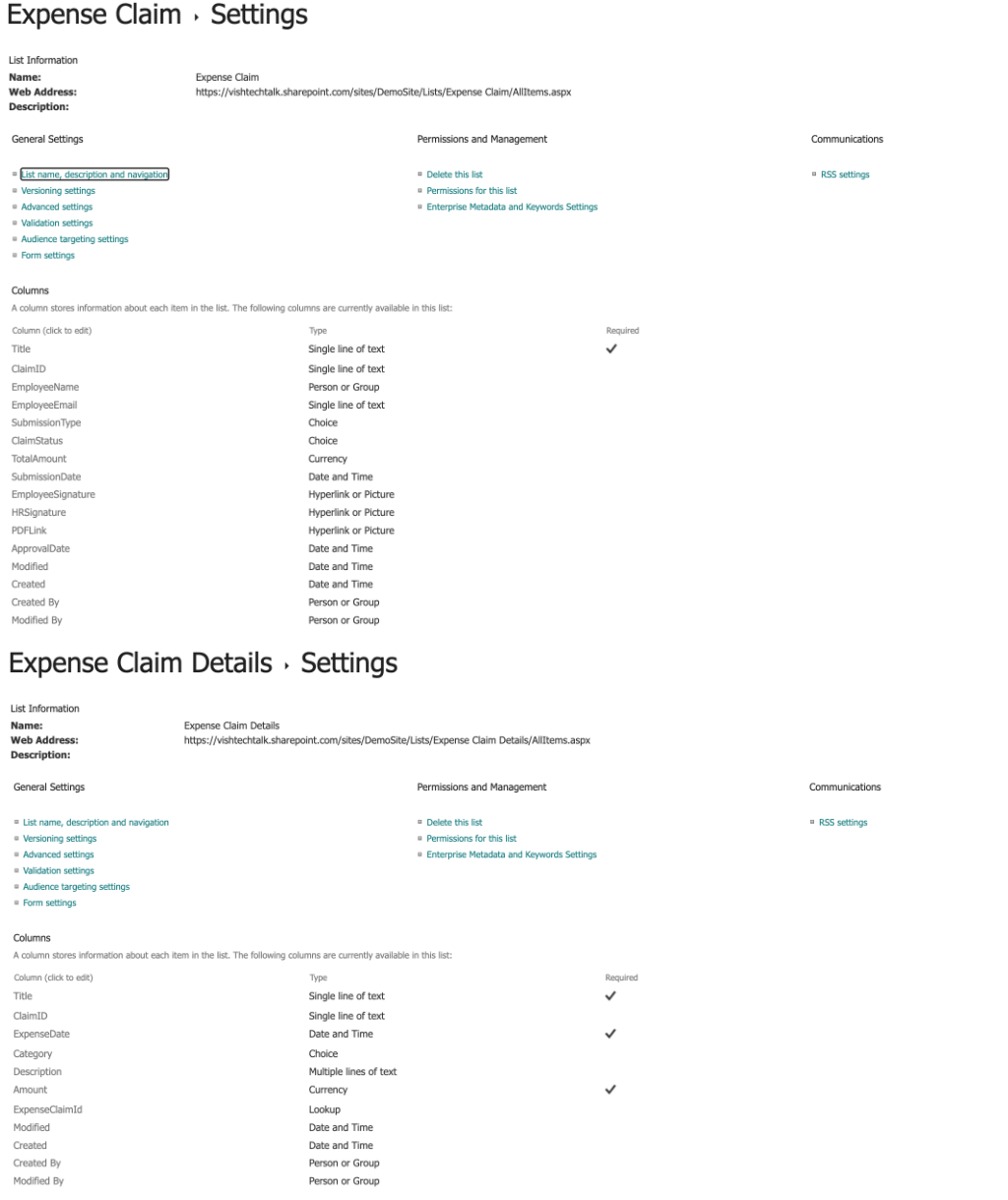
- Master or Parent Information — general metadata about the entire claim such as Employee Name, Claim Description, Submission Date, and Total Amount.
- Line Item or Child Information — an itemized breakdown of the actual costs such as flight tickets, meals, and taxi rides.
We store this across two relational SharePoint lists linked via a lookup ID. When a claim is submitted, the manager reviews the itemized line items directly in Outlook or Teams. If approved, the system generates a professional print-ready PDF statement combining the master details and line item table, archives it in SharePoint, and emails it to the finance team for payment.
The Core Concept: The OneDrive Translation Pipeline
SharePoint has no standard action to convert files. The OneDrive for Business Connector does. It includes a non-premium action called Convert file that takes an HTML file and converts it directly into a PDF. For detailed technical limits of this method, refer to the Microsoft Graph file conversion documentation.
To run PDF conversion in Power Automate using only standard actions, the flow uses a five-step temporary staging approach:
- Compile your SharePoint list data into an HTML string inside a Compose action.
- Save that HTML string as a temporary file in OneDrive inside a
/DraftHTMLfolder. - Run the OneDrive Convert file action to generate the PDF.
- Save the resulting PDF back to a SharePoint Document Library.
- Delete the temporary HTML file from OneDrive using its file ID to keep storage clean.
That is the complete pipeline for free PDF generation in Power Automate. No premium connectors, no third-party subscriptions, and no additional licensing cost beyond your standard Microsoft 365 plan.
The Full Automation Design: 5 Steps
For a production-grade workflow, PDFs should only generate after manager approval. Running the SharePoint list to PDF workflow on every submission including rejected ones wastes storage and clutters your document library. This design keeps the PDF pipeline inside the approval branch only.
Step 1: High-Level Flow Layout
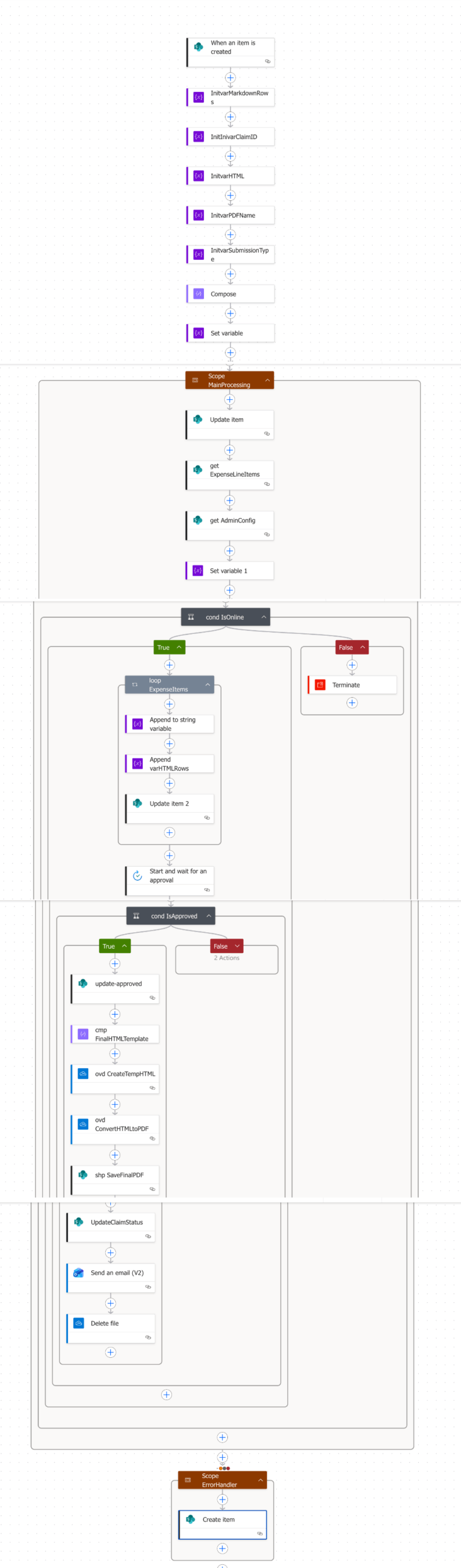
The flow has four main layers: a trigger card, variable initializations, Get Items actions for both SharePoint lists, and two scope blocks — Scope_MainProcessing and Scope_ErrorHandler.
Step 2: Handling Relational Data in a Loop
This is where expense claim automation in SharePoint gets interesting. The flow queries the child list using an OData filter query to pull the line items linked to the parent claim ID. For help building OData queries, refer to the SharePoint OData Query Operations guide.
Inside an Apply to each loop, the flow builds two string variables simultaneously:
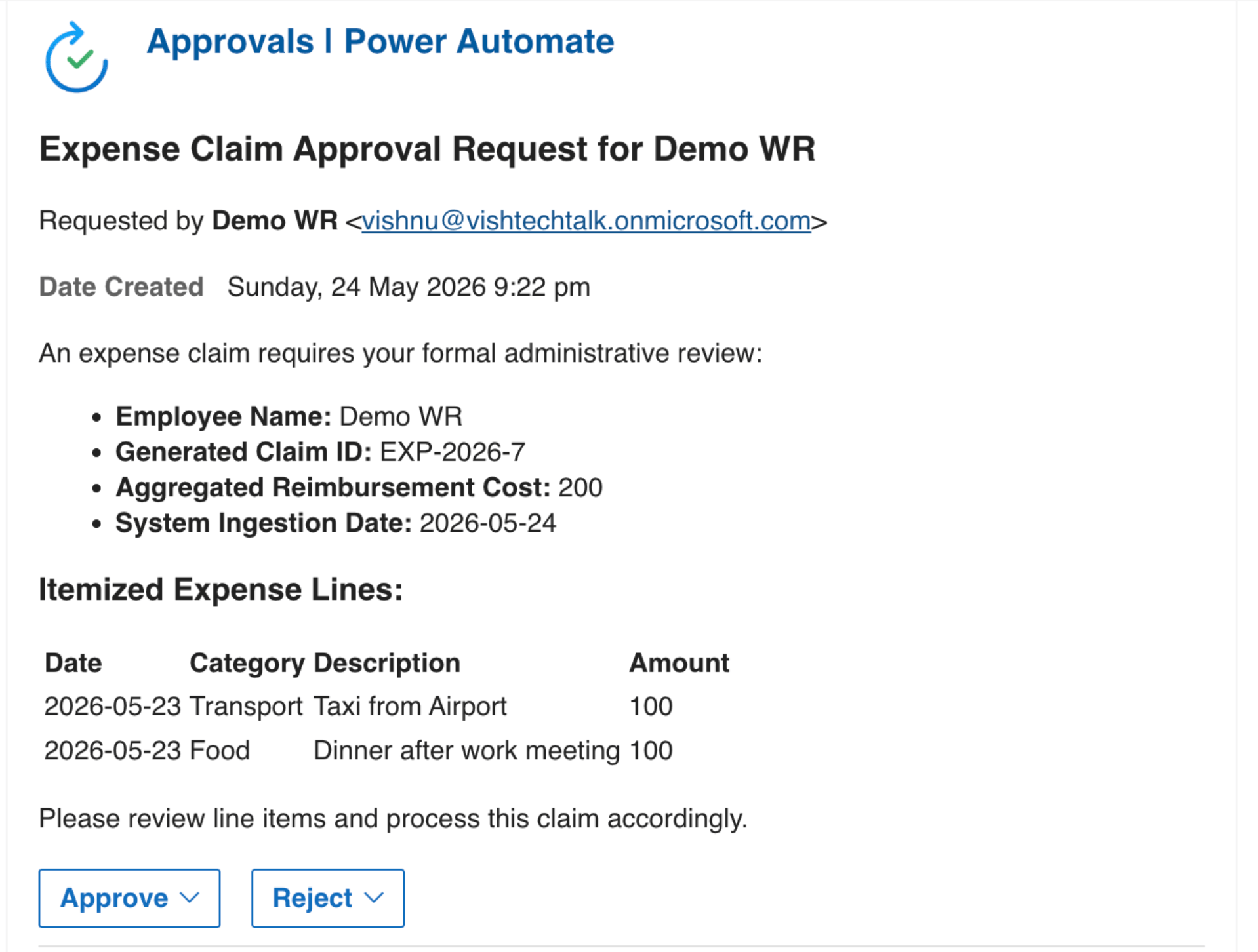
varHTMLRows— accumulates the HTML table rows that will form the body of the final PDF.varMarkdownRows— accumulates Markdown table rows separated by pipe symbols for the manager approval card.
Step 3: Manager Approval Cards with Markdown Table
Power Automate approval details support Markdown but not HTML. Passing an HTML table to the approval details field shows the manager raw code. By using the varMarkdownRows variable, we inject a native Markdown table into the standard Power Automate Approvals action. The manager sees a clean formatted expense table directly in Teams or Outlook with no attachments to open. For all Markdown formatting rules and mobile constraints, see the Microsoft Markdown Support in Approvals guide.
Step 4: Post-Approval PDF Generation Pipeline
When the manager approves, the flow enters the Approved branch and runs the full PDF conversion Power Automate pipeline in sequence. A Compose action merges varHTMLRows into a styled HTML document template with inline CSS. The HTML file is saved to the /DraftHTML folder in OneDrive and the Convert file action generates the PDF. The PDF is saved to the SharePoint Document Library with a timestamped filename, the temporary HTML file is deleted from OneDrive, and the final PDF is emailed to the finance team as an attachment.
If rejected, the flow updates the claim status, emails the employee with the rejection reason, and terminates without generating any documents. This prevents orphaned files from building up in your SharePoint storage.
Step 5: Error Handling with Scope Blocks
The main steps run inside a Scope_MainProcessing block. If anything fails such as a network timeout during the OneDrive conversion, the Scope_ErrorHandler block triggers, catches the error message, and writes it to a Flow Error Logs SharePoint list. This makes troubleshooting straightforward without manually digging through flow run history.
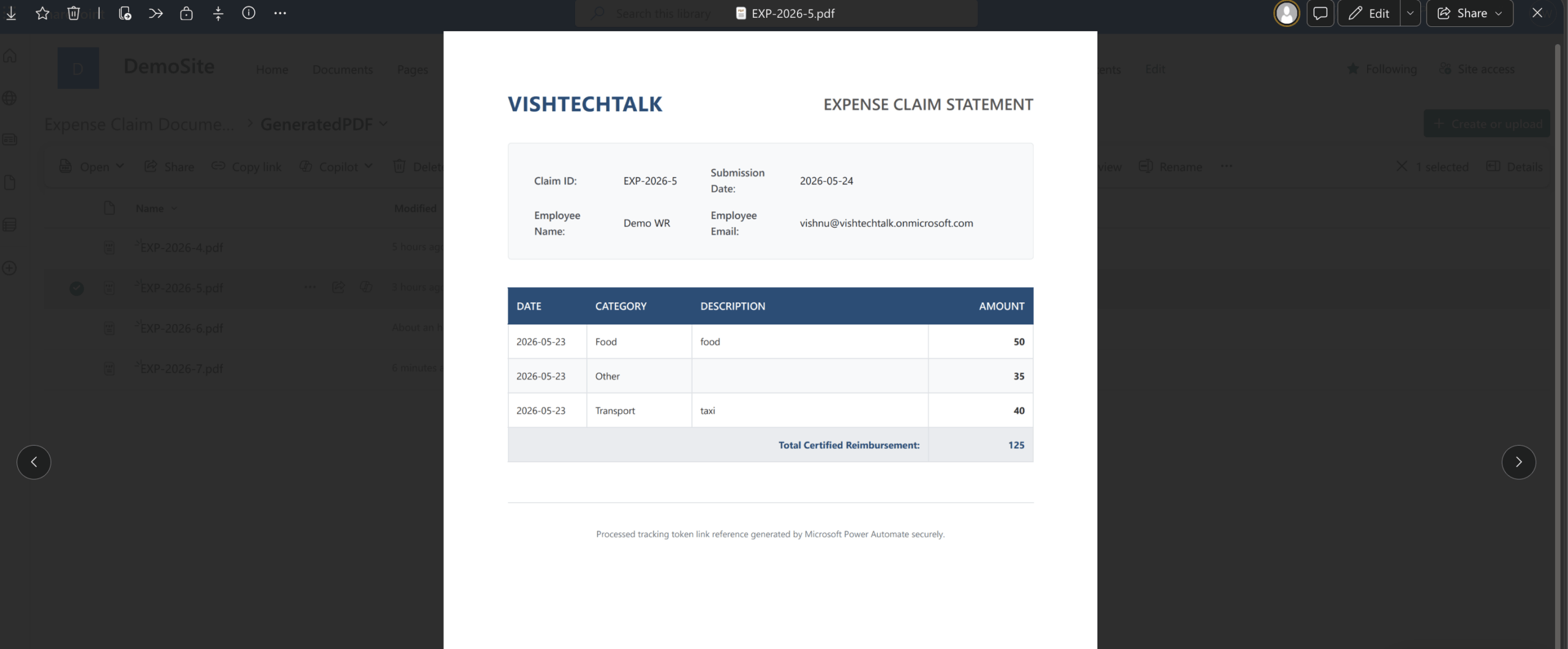
Sample PDF Output
Here is what the final generated document looks like after the Power Automate PDF generation without premium pipeline completes. The output is a clean, print-ready PDF pulled entirely from your SharePoint list data with no manual formatting needed.
Hardening for Production
This workflow is a solid functional baseline. For a live enterprise deployment, address these three areas before going live.
Preventing Naming Collisions
The OneDrive and SharePoint Create file actions will error or silently overwrite if a file with the same name already exists in the target folder. Append a unique timestamp to every filename such as EXP-2026-105-171800.pdf to eliminate this risk entirely.
Granular Error Logging
Rather than one generic catch scope, place separate Try-Catch blocks around the data lookup step, the approvals action, and the OneDrive conversion individually. This tells you exactly which stage failed inside your diagnostics list without ambiguity.
Retry Policies for High Volume
For high-volume environments, transient M365 connection failures do happen. Set exponential interval retry policies on your HTTP, lookup, and conversion action cards so temporary glitches resolve automatically without failing the entire flow run.
Full Solution on GitHub
The complete implementation is open-source and ready to clone. The repository includes everything you need to deploy this in your own environment:
- Full Power Automate flow export (.zip) ready to import directly into your environment
- SharePoint list CSV schemas for both the parent and child lists
- Custom React SPFx web part for the claim submission form
- Detailed
Step-by-Step-guide.mdcovering every action card configuration with screenshots
expense-claim-automation-system
Open-source · Power Automate + SharePoint + SPFx · Full step-by-step guide included
⭐ Star & Clone on GitHub💬 Join the Discussion
If this Power Automate PDF generation without premium solution saved you time or licensing cost, a ⭐ star on the repository helps other Power Platform developers find the project when they hit the same problem. Have a question about a specific action card or want to suggest an improvement? The GitHub Discussions tab is the best place to get help and share how you adapted the flow for your own use case.
Frequently Asked Questions
Does Power Automate PDF generation without premium work on all Microsoft 365 plans?
Yes. The OneDrive for Business Convert file action is available on all standard Microsoft 365 plans that include OneDrive for Business. You do not need a Power Automate Premium license or any paid third-party connector.
What file formats does the OneDrive Convert file action support?
The Convert file action supports HTML to PDF, DOCX to PDF, and several other Office formats. For the full conversion matrix, refer to the Microsoft Graph file conversion documentation.
Can this SharePoint list to PDF workflow handle large claim submissions?
Yes, but for lists with more than 5,000 items you will need to handle the SharePoint threshold using pagination in your Get Items action. The GitHub repository includes notes on this in the Step-by-Step guide.
Is the approval step mandatory for free PDF conversion in Power Automate?
No. The approval step is specific to this expense claim use case. You can remove the Approvals action and trigger the PDF conversion pipeline directly on list item creation or any other trigger without changing the core OneDrive conversion logic.
Can I use this pattern for invoice generation or other document types?
Yes. The HTML template inside the Compose action is fully customisable. Swap the expense claim fields for invoice fields, purchase order lines, or any other SharePoint list data and the PDF conversion Power Automate pipeline works the same way.
Related Guides on VishPowerLabs
If this guide was useful, these posts cover topics that connect directly to what you built here.
SharePoint Relational List Architecture — how to design the parent-child list structure used in this flow.
Optimizing SharePoint Lookup Columns — performance tips for lookup columns at scale in lists like the ones used here.
How to Style Power Automate Approvals with Advanced Markdown — take the approval card from Step 3 further with formatted tables, icons, and conditional text.
OneDrive Automation Tips and Best Practices — automate cleanup of the staging folder and other OneDrive housekeeping tasks.
React SPFx CRUD Operations Guide — how the frontend claim submission form connects to the SharePoint lists used in this workflow.
Browse all Power Platform guides or all SharePoint guides on VishPowerLabs.
One thought on “Power Automate PDF Generation Without Premium: Free 5-Step Guide”