Copilot Studio Knowledge Sources — Why They Matter Most
Understanding Copilot Studio knowledge sources is the single most important step to building a useful agent.
Without Copilot Studio knowledge sources connected, your agent answers from general AI training — broad and often correct, but not specific to your organisation.
With Copilot Studio knowledge sources in place, your agent answers from your actual content: SharePoint pages, IT documentation, company policies. That is the difference between a generic chatbot and a genuinely useful business tool.
This post explains what Copilot Studio knowledge sources are, which types are supported, how to add each one, and why the quality of your content matters more than anything else.
What Are Copilot Studio Knowledge Sources?
A knowledge source is content you connect to your agent so it can generate accurate, contextual answers.
When a user asks a question, Copilot Studio searches all connected Copilot Studio knowledge sources, finds the most relevant information, and generates a response.
It also attaches a citation link back to the source so the user can verify the answer.
This is called generative answers. The agent does not follow a rigid script — it reads the connected content and composes a response in natural language, specific to what was asked.
Supported Copilot Studio Knowledge Sources
| Type | What to connect | Best for |
|---|---|---|
| SharePoint | Site URL or document library URL | Internal policies, procedures, HR docs, IT guides |
| Public website | Any publicly accessible URL | Product documentation, public FAQs, support portals |
| File upload | PDF, Word, or text file | Standalone documents not hosted anywhere online |
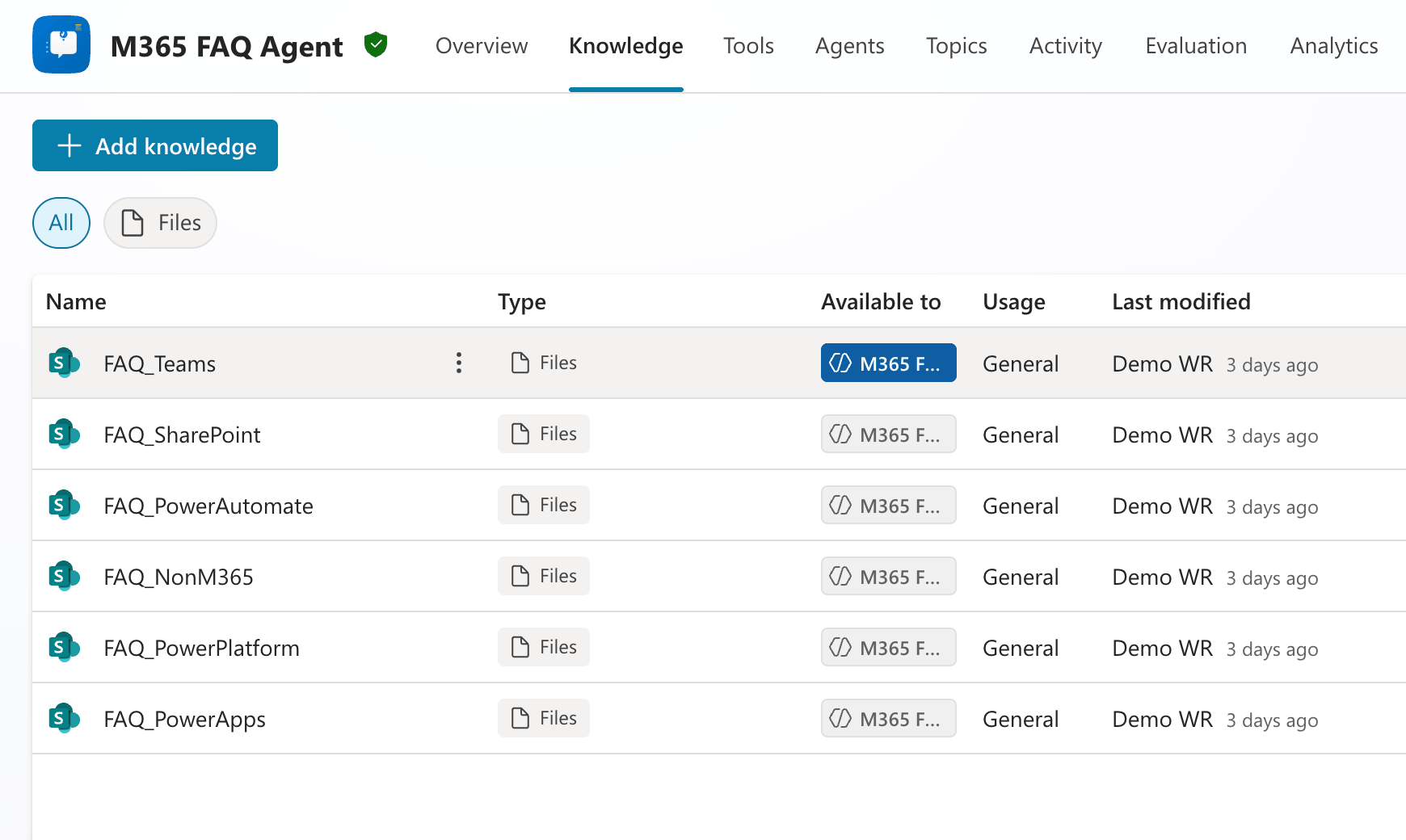
You can connect multiple Copilot Studio knowledge sources to a single agent.
An IT support agent might connect to a SharePoint IT knowledge base, an uploaded hardware request guide, and a public Microsoft 365 support URL — all at the same time.
How to Add SharePoint as a Knowledge Source
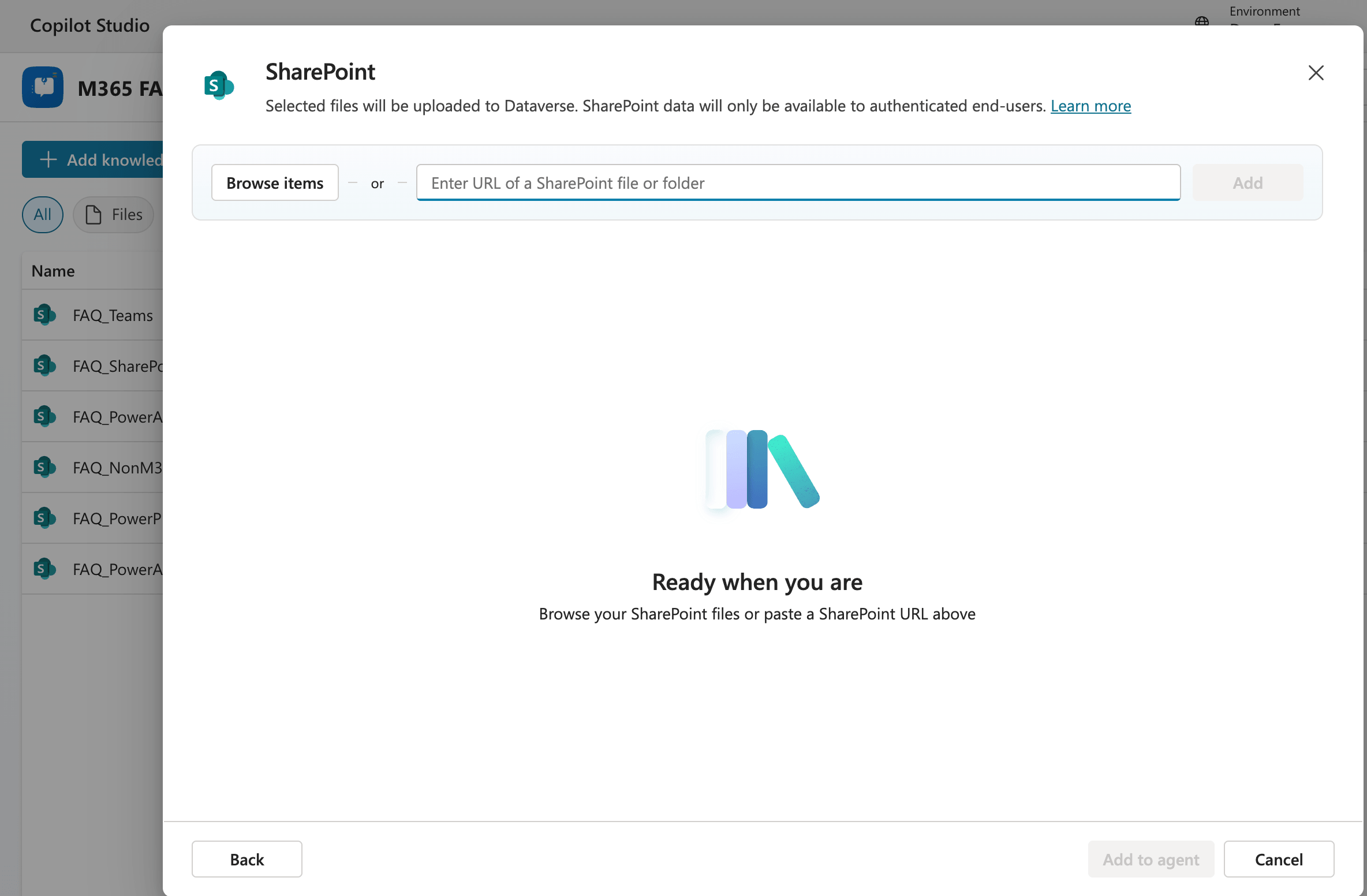
- On the agent Overview page, go to the Knowledge section and select Add
- Choose SharePoint
- Paste the URL of your SharePoint site or document library — for example:
https://yourcompany.sharepoint.com/sites/ITSupport - Select Add, then Add to agent
- Copilot Studio indexes the site content — this may take a few minutes for large libraries
Authentication required: For SharePoint Copilot Studio knowledge sources to work, your agent must use Microsoft authentication. Go to Settings → Security → Authentication and select Authenticate with Microsoft. Without this, the agent cannot read private SharePoint content.
How to Add a Website as a Knowledge Source
- In the Knowledge section, select Add
- Choose Public website
- Paste the URL — Copilot Studio crawls the page and its linked pages automatically
- Select Add to agent
Important: Only publicly accessible URLs work as Copilot Studio knowledge sources. Pages behind a login, VPN, or firewall cannot be indexed. If your content requires authentication, use SharePoint instead.
How Generative Answers Uses Copilot Studio Knowledge Sources
When a user sends a message, Copilot Studio:
- Searches all connected Copilot Studio knowledge sources for relevant content
- Retrieves the most relevant passages
- Generates a natural language response based on that content
- Attaches a citation link back to the source document
If no relevant content is found, the agent falls back to a default response — either a polite “I don’t know” or a handoff to a human agent, depending on your fallback topic configuration.
Why Content Quality Determines Answer Quality
Your Copilot Studio knowledge sources are only as good as the content inside them.
Poor source content produces poor answers — every time.
| Source quality | What the agent produces |
|---|---|
| Clear headings, short paragraphs, specific answers | Accurate, concise, well-cited responses |
| Dense walls of text, no structure, mixed topics | Vague, unfocused answers that miss the point |
| Outdated content with old procedures | Correct-sounding but wrong answers |
| No content connected at all | Generic AI responses with no company specificity |
Before connecting any Copilot Studio knowledge sources, ask: would a new employee find a clear answer by reading this page? If not, improve the content first.
Testing Your Copilot Studio Knowledge Sources
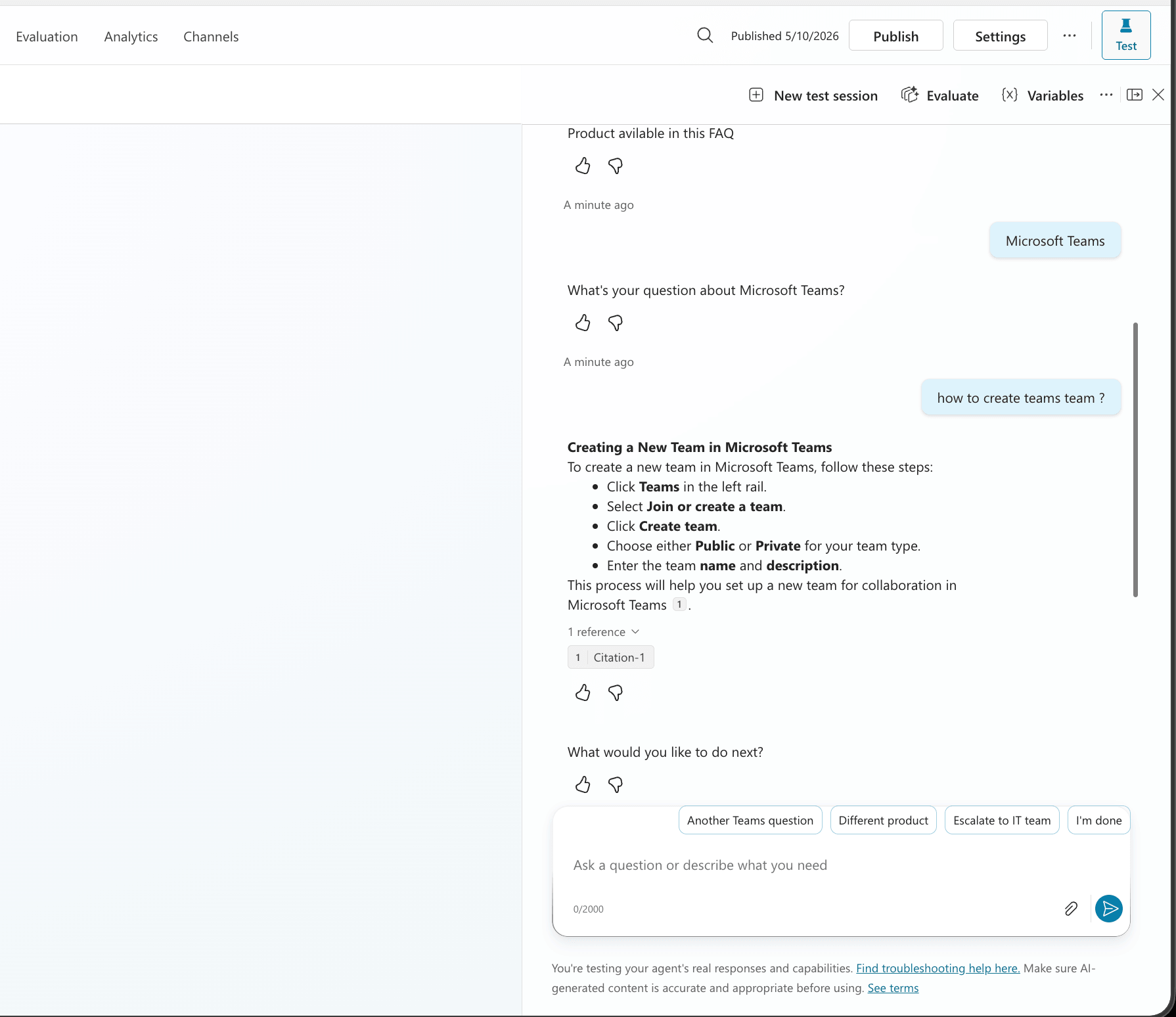
Use the Test your agent panel to ask questions you expect the knowledge source to answer.
Look for three things:
- Citation links — the agent should reference the source document. No citation usually means the agent is answering from general AI training, not your connected content.
- Accuracy — check the answer matches what is actually in the source document
- Scope — ask something outside your source material and confirm the agent does not fabricate an answer
Tips and Common Mistakes
Add One Copilot Studio Knowledge Source at a Time
Start with one well-structured source and test thoroughly before adding a second.
Adding five Copilot Studio knowledge sources at once makes it very hard to diagnose when the agent gives a wrong answer.
Add a Description to Each Source
When you add a knowledge source, Copilot Studio lets you write a short description of what it contains.
Fill this in — it helps the AI decide which source to search for which type of question.
Private SharePoint Always Needs Authentication
The most common reason a SharePoint knowledge source returns no results is missing authentication.
Always set authentication to Authenticate with Microsoft before testing SharePoint-connected agents.
Uploaded Files Do Not Update Automatically
Files uploaded directly as Copilot Studio knowledge sources are static snapshots.
If your policies change, re-upload the file. For content that updates regularly, use a SharePoint or website source instead.
What’s Next
Copilot Studio knowledge sources handle questions the agent can answer from your content.
But some conversations need a more structured flow — asking the user a question, checking their answer, and routing them differently based on their response. That is where Topics come in, covered in Part 3 of this series.
For more Power Platform guides and tutorials, browse the Power Platform articles on wrvishnu.com.
Hello would you mind letting me know which webhost you’re using?
I’ve loaded your blog in 3 completely different internet
browsers and I must say this blog loads a lot quicker then most.
Can you recommend a good web hosting provider at a fair price?
Kudos, I appreciate it!