Copilot Studio agent skills solve a problem most agent builders hit sooner or later. You write a long block of instructions for one agent, it works well, and then three other agents need the same behaviour. So you copy the text across, and now you have four copies that slowly drift apart.
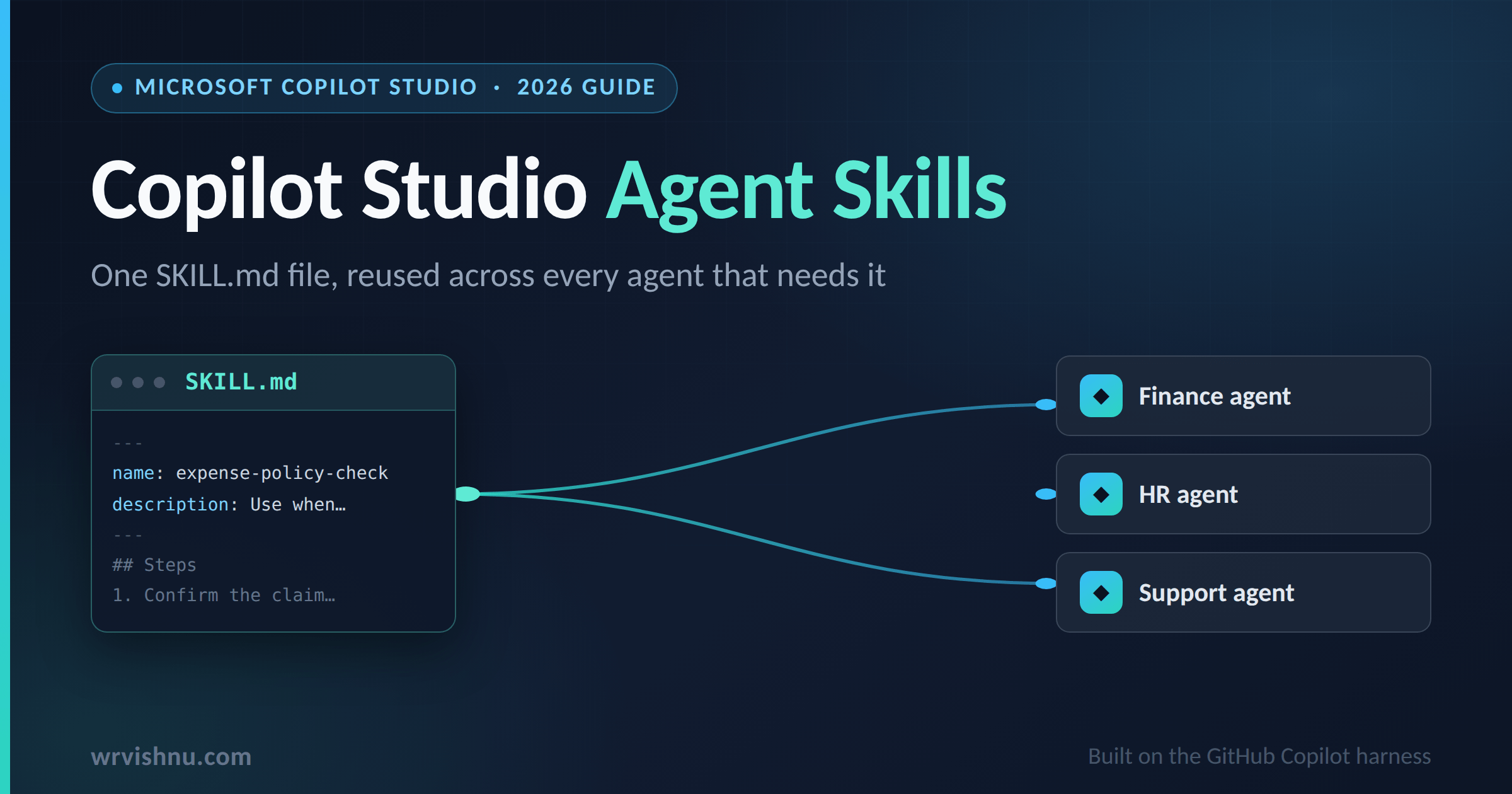
Copilot Studio agent skills fix that. You author the procedure once, save it as a portable SKILL.md file, and add it to as many agents as you need. This guide covers what a skill is, how the orchestrator picks one, the file format, a five-step reuse workflow, use cases, sample skills and the load errors worth knowing about.
Last verified against Microsoft Learn and the Agent Skills specification on 17 September 2026.
Key takeaways
- A Copilot Studio agent skill is a name, a description and Markdown instructions, optionally bundled with scripts, references and templates.
- Copilot Studio agent skills are for agents and workflows powered by the GitHub Copilot harness. Standard harness agents do not have a Skills component.
- The orchestrator activates a skill by matching the user’s message against the skill’s description. There are no trigger phrases.
- Copilot Studio agent skills follow the open Agent Skills specification, so the same file works outside Microsoft products too.
- Reuse is file-based. Keep the canonical file in source control and upload or replace it in each agent.
What are Copilot Studio agent skills?
Copilot Studio agent skills are portable packages of instructions, scripts and resources that give an agent specialised capability and domain expertise. Microsoft describes them in the skills overview on Microsoft Learn.
At its simplest, a skill has three parts:
- A name
- A description that says what it does and when to use it
- A set of instructions written in Markdown
A skill can also bundle supporting material such as scripts, reference documents and templates.
The key difference is against tools. Tools connect your agent to external services through connectors, APIs and MCP servers. Copilot Studio agent skills connect to nothing. They are self-contained instructions and logic that you create, share and reuse.
A simple way to hold both ideas: tools give the agent the ability to act, and skills tell the agent how the work should be done.
Prerequisite: agent skills need the GitHub Copilot harness
Before anything else, check which harness your agent runs on. Copilot Studio now has three: the GitHub Copilot harness, the standard harness and the Copilot chat harness. The harnesses overview lists skills and memory as capabilities of the GitHub Copilot harness only.
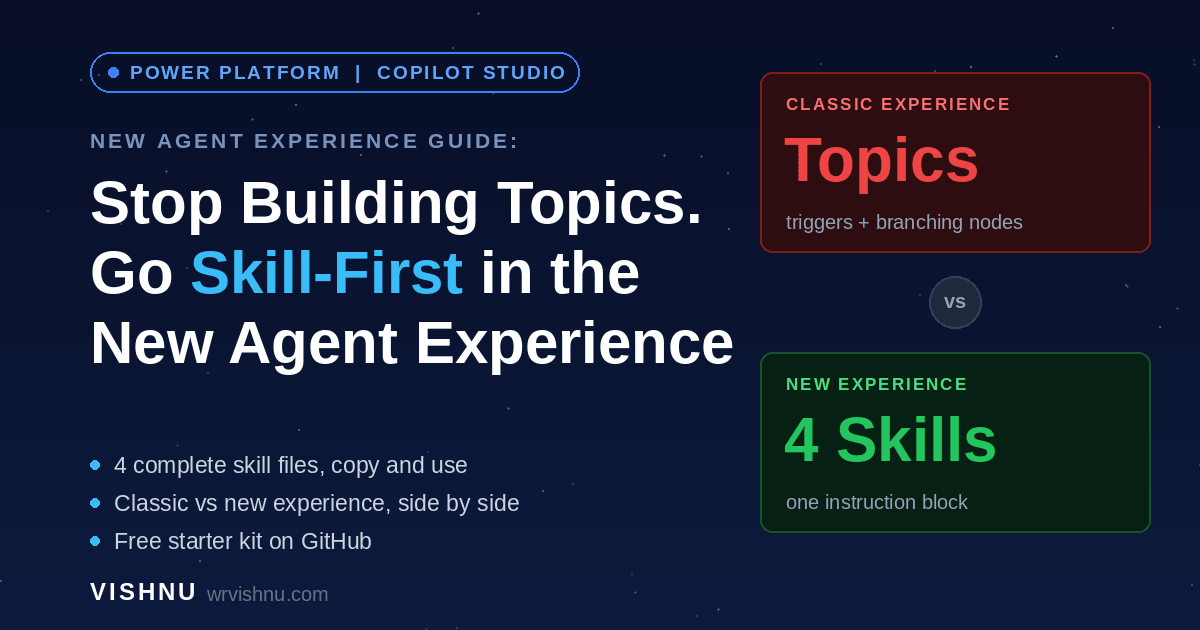
If you are building on the standard harness with topics and trigger phrases, the Skills component does not apply to your agent. I walked through what the redesigned, skill-first build surface actually looks like in the Copilot Studio new agent experience, which is the environment these skills live in.
Three facts are worth planning around:
- General availability. Microsoft announced the GitHub Copilot harness as generally available in early August 2026, and it headlines the August 2026 What’s new in Copilot Studio post. Some capabilities around it, such as memory, connected agents and file analysis, were still in preview at that point.
- No switching harness. An agent created on the GitHub Copilot harness cannot be moved to the standard harness, and the reverse is also true. To use skills with an existing standard agent, you create a new agent. See About agents powered by GitHub Copilot.
- Billing starts at build time. Usage on this harness is measured in Copilot Credits. Unlike the standard harness, which starts billing after publish, building, previewing, testing and evaluating all consume credits. The usage-based billing overview has the detail, so factor it into how much iteration you plan.
Copilot Studio agent skills vs instructions, knowledge and tools
Microsoft Learn lays the four agent components out side by side. It is the clearest summary available.
| Component | Purpose | Managed by |
|---|---|---|
| Instructions | General agent behaviour and personality | Identity configuration |
| Knowledge | Data the agent can reference | Knowledge sources |
| Tools | Actions via external services | Connectors, APIs, MCP servers |
| Skills | Reusable task-specific capabilities | Skill files or packages (Markdown-based) |
Read that table before you build anything. A lot of weak agent design comes from putting task-specific procedure into the main instructions, where it loads on every turn and applies to every conversation.
How the orchestrator activates Copilot Studio agent skills
Copilot Studio agent skills are not called by trigger phrases, and you do not wire them into a flow.
The orchestration runtime decides when to activate a skill based on the user’s message and the skill’s description. Once active, the skill’s instructions guide the agent for that specific task.
That has one direct consequence for how you write. The description does the routing. A skill with excellent instructions and a vague description will sit there unused. Microsoft notes that well-written descriptions help the orchestrator invoke the right skill at the right time.
Write the description to cover both halves: what the skill does, and when it should be used. Include the words a user would actually type.
Copilot Studio agent skills also work alongside tools and knowledge. A skill might tell the agent to use a particular tool in a particular way. That is a good pattern for enforcing one consistent process over a connector that could otherwise be called a dozen different ways.
The SKILL.md file format behind Copilot Studio agent skills
Copilot Studio agent skills follow the open Agent Skills specification. The format is public and not specific to Microsoft, so a well-written skill is portable across any product that supports the standard.
Copilot Studio agent skills are directories. Each one contains a required SKILL.md file, plus optional scripts/, references/ and assets/ folders. The SKILL.md file is YAML front matter followed by a Markdown body.
SKILL.md front matter fields
| Field | Required | Constraints |
|---|---|---|
name | Yes | 1 to 64 characters. Lowercase letters, numbers and hyphens only. No leading, trailing or consecutive hyphens. Must match the parent directory name. |
description | Yes | 1 to 1024 characters. Describes what the skill does and when to use it. |
license | No | License name or reference to a bundled license file. |
compatibility | No | 1 to 500 characters. Environment requirements, only if needed. |
metadata | No | A map of string keys to string values. |
allowed-tools | No | Space-separated list of pre-approved tools. Experimental, and support varies by product. |
One Copilot Studio note on the description. The specification allows 1024 characters, but Copilot Studio’s troubleshooting guidance says a description longer than its model-facing catalog accepts will stop the skill loading. Keep it tight.
A minimal example looks like this:
---
name: expense-policy-check
description: Checks a submitted expense claim against company expense policy and flags items that need approval. Use when a user asks about expense claims, reimbursements, or per diem limits.
---
The body after the front matter carries the instructions. There are no format restrictions on it.
Progressive disclosure and why file size matters
The specification defines three loading levels. Understanding them changes how you structure a skill.
- Metadata, about 100 tokens. The name and description of every skill load at startup.
- Instructions, under 5000 tokens recommended. The full
SKILL.mdbody loads only when the skill activates. - Resources, loaded on demand. Files in
scripts/,references/andassets/load only when needed.
Keep the main SKILL.md under 500 lines and move detailed reference material into separate files. Use relative paths from the skill root, and keep file references one level deep.
This is what makes skills scale. You can attach a large body of domain knowledge to an agent without paying the context cost on every turn.
Three ways to add Copilot Studio agent skills
Open your agent, select the Build tab, then select Skills in the components panel. You get three options.
1. Upload a skill
Import an existing skill by uploading a Markdown skill file or a .zip package. The ZIP must contain a SKILL.md with the name and description in YAML front matter, and can include scripts, templates and reference documents. Drag the file onto the upload box and Copilot Studio validates it before adding it. Details are in Add an existing skill to an agent.
2. Create from blank
Author the skill in the product. You provide a name (lowercase letters, numbers and hyphens), a description of what it does and when it activates, and Markdown instructions covering steps, response formats and constraints. Microsoft’s example name is customer-support-escalation.
3. Generate with AI
Describe the skill in natural language and select Build. Copilot asks follow-up questions, then produces the skill in the chat. You can view it, download it, or select Add to agent. Both creation paths are covered in Create a skill for an agent.
Use this option even if you plan to hand-write the final version. It gives you a structurally valid starting file quickly, which you can then edit properly.
Whichever route you take, test the agent in the Preview tab before you rely on the skill.
5-step workflow to reuse Copilot Studio agent skills across multiple agents
Copilot Studio agent skills are added to one agent at a time. There is no single shared library inside the product that all your agents subscribe to. Reuse happens through the file, which is why the portable format matters.
- Build and refine the skill in one agent until the behaviour is right.
- Download it. The skill downloads as a Markdown file with the name and description in YAML front matter plus the instructions. The filename matches the skill name.
- Store it in source control. A Git repository gives you version history, review and a clear record of what changed.
- Upload the same file to every other agent that needs the behaviour.
- Replace on change. Update the file in source control, then use Replace on each agent to push the new version.
The download option sits in the skill configuration panel. For a skill created from blank, select the Download icon. For an uploaded skill, select the three dots and then Download.
Replace is the update path for uploaded skills. Open the configuration panel, select the three dots, choose Replace, and browse to the new file. Skills created from blank can be edited directly in the panel instead.
Deleting a skill removes it permanently from that agent, so download it first if you might need it later. All of these steps are documented in Manage and delete skills in an agent.
One point to plan for. Updates are per agent, so the number of upload steps grows with the number of agents. Treat source control as the source of truth and the agents as deployment targets.
Use cases that fit Copilot Studio agent skills
Microsoft lists three reasons to use a skill:
- Package domain expertise such as expense policies, legal workflows or data analysis pipelines.
- Extend agent capabilities without changing the agent’s core instructions.
- Ensure consistency by turning multistep tasks into repeatable, auditable workflows.
The third reason is the strongest in an enterprise setting. If a process has a correct order and a required output format, a skill is where it belongs. These scenario shapes map well in practice:
- Policy checks. Expense claims, travel approval, procurement thresholds. The answer should be the same whoever asks.
- Escalation and routing. When to escalate, what to collect first, and where the case goes.
- Fixed-format documents. Status reports, meeting summaries and case studies with the same headings and tone every time.
- Rubric-based review. Contract first-pass review, accessibility checks, content scoring, with the rubric detail in a reference file.
- Data handling. Chart generation, table extraction and format conversion, pairing a bundled script with instructions on when to run it.
- Sensitive handling rules. Redaction procedures, disclosure wording and what the agent must not state, versioned independently of the agent. Pair this with the wider controls in Microsoft Agent 365 agent governance.
The pattern behind these Copilot Studio agent skills is the same in every case. The knowledge is procedural, applies only to some conversations, and needs to stay identical across agents.
When Copilot Studio agent skills are the wrong choice
- Behaviour that must apply on every turn belongs in the agent’s main instructions.
- Calling an external system is a tool.
- Looking something up in your data is a knowledge source.
- A process that must run the same way every time with no model judgement is better as a workflow added as a tool, which gives deterministic execution.
Sample Copilot Studio agent skills you can study
The CAT Agent Skills gallery is a community gallery of reusable skills for Copilot Studio, Copilot Cowork and Microsoft Scout. It is hosted in the microsoft/cat-agent-skills GitHub repository under the MIT license. Each entry downloads as a SKILL.md, with a ZIP bundle when the skill ships extra files.
These Copilot Studio agent skills are useful whether or not you install them. Every detail page shows the full instructions, so you can see how experienced authors structure a skill.
| Skill | What it does |
|---|---|
| Skill Authoring Coach | Helps makers design concise, reusable skills with clear triggers, instructions, resources and packaging. A sensible first read. |
| Copilot Agent Advisor | Advises which Microsoft 365 or Copilot Studio agent option fits a scenario, and which harness to build on. |
| Enterprise Agent Design Authority | A design review framework for secure, scalable and governable Copilot Studio agents. |
| Agent Red Team | An adversarial review of agents you own, covering prompt injection, oversharing, leakage and tool misuse, mapped to fixes. |
| Vendor Contract Risk Review | First-pass review of a vendor contract or SOW for auto-renewal, liability caps, termination and IP clauses, flagged by risk level. |
| Knowledge Corpus Curator | Reviews knowledge files for duplication, staleness, overlap and conflicting guidance, then produces a curation backlog. |
| Brand Template Enforcer | Makes every generated PowerPoint or Word file start from the correct bundled or SharePoint-hosted brand template. |
| Accessibility Pass | Checks a deck, document, HTML page or Markdown file against Accessibility Checker rules and fixes what it finds. |
| Chart Builder | Generates consistently styled matplotlib charts from a DataFrame or CSV in one call. |
| PDF Table Data Conversion | Extracts tables from a PDF, such as a pricing schedule, into a clean spreadsheet or CSV. |
A caution before you install. The gallery describes itself as an example implementation. The underlying Microsoft platform features are supported, but the individual skills are community contributions provided as-is. The gallery also reminds you that a skill runs with your agent’s permissions, so read the instructions line by line before you put one in front of users.
Two worked examples of Copilot Studio agent skills
The examples below are illustrative, not published Microsoft skills. They follow the documented format, so you can paste them into a file, adjust them and upload them.
Example one: an expense policy check
---
name: expense-policy-check
description: Checks a submitted expense claim against company expense policy and flags items that need manager approval or extra evidence. Use when the user asks about expense claims, reimbursement, receipts, per diem, mileage, or whether a cost is claimable.
---

# Expense policy check

## When to use this
The user is asking whether a cost can be claimed, how much can be claimed,
or what evidence they need to attach.

## Steps
1. Confirm the claim date, the amount, the currency and the category.
   If any of these are missing, ask for them before continuing.
2. Look up the category limit in references/limits.md.
3. Compare the claimed amount against the limit.
4. Apply the evidence rules in references/evidence.md.
5. Produce the output in the format below.

## Output format
Return a short summary line, then a table with these columns:
Item, Amount, Limit, Status, Action required.

Status must be one of: Within policy, Needs approval, Not claimable.

## Constraints
- Do not approve a claim. State the policy position only.
- Do not estimate a limit that is not listed in references/limits.md.
  If the category is not listed, say so and advise the user to contact Finance.
- Do not convert currency. Report the claimed currency as submitted.

## Edge cases
- Claims older than 90 days are outside the submission window.
  Report them as Not claimable and state the reason.
- A claim with no receipt is always Needs approval, whatever the amount.
Note the shape. The front matter carries the routing, the body carries the procedure, and the detail that changes often sits in reference files that load only when the skill runs.
Example two: a weekly status summary
---
name: weekly-status-summary
description: Turns raw project notes, updates or transcripts into a standard weekly status summary in the agreed house format. Use when the user asks for a weekly update, a project status report, a steering summary, or asks to write up the week.
---

# Weekly status summary

## When to use this
The user supplies notes, updates or a transcript and wants them written up
as a status report.

## Steps
1. Read everything the user supplied. Do not search for more.
2. Sort the content into the four sections below.
3. If a section has nothing in it, write "Nothing to report" under it.
   Do not leave a section out and do not invent content to fill it.
4. Flag anything that reads as a risk but has no owner or date attached.

## Output format
Use these four headings in this order:

**Progress this week**
Bullet points. One line each. Start each with a past tense verb.

**Planned for next week**
Bullet points. One line each.

**Risks and issues**
A table with columns: Item, Impact, Owner, Target date.

**Decisions needed**
Bullet points. Name the decision and who needs to make it.

## Constraints
- Keep the whole summary under 400 words.
- Do not add commentary, assessment or encouragement.
- Use the wording the user supplied wherever possible. Do not restate
  a fact more confidently than the source did.

## Edge cases
- If the notes contain a date conflict, list both and mark it as an
  item under Decisions needed.
- If a name appears without a role, leave it as written.
The second example is the classic reuse case. One file, one format, and every agent that carries it produces the same report.
Writing instructions for Copilot Studio agent skills that hold up
Microsoft Learn recommends that instructions for Copilot Studio agent skills include:
- A clear description of the task or scenario the skill handles
- Step-by-step guidance for how the agent should respond
- Formatting requirements for responses
- Edge cases and how to handle them
- References to tools the agent should use, where applicable
Start simple and refine based on testing.
Two additions from experience with instruction-driven agents. Write in the imperative and address the agent directly. And state what the agent should not do, because a negative constraint often does more work than another positive rule.
Troubleshooting Copilot Studio agent skills that do not load
Copilot Studio agent skills can pass upload and still be skipped at runtime. When that happens, Copilot Studio loads the rest of the agent normally and quietly leaves the skill out, which makes the failure easy to miss.
If a skill is missing from the components panel after saving, or the agent acts as if it is not installed, it probably failed a load-time check. The documented causes are:
| Reason | How to fix it |
|---|---|
| Invalid YAML front matter | Quote string values that contain a colon or other YAML metacharacter. Confirm the front matter is a mapping of key and value pairs. |
Missing name | Add a non-empty name: value. |
Missing description | Add a non-empty description: value. |
| Description too long | Shorten it to a single line that summarises the skill’s purpose. |
| Duplicate skill name | Two skills in the same agent share a folder name. Rename one so each is unique. |
Unreadable SKILL.md | Save the file as UTF-8 without a byte-order mark and upload again. |
| Resource file not written | Re-export the package, check every file is present and readable, then upload again. |
| Skill package rejected | Re-export from a working editor and retry. If a package that used to work keeps failing, contact your administrator. |
One behaviour deserves attention. A skill whose supporting files were only partly written will still load, but the agent may behave differently because some referenced content is missing. Re-upload the package to restore the full set of files.
The colon problem catches people often. description: Expense policy: what to check is invalid YAML. Wrap the value in quotes.
You can also validate a skill before upload with the skills-ref reference library from the Agent Skills project. Running skills-ref validate ./my-skill checks the front matter and naming conventions.
A practical adoption path for Copilot Studio agent skills
Copilot Studio agent skills change what a reusable asset looks like. Before, the reusable units were connectors, flows and topics, which all describe actions. Skills let you package the procedure itself, which is usually where the organisational knowledge lives.
- Pick one repeated procedure that already exists as a long instruction block in an agent. If you have not built one yet, start with a no-code Copilot Studio agent first.
- Extract it into a skill with a sharp description.
- Test whether the orchestrator picks it up on realistic user phrasing.
- Put the file in source control.
- Add it to a second agent and confirm the behaviour matches.
Once that loop works for one skill, it works for twenty. The format is open, the files are plain Markdown, and they move through normal engineering processes. For anyone responsible for consistency across a growing set of agents, that is the useful part.
Frequently asked questions about Copilot Studio agent skills
Can I use Copilot Studio agent skills with standard harness agents?
No. Copilot Studio agent skills are supported on the GitHub Copilot harness. Agents cannot be moved between harnesses, so you need to create a new agent on the GitHub Copilot harness to use skills.
How does an agent decide when to use a skill?
Copilot Studio agent skills are activated by the orchestration runtime, which compares the user’s message with each skill’s description and activates the skill that matches. There are no trigger phrases, so the description is what makes a skill discoverable.
What is the difference between a skill and a tool in Copilot Studio?
A tool connects the agent to an external service through a connector, API or MCP server. A skill is a self-contained set of instructions that tells the agent how to carry out a task, and it can direct the agent to use tools in a specific way.
How do I share one skill across multiple agents?
Copilot Studio agent skills are shared as files. Download the skill as Markdown, keep it in source control, and upload it to each agent. When it changes, use Replace on each agent. There is no central skill library that agents subscribe to.
Do Copilot Studio agent skills cost Copilot Credits?
Copilot Studio agent skills run on the GitHub Copilot harness, which uses usage-based billing in Copilot Credits. Building, previewing, testing and evaluating agents can all consume credits, not only production use after publishing.
Can a Copilot Studio skill work in other AI products?
Often, yes. Copilot Studio agent skills follow the open Agent Skills specification, which many agent products support. Product-specific instructions, such as references to a particular connector, may still need adjusting.
References
Microsoft Learn
- Skills overview for agents
- Create a skill for an agent
- Add an existing skill to an agent
- Manage and delete skills in an agent
- Harnesses in Copilot Studio
- Agents powered by the GitHub Copilot harness overview
- Agents overview
- Overview of usage-based billing for the GitHub Copilot harness
- Manage Copilot Credits and capacity for Copilot Studio
Microsoft announcements
- New and improved: GitHub Copilot harness, agent skills, and richer context (Microsoft Copilot Blog)
- Introducing a new harness for Copilot Studio (Microsoft Tech Community)
Agent Skills specification
Community resources
- CAT Agent Skills gallery
- CAT Agent Skills repository
- Discover a community gallery of reusable skills for AI agents (Microsoft Tech Community)