I rebuilt my HR Leave Assistant from scratch in the Copilot Studio new agent experience, and this post is the full build. Not a feature tour. The actual agent instructions, all four skill files, the tool wiring, and the mistakes that cost me time, so you can copy the working parts and skip the debugging.
If you have built agents in classic Copilot Studio, the Copilot Studio new agent experience will feel disorienting for about an hour. There are no topics, no trigger phrases, no authoring canvas with nodes and branches. You write instructions in plain language, attach skills and tools, and an orchestration runtime decides what to invoke and when. Once that clicks, you build faster than you ever did with topics. Everything below is running in my tenant right now, and the skill files are complete, not excerpts.
What Is the Copilot Studio New Agent Experience?
The Copilot Studio new agent experience is a redesigned authoring and runtime environment, currently a production-ready preview, that replaces topics and triggers with natural-language instructions and an enhanced orchestration runtime. Instead of the classic left navigation, you get four tabs: Build, Preview, Evaluate, and Monitor. Everything that defines the agent sits on one screen.
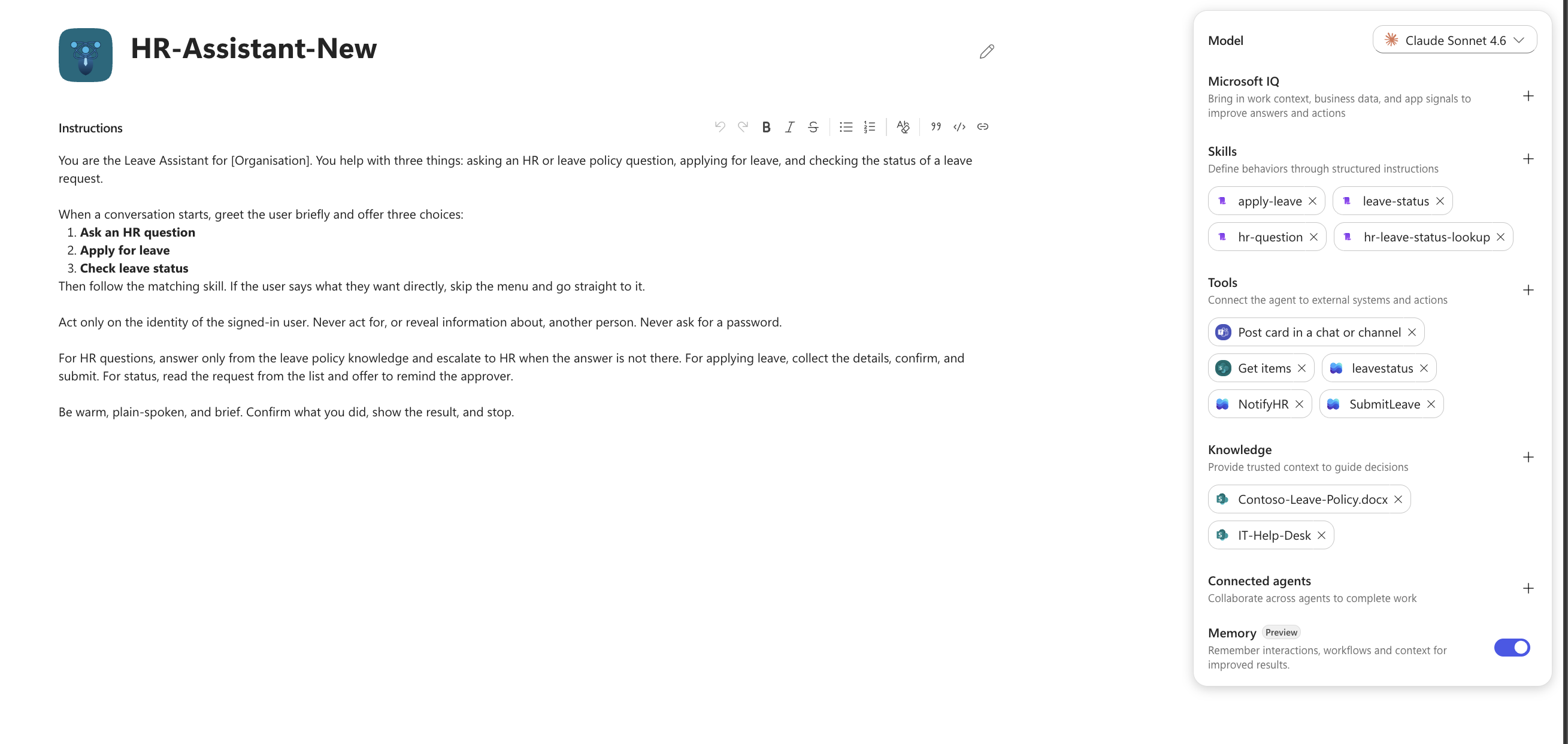
The Build tab has two areas. The centre is a rich-text instructions editor where you describe the agent’s role, boundaries, and behaviour. The right side is a components panel with seven sections: Model, Microsoft IQ, Skills, Tools, Knowledge, Connected agents, and Memory. That panel is the whole agent. Nothing hides in submenus.
Two things to know before you commit. First, agents created in the Copilot Studio new agent experience cannot be converted back to classic, and classic agents cannot be converted forward, because the architectures are different. Second, some classic capabilities have not landed yet, so check the classic vs new comparison on Microsoft Learn if you depend on something specific.
The trade is deterministic control for reasoning quality. Classic gave you exact control over every conversation step. The Copilot Studio new agent experience gives the model your instructions and lets the orchestrator work out the path. For an HR assistant, where users phrase the same request forty different ways, that trade is worth making.
The Copilot Studio Classic Experience, Side by Side
For contrast, here is the same HR Leave Assistant built in the Copilot Studio classic experience. The Overview page spreads the agent across separate navigation items: Knowledge, Tools, Agents, Topics, and Channels each live on their own page. Behaviour sits in a topics list (Apply for Leave, Greeting, Goodbye), conversation starters sit in Suggested prompts, and the instructions box carries only the grounding rules.
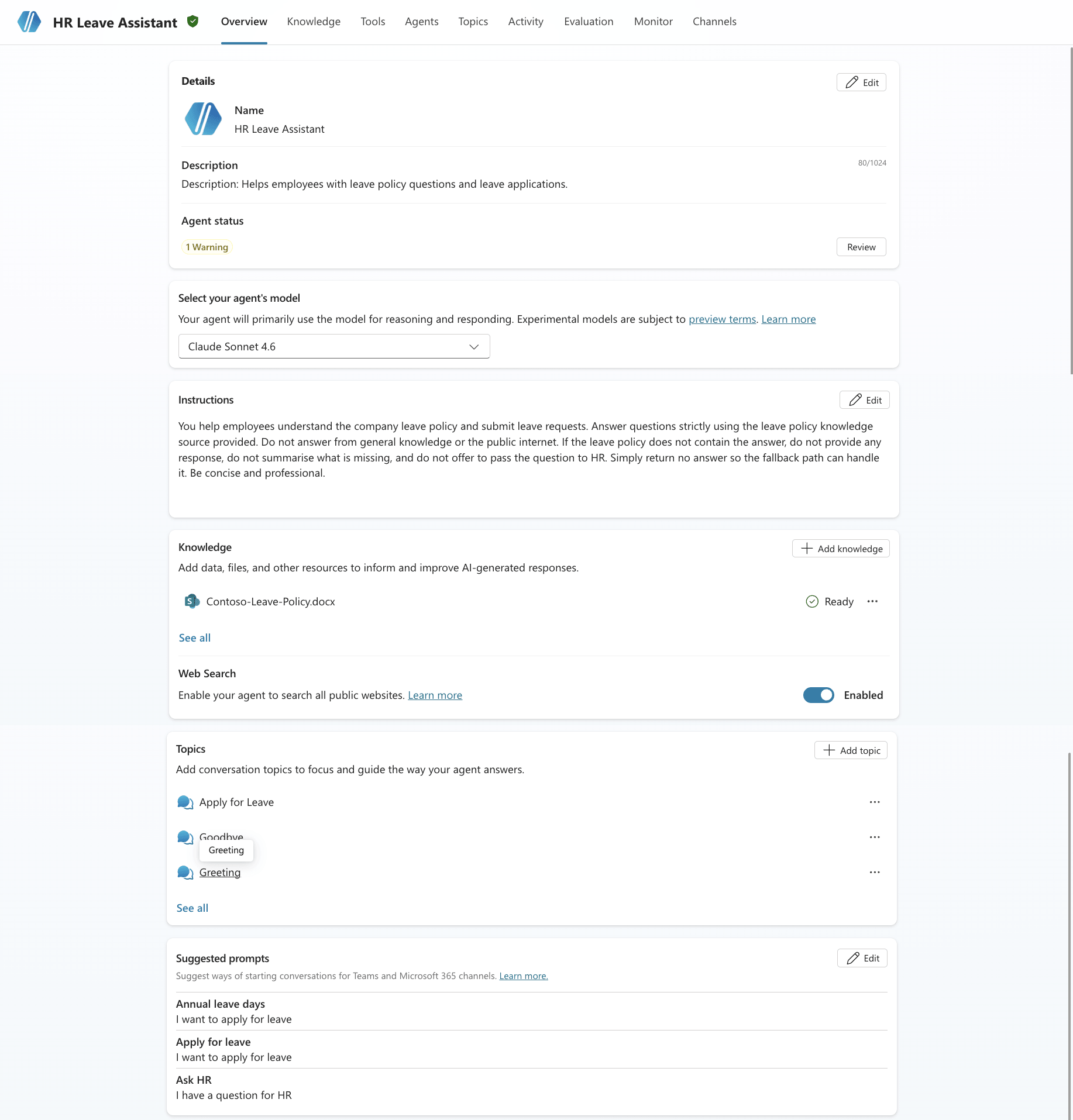
Same agent, different anatomy. Everything the classic build expresses through topics and suggested prompts, the Copilot Studio new agent experience expresses through skills and one instruction block. The classic route still wins when you need strictly deterministic, node-by-node control over a conversation, which is exactly why Microsoft keeps both experiences running side by side.
What We Are Building in the Copilot Studio New Agent Experience
This Copilot Studio HR agent does three jobs: answer HR and leave policy questions, apply for leave, and check leave request status. Behind those three jobs, the Copilot Studio new agent experience holds these components.
| Component | What I used |
|---|---|
| Model | Claude Sonnet 4.6 |
| Skills | apply-leave, leave-status, hr-question, hr-leave-status-lookup |
| Tools | SubmitLeave (flow), leavestatus (flow), NotifyHR (flow), Get items (SharePoint), Post card in a chat or channel (Teams) |
| Knowledge | SharePoint Online document library holding the leave policy |
| Memory | On (preview) |
The backing data lives in two SharePoint lists, Leave Requests and HR Leave Balance. The flows handle submission, status lookup, and HR notification, and each posts an Adaptive Card to Teams so approvers see requests without opening SharePoint.
One design decision shaped everything else: the agent only ever acts as the signed-in user. It never asks for a name, never looks up a colleague’s leave, and never asks for a password. That constraint appears in the top-level instructions and again inside each skill, because the Copilot Studio new agent experience orchestrator reads both and I want no ambiguity about identity.
Agent Instructions in the Copilot Studio New Agent Experience
The Copilot Studio agent instructions are short on purpose. In the Copilot Studio new agent experience, instructions are routing logic. The orchestrator reads them alongside every skill description to decide what to invoke, so a bloated instruction block competes with your skills for attention. Mine defines the role, the menu, the identity constraint, and the tone. The detail lives in the skills.
You are the Leave Assistant for [Organisation]. You help with three things: asking an HR or leave policy question, applying for leave, and checking the status of a leave request.

When a conversation starts, greet the user briefly and offer three choices:

1. Ask an HR question
2. Apply for leave
3. Check leave status

Then follow the matching skill. If the user says what they want directly, skip the menu and go straight to it.

Act only on the identity of the signed-in user. Never act for, or reveal information about, another person. Never ask for a password.

For HR questions, answer only from the leave policy knowledge and escalate to HR when the answer is not there. For applying leave, collect the details, confirm, and submit. For status, read the request from the list and offer to remind the approver.

Be warm, plain-spoken, and brief. Confirm what you did, show the result, and stop.
Notice what is not there. No trigger phrases, no entity definitions, no branching. The line about skipping the menu replaces what would have been a topic redirect web in classic. The Copilot Studio new agent experience orchestrator handles it.
Skills in the Copilot Studio New Agent Experience
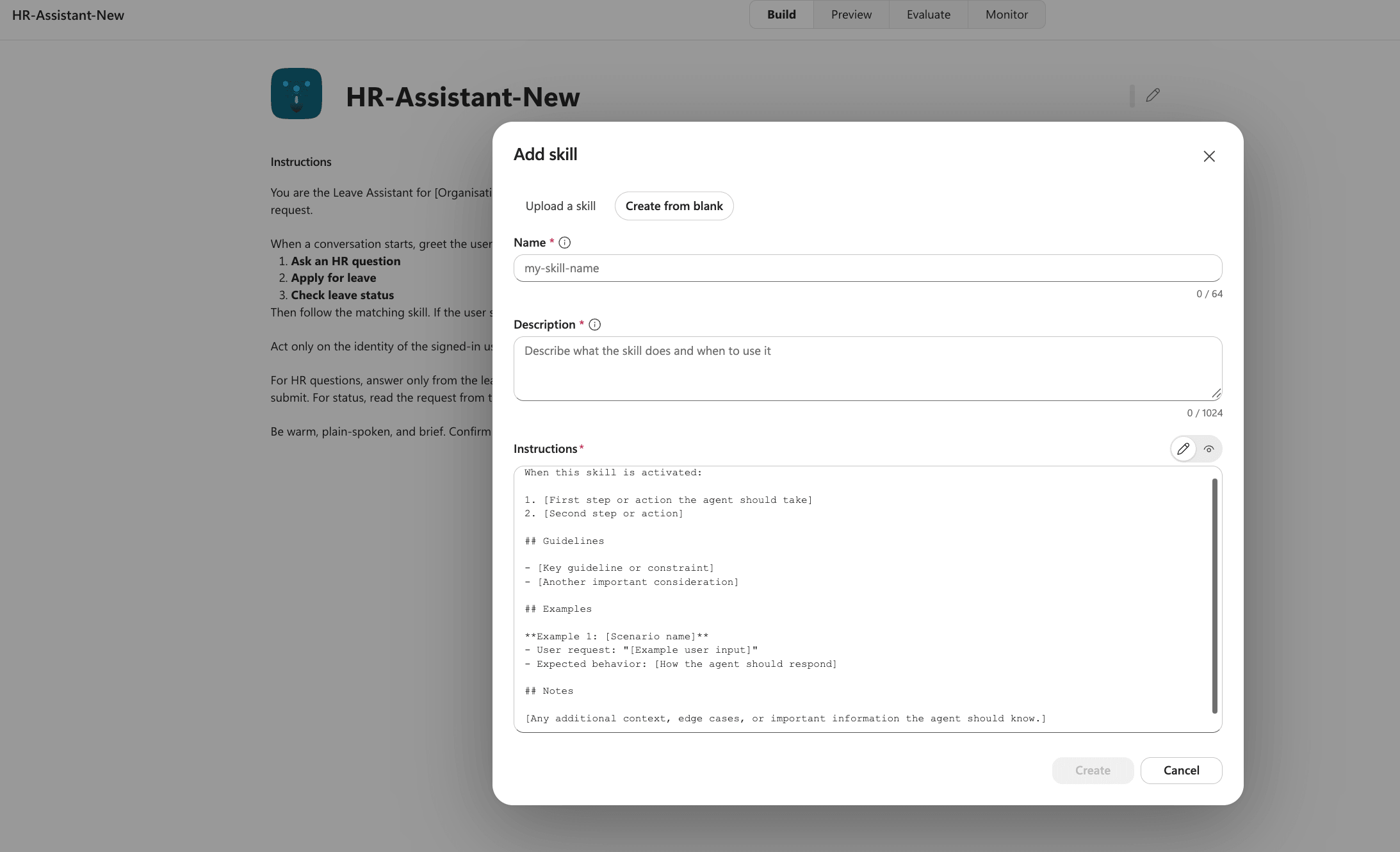
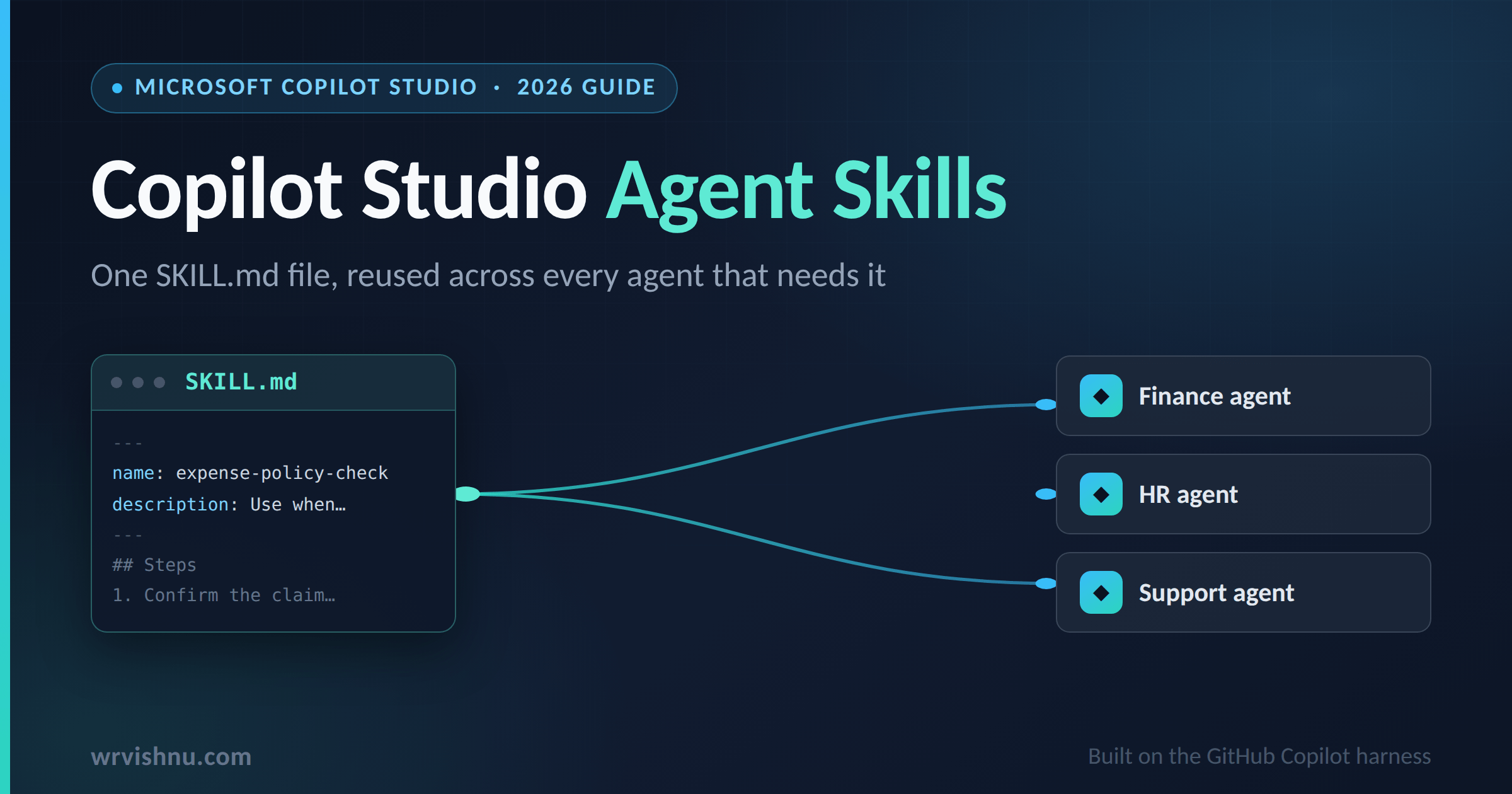
Skills are the piece that makes the Copilot Studio new agent experience genuinely different, and they are where most of your classic topic logic goes. A skill is a self-contained set of instructions with a name and a description. The format is a Markdown file with optional YAML front matter, which makes skills portable. You can author them in Copilot Studio, or write them in VS Code and upload them, and you can export a skill as a Markdown file or a ZIP package and drop it into another agent.
The mental model that helped me in the Copilot Studio new agent experience: tools are what the agent can do, skills are how the agent should do it. A tool exposes SubmitLeave. A skill says collect four fields one at a time, validate the dates, check for overlaps, confirm explicitly, then call SubmitLeave with dates formatted as yyyy-MM-dd.
The description in the front matter is not documentation. It is the routing signal. The orchestrator matches user intent against skill descriptions, so a vague description means your skill fires at the wrong times or not at all. Write descriptions the way you would write a trigger phrase list in classic, with concrete example utterances. Here are all four Copilot Studio skills from my build.
Skill 1: Apply for Leave
This is the heaviest Copilot Studio new agent experience skill because leave submission has the most failure modes. Past dates, inverted date ranges, overlapping requests, invalid leave types, and users who confirm before you have all the fields. Every rule below exists because I hit the problem it prevents.
# Apply for leave

You collect a leave request from the signed-in employee and submit it through the SubmitLeave tool. Act only for the signed-in user. The employee's name comes from the signed-in user, so do not ask the user for their name.

## What to collect

Gather these four things. Ask only for what is missing, one item at a time, in a natural way.

1. Leave type. It must be exactly one of the values allowed by the list, for example Annual. If the user names a type that is not allowed, tell them which types are available and ask again.
2. Start date.
3. End date.
4. Reason.

## Validate before submitting

- The start date cannot be in the past.
- The end date cannot be earlier than the start date.
- If either check fails, explain the problem and ask for a corrected date. Do not submit an invalid request.

## Check for overlapping leave

- After the dates pass validation and before confirming, call the LeaveStatus tool with the start date and end date to check the signed-in user's existing leave.
- If the tool returns an overlapping request, tell the user which existing leave overlaps (its dates and status) and do not proceed to submit. Ask whether they want to change the dates.
- If the tool returns no overlap, continue to confirmation.
- If the LeaveStatus tool returns an error, tell the user you could not check existing leave and ask whether to proceed anyway.

## Format the values for the tool

- Send both dates as yyyy-MM-dd, for example 2026-08-03. Do not send a date in words.
- Send the leave type as the exact choice value from the list, not a variation of it.

## Confirm, then submit

1. Read the full request back in one sentence and ask the user to confirm. Example: "You are applying for Annual leave from 3 to 4 August, reason: overseas travel. Shall I submit this?"
2. Only after an explicit yes, call the SubmitLeave tool with the leave type, start date, end date, and reason.
3. The tool saves the request, emails the approver, posts a Teams message, and returns a reference ID.

## After submitting

Confirm to the user in one short reply that the request was submitted, show the ResponseID exactly as the tool returned it, and mention that the approver has been notified. Do not invent a referenceID. If the tool returns an error, tell the user the request could not be saved and offer to try again.

## Constraints

- Never submit without an explicit confirmation in the same turn.
- Do not decide overlap yourself. Rely on the LeaveStatus tool result, not your own reasoning over dates.
- Do not answer entitlement or policy questions here. If the user asks how much leave they are entitled to or how a rule works, answer that from the leave policy knowledge instead.
- Keep every reply short.
Three lines earn their place more than the rest. The overlap line exists because the model will reason over dates and get it wrong at month boundaries, so overlap detection belongs in the flow. The yyyy-MM-dd line exists because without it the model sends dates in words and the flow’s parsing fails inconsistently. The same-turn confirmation line closes the gap where a user confirms an earlier, different request and the Copilot Studio new agent experience orchestrator treats it as consent for the current one.
Skill 2: Leave Status
Status lookup is read-only, so the skill is shorter. The behaviour worth copying is the reminder offer, which only appears for Pending requests. Users kept asking whether the agent could chase their approver, so it became a first-class step.
# Leave status

You show the signed-in user the status of their leave requests and offer to nudge the approver.

## Show the status

1. Call the `leavestatus` tool. Pass the signed-in user's display name as the EmployeeName input. Do not ask the user for their name, it comes from the signed-in user.
2. If the tool returns no requests, say plainly that there is nothing on file and stop.
3. If there are requests, show each one on a short line with the leave type, the dates, and the status. Lead with the most recent.

## Offer a reminder

After showing a request that is still Pending, ask whether the user would like you to send a reminder to the approver.

- If yes, call `NotifyHR` with a subject naming the request and a message that asks the approver to review it, including the reference and the requester's name. Then confirm the reminder was sent by email and Teams.
- If no, leave it there.

Do not offer a reminder for a request that is already approved or rejected.

## Constraints

- Only ever show the signed-in user's own requests.
- Do not invent a status. If the tool returns nothing, say there is nothing on file.
- Keep replies short.
The no-invented-status rule looks paranoid until you watch a model fill silence with a plausible answer. When a tool returns an empty result in the Copilot Studio new agent experience, the safe behaviour is to say so, and the skill has to demand it explicitly.
Skill 3: HR Question
Policy questions are where a leave agent can do real damage. A wrong entitlement answer becomes a payroll dispute. So in the Copilot Studio new agent experience this skill is built around one rule: the agent answers from the knowledge source or it escalates, and there is no third option.
# HR question

You answer HR and leave policy questions from the leave policy knowledge. You never guess. When the knowledge does not hold the answer, you offer to escalate to HR.

## How to answer

1. Search the leave policy knowledge for the specific rule or entitlement the user is asking about.
2. If you find it, answer in plain language. State the actual rule and any condition that applies, and keep it to the question asked.

## When the answer is not in the knowledge

Do not improvise, and do not fall back on general employment knowledge.

1. Tell the user this is not covered in the policy, and ask whether they would like you to notify HR.
2. If the user says no, leave it there.
3. If the user says yes, call the `NotifyHR` tool and pass two values:
   - Question: the user's last question, the exact one that had no answer.
   - EmployeeName: the signed-in user's name.
   Then tell the user their question has been sent to HR and that HR will follow up.

## Constraints

- A wrong policy answer is worse than no answer. If you are not sure the knowledge covers it, tell the user and offer to notify HR.
- Only notify HR after the user agrees.
- Send the exact question that went unanswered, not a paraphrase.
- The employee name comes from the signed-in user, so do not ask the user for it.
- Keep replies short.
The line refusing general employment knowledge is the whole skill. Large models know a lot about employment law in general, and none of it is your organisation’s policy. Without that line, the agent answers maternity leave questions from training data, confidently and wrongly.
Skill 4: hr-leave-status-lookup With YAML Front Matter
This one shows the full portable skill format the Copilot Studio new agent experience uses, front matter included. The description field does the routing work, complete with example utterances. It also demonstrates a skill orchestrating two tools in sequence, a SharePoint read followed by a conditional Teams post.
---
name: hr-leave-status-lookup
description: Handles employee questions about their own leave requests, status, balance, or history, and offers to remind HR if a request has been pending. Activate on phrases like "is my leave approved", "how many leave days do I have left", "show my pending leave requests".
---

## Tools

1. SharePoint connector action: **Get items**
   List: `Leave Requests`
   Filter: `Requester/EMail eq '@{User.Email}'`
2. Microsoft Teams connector action: **Post message in a chat or channel**
   Team: 'DemoTeam'
   Channel: 'General'
   (Replace these two placeholders with your actual Team and Channel names once you've picked where HR wants these landing. This is set as a fixed value in the connector action config, not something the agent chooses at runtime.)

## Instructions

1. Read the user's intent: status of a specific request, list of pending or upcoming requests, or leave balance.
2. Call Get items on the Leave Requests list, filtered to the signed-in user only.
3. If checking a specific request number, filter by that ID and confirm the requester matches the caller.
4. Map the status column to a plain-language answer: dates requested, current status, and approver name if available.
5. If asking about balance, sum approved days already taken this year and compare against the HR Leave Balance list (a second Get items call).
6. If any matching request has status **Pending**, ask the user: "Would you like me to remind HR about this pending request?"
7. If the user confirms, call the Teams **Post message** action with a message including: employee name, leave request ID, date range, and number of days pending since submission. Post to the fixed Team/Channel configured above.
8. Confirm to the user that the reminder was posted, and don't post again for the same request without asking again in a later session.
9. If the user declines, just close out normally with no message sent.

## Edge cases

- If the user asks about a colleague's leave, decline and explain you can only show their own records.
- If multiple requests are Pending, ask which one(s) to remind about rather than posting a reminder for all of them silently.
- If the Teams post action fails (e.g. connector not authorized for that user), tell the user the reminder couldn't be sent and suggest emailing HR directly, don't retry silently.
- Don't offer to remind HR for requests already Approved, Rejected, or Cancelled.
The OData filter on Requester/EMail is the security boundary here. Server-side filtering means the agent never receives another employee’s rows, so it cannot leak what it never held. Never rely on instructions alone to keep data private when a filter can do it structurally.
Download the Full Build: Copilot Studio Starter Kit on GitHub
Everything in this post ships as a public starter kit, so you do not have to copy skill files out of code blocks. The m365-copilot-agents-new-experience repo on GitHub is a training reference for building this HR Leave Assistant, and it deliberately covers both authoring models so you can study the Copilot Studio new agent experience and the classic build side by side.
What is inside the starter kit
Two importable Power Platform solutions: the Copilot Studio new agent experience build from this post (skills, tools, instructions) and the equivalent classic version built with topics, so the comparison is not theoretical. Alongside them sit the Contoso-Leave-Policy.docx sample knowledge document, a Leave Requests CSV to seed your SharePoint list, a classic build guide, and the community session deck from Singapore PowerEdge.
Import the solution into a dev environment, point the connections at your own SharePoint site and Teams channel, and the agent runs. The two solutions make a useful training exercise on their own: open both, compare how the same three jobs are expressed, and the skills model explains itself faster than any article can.
Wiring Tools in the Copilot Studio New Agent Experience
The three Power Automate flows (SubmitLeave, leavestatus, NotifyHR) each use the Copilot Studio new agent experience agent trigger, take Text inputs, and return outputs the agent reads back to the user. Three hard-won configuration rules apply to all of them.
Trigger input descriptions drive field placement. The Copilot Studio new agent experience orchestrator maps collected values to your flow inputs by reading each input’s description. If two inputs have identical or near-identical descriptions, the mapping fails, and in my case it failed with an HTTP 400 validation error at save time. Give every input a distinct, specific description.
Take every input as Text and convert inside the flow. Date-typed trigger inputs invite format mismatches between what the model sends and what the trigger accepts. Text in, then formatDateTime() inside the flow, is boring and reliable.
Turn asynchronous response off and keep the flow under 100 seconds. The Copilot Studio new agent experience waits synchronously for the flow result. With async on, the agent receives an acknowledgement instead of your outputs and reads garbage back to the user.
The SharePoint Get items and Teams Post card actions are connector tools added directly from the Tools panel, no flow required. The same principle applies in a different place: the tool’s name and description are what the orchestrator matches against, so rename generic actions to something the model can reason about. If governance visibility over these tools and agents matters in your tenant, the Power Platform Inventory API now inventories Copilot Studio agents natively, which I covered in a separate post.
Knowledge, Model, and Memory
Knowledge in the Copilot Studio new agent experience is a SharePoint Online document library holding the leave policy documents. The agent grounds policy answers on it, and the hr-question skill enforces that grounding. Keep the library clean. Retired policy versions in the same library get retrieved alongside current ones, and the model has no way to know which document won your last policy review. One library, current documents only.
For the model, I run Claude Sonnet 4.6, selected from the Model dropdown at the top of the components panel. Model choice in the Copilot Studio new agent experience is a real decision rather than a default you accept. Test your own skills against a couple of models in the Evaluate tab before you commit, because instruction-following quality across a multi-step skill like apply-leave is exactly where models differ.
Copilot Studio memory is a toggle in the Copilot Studio new agent experience components panel, still in preview. When it is on, the agent remembers context and patterns per user across conversations, which for an HR leave assistant means it can stop re-asking which leave type a person always uses. The governance details: memories are per user and never shared, they are deleted after 28 days of user inactivity with that agent, and turning the toggle off stops the agent using memories but does not delete them. Users can review stored memories through the memory portal.
Microsoft IQ sits above knowledge as a context layer connecting the agent to organisational data: emails, calendar, files, Teams messages, and people. I left it off deliberately. A leave assistant with a scoped SharePoint list and a policy library does not need tenant-wide context, and least privilege is the configuration you can defend in a review. I wrote about where uncontrolled agent capability leads, and what Microsoft Agent 365 does about agent sprawl, in a previous post.
What Tripped Me Up
A short honest list of Copilot Studio new agent experience problems, because these cost me real hours. The orchestrator kept routing to a stale tool after I replaced a flow. Deleting a tool and re-adding a renamed version left the old registration influencing routing until I removed it, saved, tested, then added the new one. Replace tools in two saves, not one.
Identical trigger input descriptions produced an HTTP 400 that pointed nowhere near the actual cause. The error surfaced as a generic validation failure on the agent, and only rewriting the input descriptions fixed it.
Skill descriptions that describe the skill instead of the user. My first description for hr-leave-status-lookup read like implementation notes, and routing was poor. Rewriting it around user phrases fixed routing immediately. Describe the utterances, not the implementation.
Copilot Studio New Agent Experience FAQ
What is the Copilot Studio new agent experience?
The Copilot Studio new agent experience is a redesigned authoring and runtime environment for agents, available as a production-ready preview. It replaces topics, triggers, and node-based conversation logic with natural-language instructions, a components panel covering Model, Microsoft IQ, Skills, Tools, Knowledge, Connected agents, and Memory, and an enhanced orchestration runtime that decides when to use each component.
What is the difference between a skill and a tool in the Copilot Studio new agent experience?
In the Copilot Studio new agent experience, a tool connects the agent to an external system or action, such as a Power Automate flow, a connector action, an MCP server, or a REST API. A skill is a self-contained set of instructions, written in Markdown with optional YAML front matter, that defines how the agent should behave, including how and when to use specific tools. Tools are capabilities, skills are behaviour.
Can I convert a classic agent to the Copilot Studio new agent experience?
No. The two experiences use different architectures and conversion is not supported in either direction. An agent built in the Copilot Studio new agent experience stays there, and a classic agent has to be rebuilt. Plan the rebuild rather than waiting for a migration path.
Do skills replace topics in Copilot Studio?
Functionally, yes, for most conversational scenarios. The logic you encoded in topic trees, trigger phrases, and condition nodes moves into skill instructions and descriptions in the Copilot Studio new agent experience, and the orchestrator handles routing. If you need strictly deterministic step-by-step control, classic still offers more of it.
How does memory work in the Copilot Studio new agent experience?
Memory is an agent-level toggle in the Copilot Studio new agent experience, currently in preview. When enabled, the agent stores context and patterns per user to personalise later conversations. Memories are not shared between users, are deleted after 28 days of inactivity with that agent, and remain stored though unused if the toggle is later turned off. Users can view and manage their memories through a memory portal.
Where This Lands
Four skill files, three flows, two connector actions, one document library, and an instruction block short enough to read in thirty seconds. That is the entire HR leave assistant, and it took a fraction of the topic-authoring effort the classic version needed. The Copilot Studio new agent experience rewards the same discipline good code does: small instructions, specific descriptions, validation at the boundary, and refusal to guess. Import the starter kit from GitHub, swap the list names and Team channel for yours, and you have a working agent this week.
The official documentation for the Copilot Studio new agent experience lives on Microsoft Learn, and the skills overview covers the packaging format in more depth if you want to publish skills for reuse across your organisation. For more Copilot Studio builds like this one, browse the Copilot category on wrvishnu.com. If you rebuild this and hit something I did not cover, tell me. The failure modes are where the useful posts come from.
One thought on “Copilot Studio New Agent Experience: Easy Skill-First 2026”