Most Microsoft 365 teams are sitting on a capability they never switched on. Dataverse for Teams is bundled into the licenses they already pay for, it lives inside the Teams client they open every morning, and it can replace the tangle of shared Excel files and SharePoint lists that break the moment two people edit them at the same time.
This guide walks through what Dataverse for Teams actually does, how an admin enables it, how a user spins up the first Dataverse for Teams environment, and where the hard limits sit so you can plan around them before they catch you mid-project.
What Is Dataverse for Teams?
Dataverse for Teams is a scaled-down version of Microsoft Dataverse built to live inside a single Microsoft Team. It gives that team relational data storage with proper tables, columns, and data types, the ability to build canvas Power Apps without leaving the Teams client, Power Automate flows using standard connectors, and basic Copilot Studio chatbot integration.
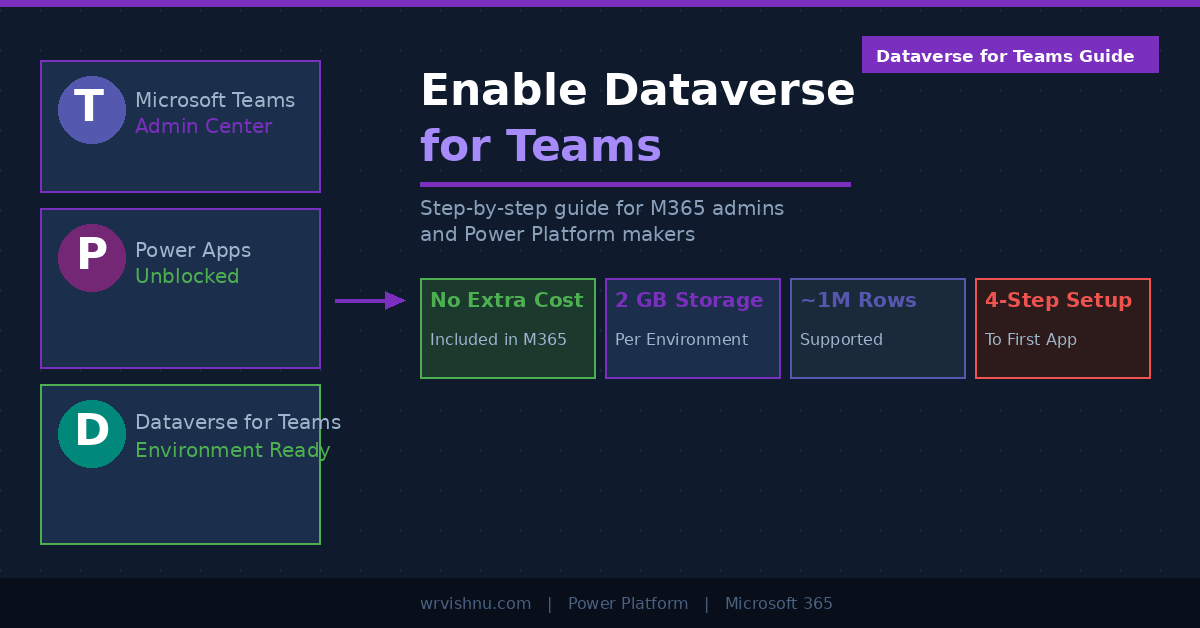
Each Dataverse for Teams environment is tied one-to-one with a specific Team. It includes 2 GB of combined database and file storage and can hold roughly one million rows depending on what you store. The whole thing runs on the same governance model Teams already uses — Owner, Member, and Guest — so there is no separate permission system to learn.
This is not a toy. The same Dataverse engine powers Dynamics 365. The Teams variant simply removes the parts most departmental apps never need: premium connectors, model-driven apps, field-level security, and the rest of the enterprise tier. That trade-off is exactly why it fits inside your existing Microsoft 365 license at no extra cost.
What Can You Build with It?
The platform covers a wide range of departmental scenarios. Help desk ticketing apps, inventory trackers, onboarding checklists, leave request forms, approval workflows, event registration apps, and asset management tools are all proven starting points. Power Apps provides the canvas interface, Power Automate handles the automation, and Power BI can visualise the data once you wire up the connections.
What makes this genuinely useful is that apps built here publish directly to the Team. Every member sees the new tab the moment the maker hits Publish — no separate installation, no IT ticket, no app store submission. If you want to see what a full agent-enabled experience on top of this data layer can look like, browse the Power Platform guides on this site.
Dataverse for Teams Licensing: What You Already Have
Dataverse for Teams licensing is included with Microsoft 365 Business Basic, Business Standard, Business Premium, Office 365 E1, E3, and E5 plans, as well as Microsoft 365 F1 and F3 for frontline workers. Teams Essentials also qualifies. You do not need a standalone Power Apps or Dataverse licence to get started. The official Microsoft documentation on Dataverse for Teams environments has the full licensing matrix.
The one catch: standard connectors only. If your app needs a premium connector — anything beyond the core Microsoft 365 set — you will need a Power Apps per-user or per-app licence on top. That is also the threshold at which upgrading to full Dataverse becomes worth considering.
Phase 1: Admin Setup — Enable Power Apps Across the Tenant
Before any user can create a Dataverse for Teams environment, an administrator needs to unblock and surface the Power Apps app in Teams. This is a one-time effort that takes under 15 minutes.
Step 1: Allow Power Apps in the Teams Admin Center
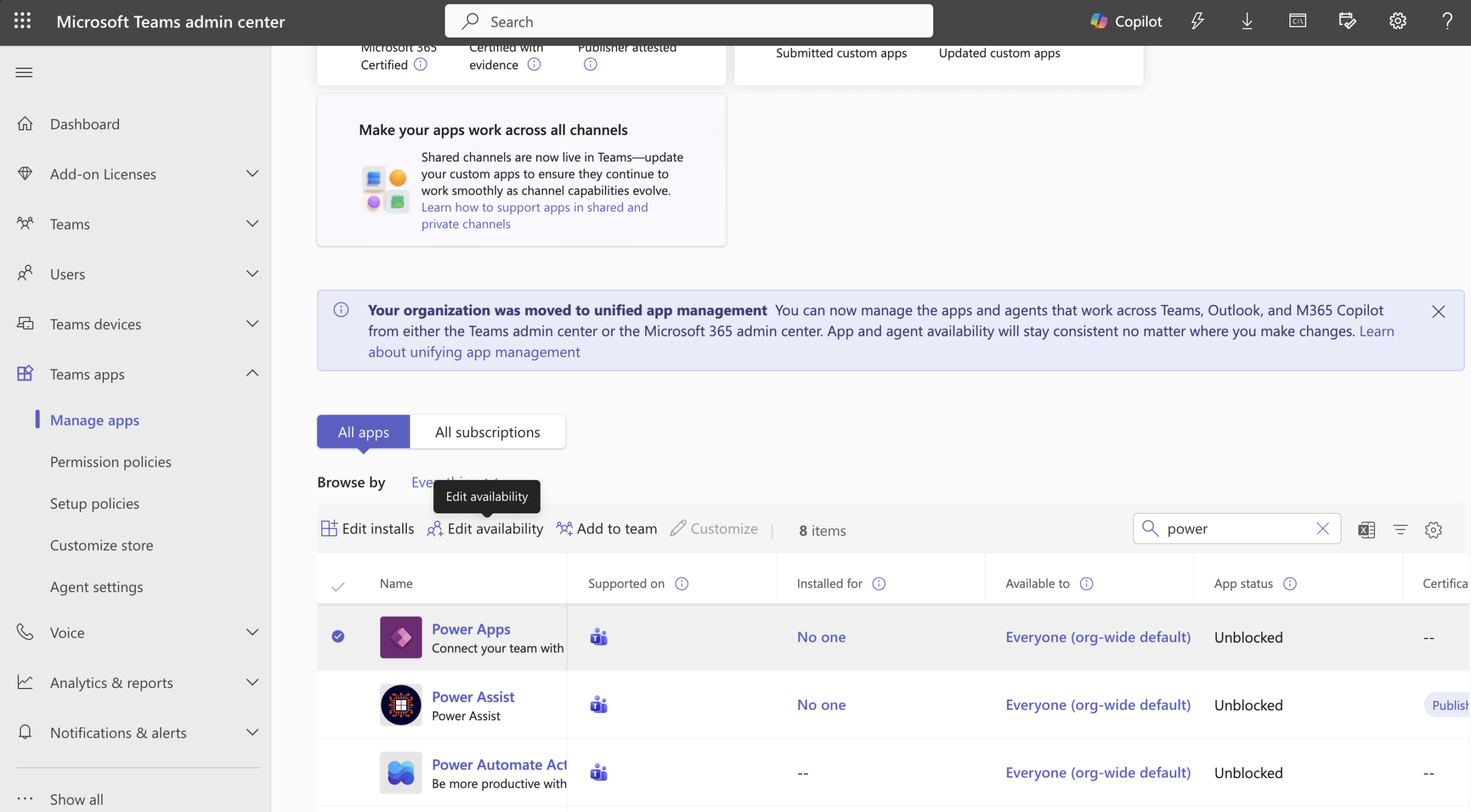
Sign in to the Microsoft Teams Admin Center at admin.teams.microsoft.com. In the left navigation, expand Teams apps and select Manage apps. Search for Power Apps. Confirm the App status column shows Unblocked. If it is blocked, select the app and click Allow.
Once enabled, the app appears under Manage apps with status Unblocked and Available to set to Everyone (org-wide default). The tenant-level unified app management means this change also propagates to Outlook and Microsoft 365 Copilot automatically — no repeat action needed elsewhere.
Step 2: Control Who Can Access the App
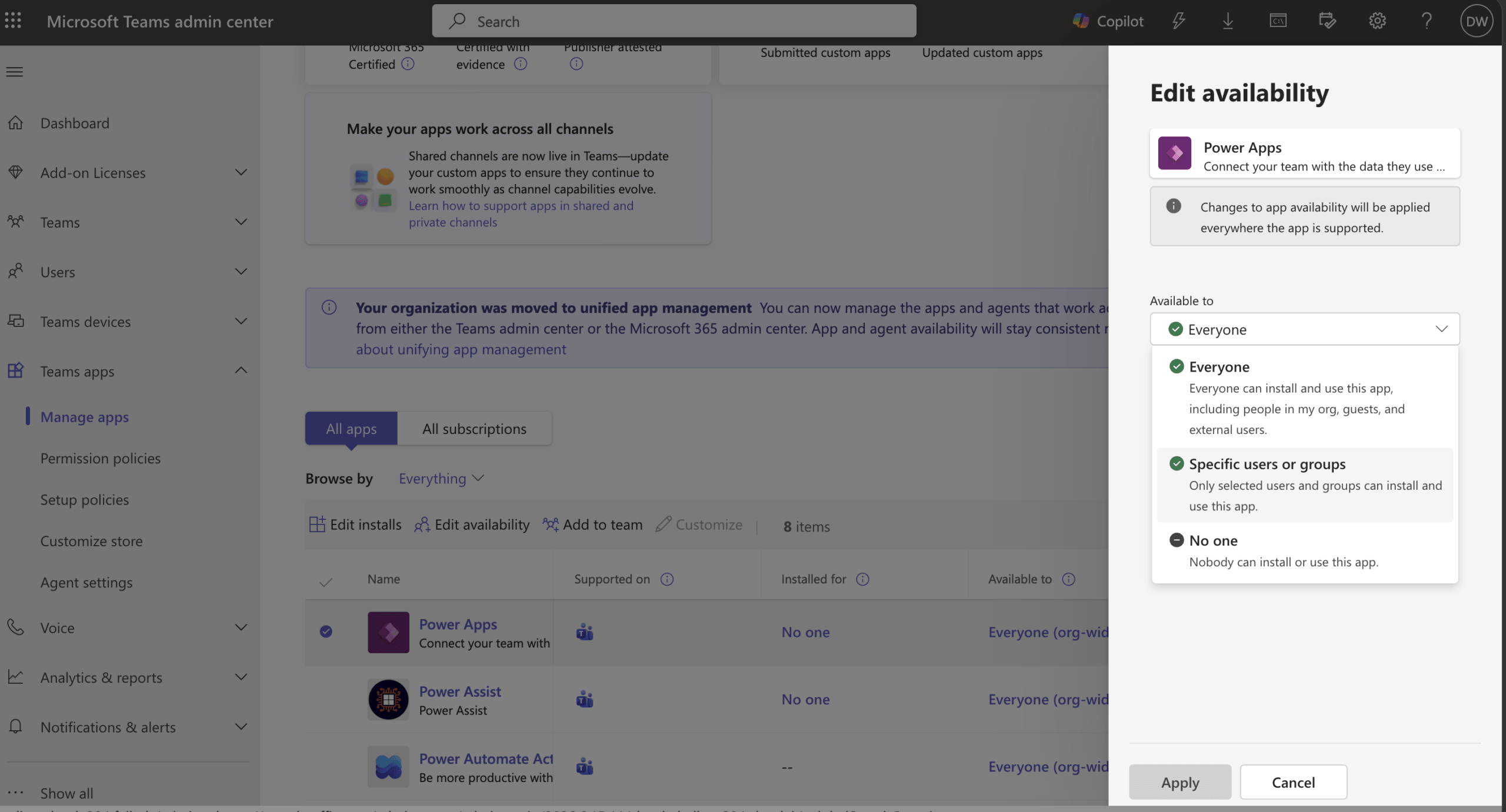
With Power Apps selected in Manage apps, click Edit availability. The panel presents three options: Everyone, Specific users or groups, and No one. For a broad rollout, select Everyone. For a controlled pilot, pick Specific users or groups and define the Azure AD group first. Changes to app availability apply everywhere the app is supported, per the admin center confirmation message.
Step 3: Pre-Pin Power Apps to the Teams Sidebar
In Teams Admin Center, go to Teams apps > Setup policies. Open the Global (Org-wide default) policy or create a scoped policy for a pilot group. Under Pinned apps, click Add apps, search for Power Apps, and add it. Drag it up the list so it appears near the top of every user’s sidebar. Policy propagation can take up to 24 hours.
Phase 2: User Steps — Open Power Apps Inside Teams
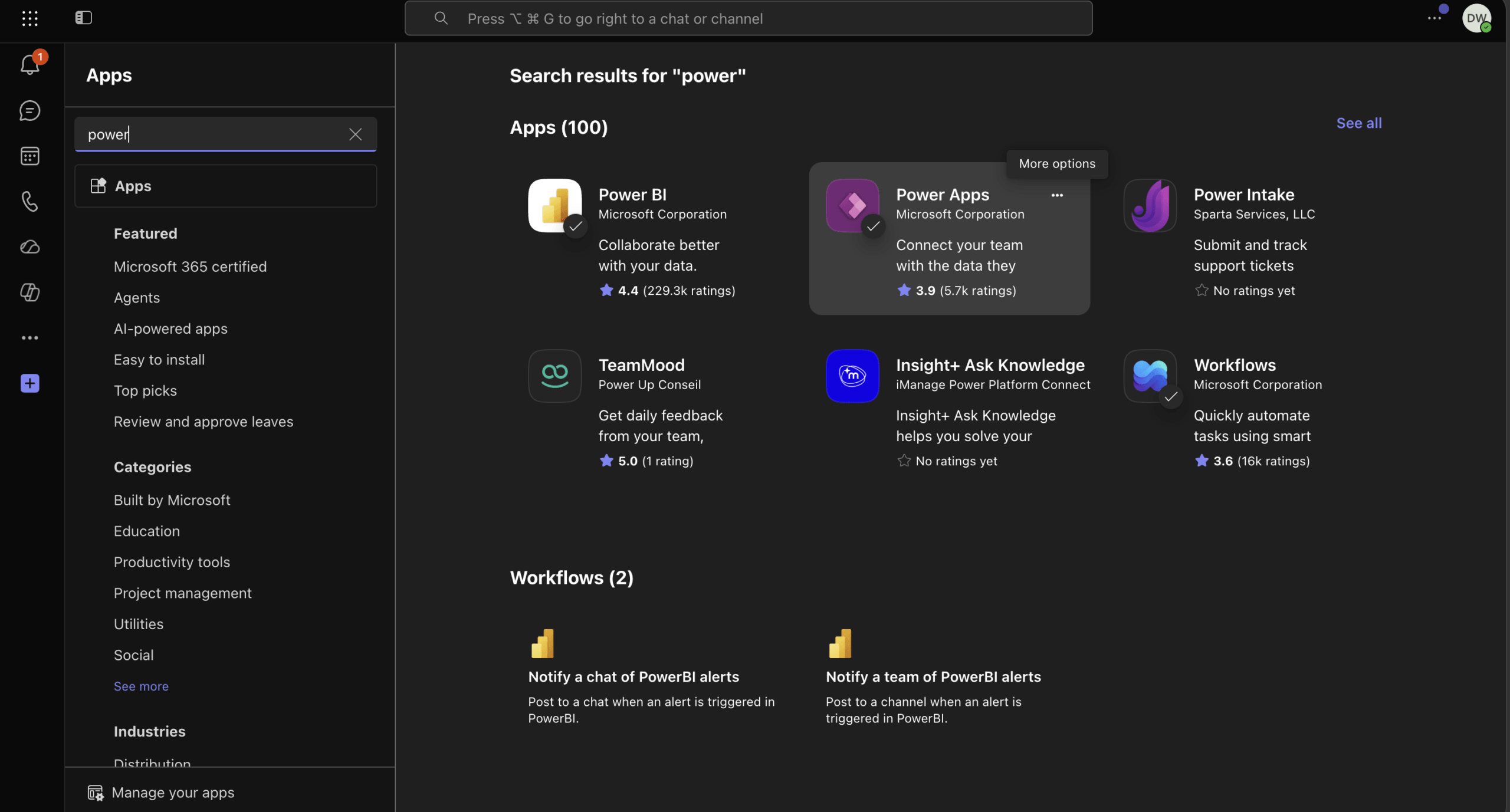
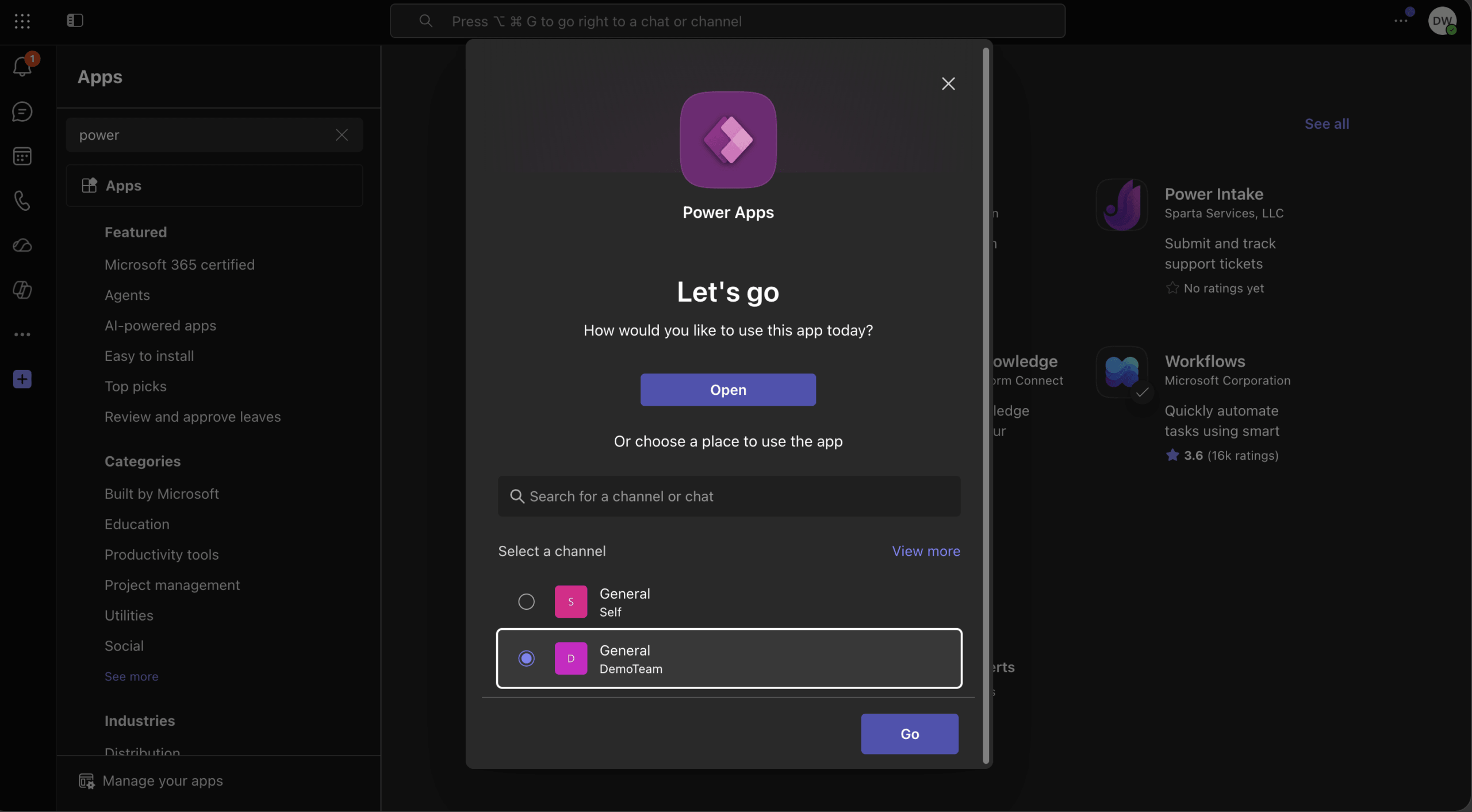
Once the policy propagates, Power Apps appears in the Teams sidebar. Users who do not see it yet can click the Apps icon and search for Power Apps, then right-click the icon and choose Pin. From the Apps store, searching “power” surfaces Power Apps among the results. Clicking it opens a dialog where the user selects which Team channel to install it into — for example, the General channel of a specific team — then clicks Go.
Phase 3: Create Your First Dataverse for Teams Environment
There is no separate button to create a Dataverse for Teams environment. The environment provisions automatically the moment someone builds their first app or table inside a specific Team — a design choice that removes admin overhead for small teams.
Inside Teams, open the Power Apps tab and click Start now. Choose the Team the app will belong to — this is the Team the Dataverse environment will be created for. Click Create. Azure provisions an isolated environment in the background. Provisioning takes 3 to 10 minutes, after which a Teams notification and confirmation email arrive.
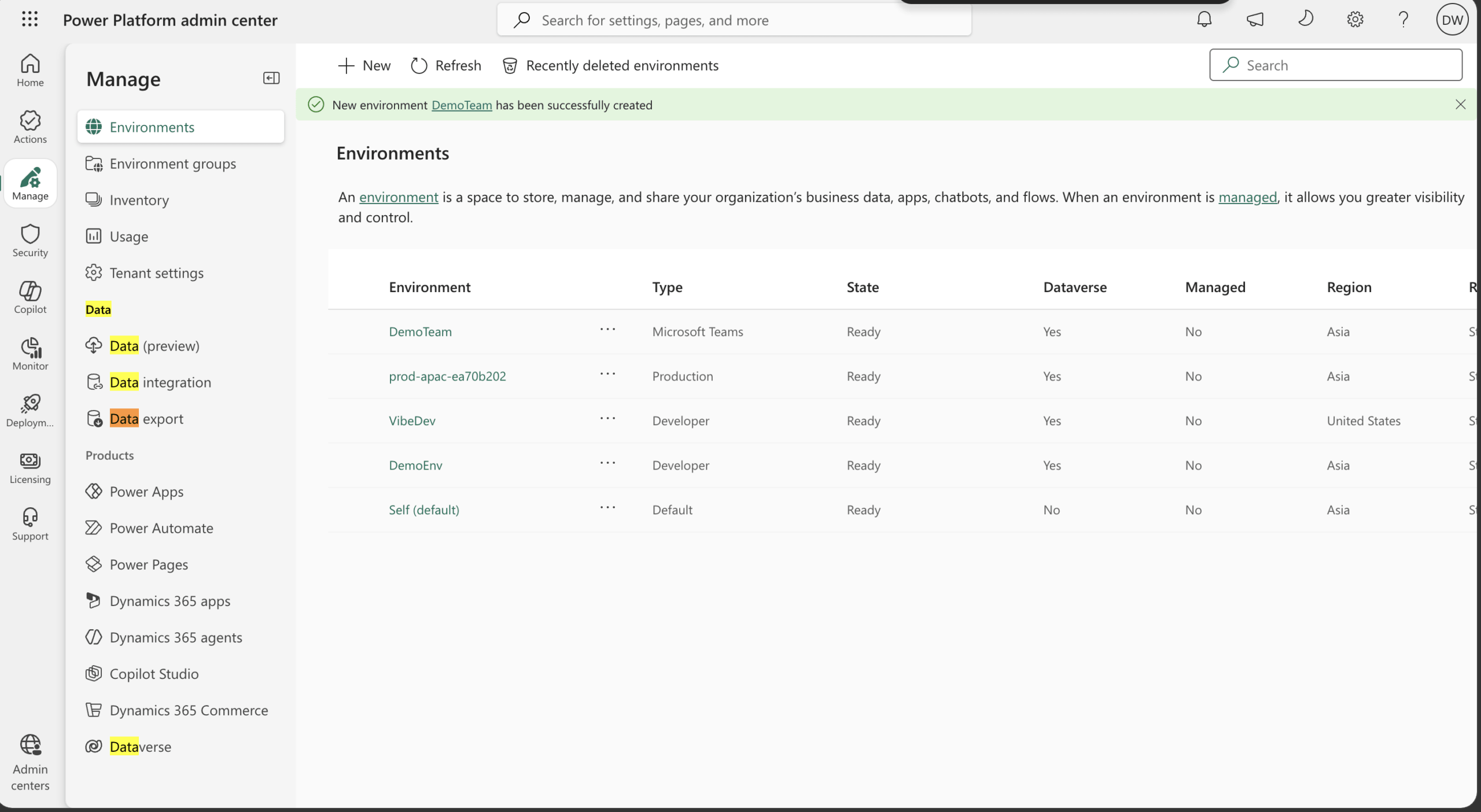
In the Power Platform admin center, the new environment appears under Environments with type Microsoft Teams, State Ready, Dataverse Yes, and the correct region. One important detail: some tenant configurations send the Team’s owners a confirmation email. If no one responds before the timeout, the environment is automatically deleted. Coordinate with the Team owner before you start building.
Phase 4: Build Your First App and Tables
Once provisioning completes, Power Apps Studio opens inside Teams. Name your app and click Save. Use Start with data in the left pane to define tables — columns, data types, choice fields, lookups, and relationships all work the same as in the full product. When the app is ready, click Publish to Teams in the top-right corner. Every Team member can open the app from a tab immediately. No separate installation required.
Environment Settings and Admin Governance
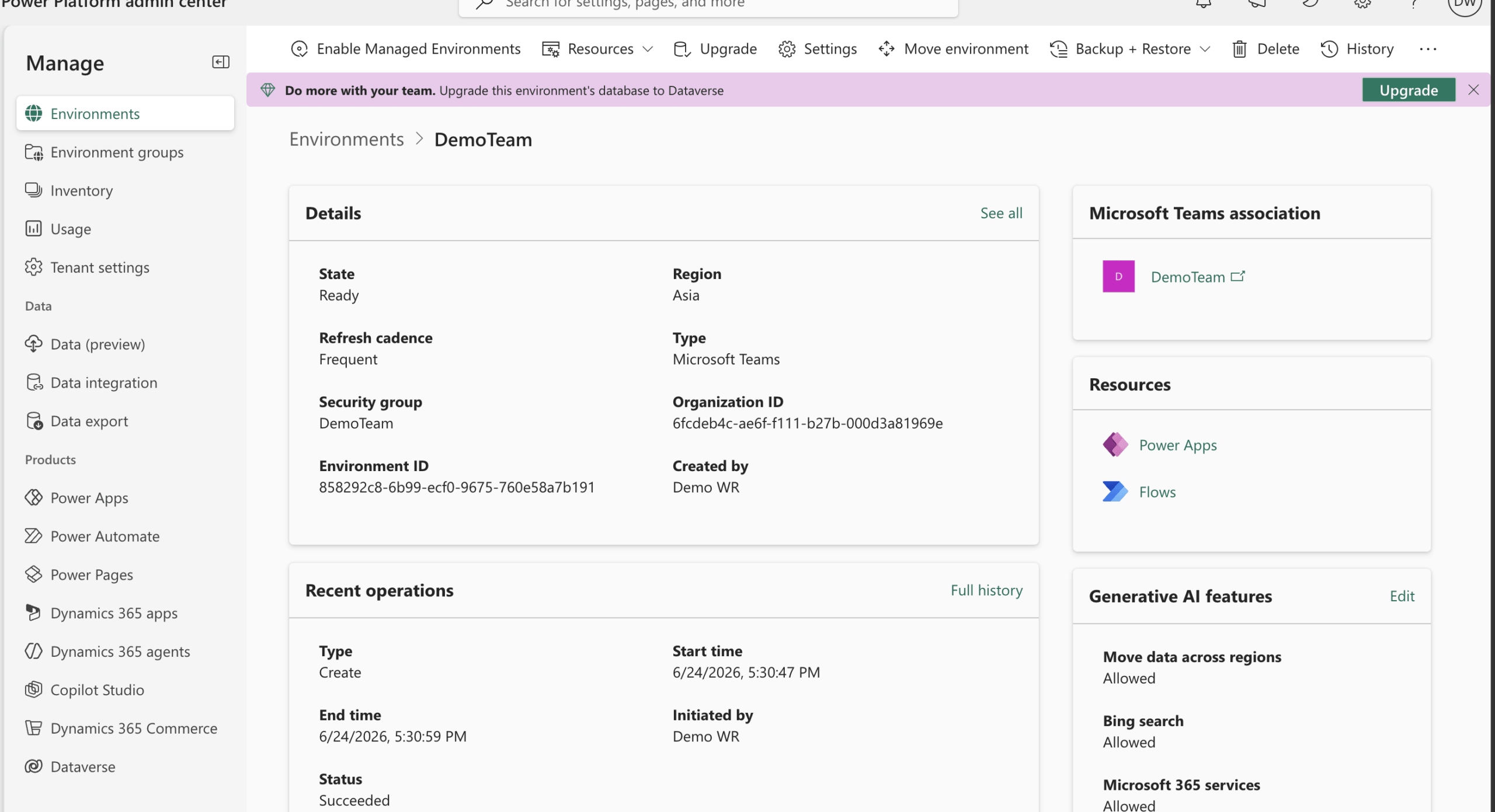
The Power Platform admin center gives administrators full visibility into every Dataverse for Teams environment in the tenant. Clicking into an environment reveals the type (Microsoft Teams), region, security group, organisation ID, environment ID, creation timestamp, and who created it. The Resources panel on the right shows which Power Apps and Flows are deployed inside that environment.
The Generative AI features section controls three settings for that environment: Move data across regions, Bing search, and Microsoft 365 services. Each can be toggled independently. The Upgrade button at the top of the environment detail page is how a tenant admin promotes the environment to full Dataverse when the team outgrows the Teams tier.
Security Roles
Dataverse for Teams mirrors Teams’ own permission model deliberately. Owners can create, edit, and publish apps and tables, and control who else can build. Members can use published apps and, depending on configuration, build their own within the same environment. Guests have restricted access and generally cannot author new resources. No separate permission onboarding is needed — the roles users already have in Teams carry over automatically.
Data Loss Prevention Policies
DLP policies set in the Power Platform admin center apply to Dataverse for Teams environments the same way they apply to any other environment. They restrict which connectors can exchange data with each other, preventing unintended data movement. If your tenant has an existing DLP policy, check whether it covers or blocks connectors your Teams apps need before you start building. For a broader look at Power Platform governance topics on this site, those posts cover the full picture including environment strategy and connector policies.
Dataverse for Teams vs Dataverse: Capacity and Limitations
Dataverse for Teams vs Dataverse is the key planning question. The Teams tier is generous for departmental use — the limits below are the ones that matter most before you commit.
| Limit | Detail |
|---|---|
| Storage per environment | 2 GB combined database and file storage (~1 million rows) |
| Environments per tenant | ~5 by default, plus one per ~20 qualifying licences |
| Connectors | Standard connectors only — no premium without additional licensing |
| Component support | No PCF components, model-driven apps, or common data model tables |
| Power BI | No dedicated Power BI licence or usage rights included |
| Lifecycle | Environment deleted automatically if the parent Team is deleted |
At 80% of the 2 GB ceiling, the Teams maker experience shows a warning banner. At 100%, existing apps and flows continue running, but new apps, flows, and tables cannot be created. The same staged warning applies at the tenant level as the environment cap approaches. Monitor consumption in the Power Platform admin center under Licensing > Capacity add-ons > Microsoft Teams tab — do not wait for the banner.
When to Upgrade to Full Dataverse
A tenant admin can promote any Dataverse for Teams environment to full Dataverse directly from the environment detail view in the Power Platform admin center. The upgrade is typically triggered by hitting the 2 GB storage ceiling, needing a premium connector or AI Builder, requiring field-level security or compliance controls (GDPR, HIPAA, ISO), or wanting the app to outlive the parent Team’s lifecycle.
Before running the upgrade, confirm the tenant has at least as much available Dataverse capacity as the size of the environment being promoted. Check this under Licensing > Capacity add-ons > Microsoft Teams tab in the Power Platform admin center. Microsoft’s upgrade process documentation covers the exact pre-checks and migration steps.
Practical Tips Before You Start
Talk to the Team owner before building anything. The environment lifecycle is tied to the Team. If the Team gets deleted — by intention or by a cleanup policy — the data goes with it. This catches first-time makers off guard more than anything else.
Clean up unused apps and flows regularly. Every resource counts against the 2 GB cap, and deleting unused items frees space immediately. Check consumption proactively rather than waiting for warning banners.
Treat the platform as departmental, not enterprise-wide. If multiple teams need the same app, build it once in full Dataverse and share access — duplicating it across several Dataverse for Teams environments creates maintenance overhead and splits the data. For patterns on how to structure Power Platform apps at scale, the Power Platform posts on this site cover reusable architecture decisions that apply here too.
Final Thoughts
Dataverse for Teams removes the friction that used to sit between “we need a small internal app” and actually having one. The admin setup is a single afternoon of work. After that, any team member can go from idea to working app in one Teams session. The key is knowing where the guardrails are — storage caps, connector limits, and the Team-tied lifecycle — so you can decide with confidence when a Teams app is the right tool, and when it is time to move to full Dataverse.
Frequently Asked Questions
What is Dataverse for Teams?
Dataverse for Teams is a built-in, low-code data platform included with most Microsoft 365 and Teams licenses. It lets teams build Power Apps, automate workflows with Power Automate, and store relational data — all without leaving Microsoft Teams. Each environment provides 2 GB of combined database and file storage and is tied one-to-one with a specific Microsoft Team.
Is Dataverse for Teams free with Microsoft 365?
Yes. Dataverse for Teams is included at no additional cost with Microsoft 365 Business Basic, Business Standard, Business Premium, Office 365 E1, E3, E5, Microsoft 365 F1, F3, and Teams Essentials. You do not need a standalone Power Apps or Dataverse licence. Premium connectors and features beyond the standard tier require additional licensing.
How do I enable Dataverse for Teams in my organization?
A tenant administrator must first allow the Power Apps app in the Microsoft Teams Admin Center under Teams apps > Manage apps, then set its availability to Everyone or a specific group. Once the app is unblocked, users can open it inside Teams, select a Team, and click Start now. The Dataverse for Teams environment is provisioned automatically — there is no separate creation step.
What is the storage limit for Dataverse for Teams?
Each Dataverse for Teams environment includes 2 GB of combined database and file storage, which is enough to hold roughly one million rows of data. At 80% of that limit a warning banner appears in the Teams maker experience. At 100%, existing apps and flows continue running but new apps, flows, and tables cannot be created until storage is freed or the environment is upgraded.
What is the difference between Dataverse for Teams and Dataverse?
Dataverse for Teams is scoped to a single Microsoft Team, supports only standard connectors, has a 2 GB storage cap, and excludes PCF components, model-driven apps, and field-level security. Full Dataverse supports unlimited environments, premium connectors, AI Builder, granular security controls, and compliance frameworks including GDPR, HIPAA, and ISO. Teams environments can be upgraded to full Dataverse when the team outgrows the platform.
What happens to Dataverse for Teams data if the Team is deleted?
The Dataverse for Teams environment is permanently deleted when its parent Team is deleted, and all data in that environment is lost. This is one of the most important risks to plan for before building any app on this platform. If the data needs to outlive the Team, upgrade the environment to full Dataverse first, or ensure the Team has a retention or archive policy in place.
Can guests access Dataverse for Teams apps?
Guests can be invited to a Team and can run published apps within that Team. They cannot install, create, or edit apps, flows, or tables. All access is governed by the same Owner, Member, and Guest roles used in Microsoft Teams itself. Guests do not have direct API access to the Dataverse for Teams environment.
How long does it take to provision a Dataverse for Teams environment?
Initial provisioning takes between 3 and 10 minutes after a user clicks Create inside the Power Apps app in Teams. Once complete, a notification appears in Teams and a confirmation email is sent. Some tenant configurations also send the Team’s owners a confirmation email — if no one responds before the timeout, the environment is deleted automatically.